
Identify the software
Read the application name and publisher together. Similar names do not always identify the same package.
Device health and software inventory
Review device connectivity, reported health and installed software in customer context. Follow an application back to its devices, investigate gaps against the expected setup, and verify the next action with fresh data.
For IT administrators and MSP technicians. Available data depends on the installed agent, collection settings, permissions, connected Microsoft services and the last successful report.
Device health monitoring helps technicians identify reported problems such as offline devices, low disk space, antivirus or firewall issues, and unfinished updates. Software inventory records the applications and versions reported by devices. MSPControl brings these reviews into its customer and device workflows, with separate Microsoft Intune and Defender context where available. Inventory is evidence for a review, not proof that every device or application has been discovered.
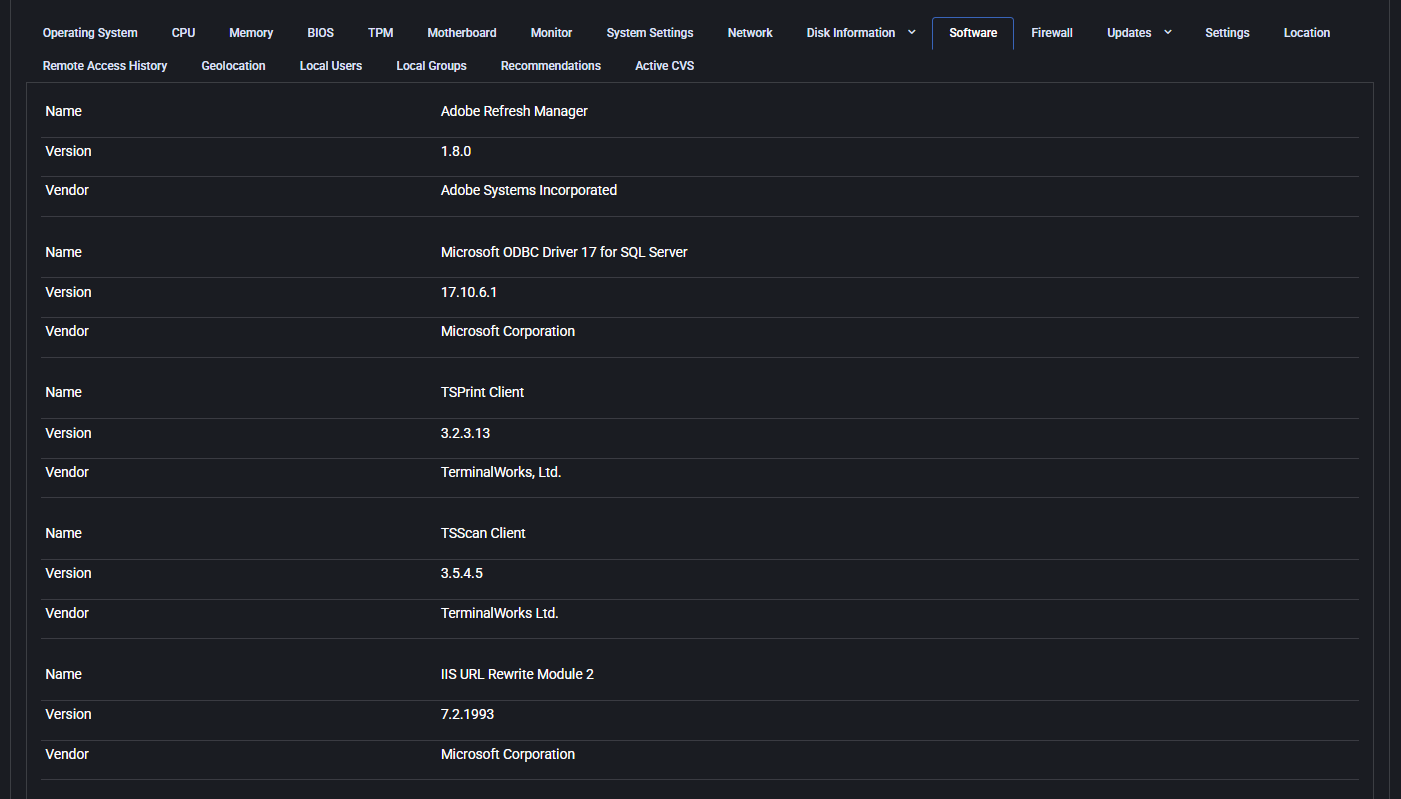
Read the application name and publisher together. Similar names do not always identify the same package.
Check the version against the customer’s approved requirement. An inventory entry is not a deployment result.
Confirm collection and the intended device before investigating missing software. The screenshot shows an earlier layout; available fields vary by version.
The operating workflow
Open the intended organization and device population. Compare the records with the devices you expect to manage. A missing row can reflect onboarding, permissions, filters or unavailable collection; investigate the gap before calling the inventory complete.
Review connectivity and the last check-in before trusting a device summary. A recent heartbeat confirms contact, but does not by itself establish that every software, security or hardware field was collected at the same time.
Inspect the available disk-space, antivirus, firewall, update and pending-reboot information. Open the relevant device detail rather than treating one green indicator as an overall security or reliability verdict. Record unknown or stale signals separately.
Use Device Apps to review reported application names, versions, publishers and device counts. Open an application to review its associated devices, or inspect the Software tab of an individual device. Confirm the customer scope before exporting evidence.
Check required software and approved versions against the reported inventory. Review Intune assignments and installation results separately when Intune owns deployment. A catalog entry, an application-name match or a zero device count is not a reliable missing-software diagnosis on its own.
Continue into the supported patch, application, device-policy or Microsoft workflow. Coordinate changes with the customer, inspect task errors and obtain fresh results. Keep unresolved gaps with an owner; an accepted request is not evidence of a successful installation.
What MSPControl supports
Start with the data MSPControl actually has. Agent reporting, Intune application records and Defender findings have different meanings and prerequisites.
Device views expose connectivity, last heartbeat, agent version and available disk, antivirus, firewall, update and restart information. Individual device sections provide the underlying reported details.
Device Apps groups reported applications by name and exposes versions, publishers and distinct device counts. Application details can show associated devices and export results; a device’s Software tab shows its reported application list.
Organization-scoped application queries retain customer context. Eligible Intune application records can appear alongside reported software. Their availability and management actions depend on the organization’s configuration and permissions.
Where the device is matched to collected Microsoft Defender data, MSPControl can show exposure, recommendation and weakness context. Missing Defender data does not mean zero risk, and these findings do not replace the agent’s software inventory.
Interpretation and coverage
| Signal | Useful evidence | What still needs verification |
|---|---|---|
| Online or last check-in | Recent agent contact and the device’s recorded state. | Whether the particular hardware, software or cloud signal is current. |
| Application name, version and publisher | Reported software available in device and application views. | Collection coverage, expected versions and whether a missing item is actually absent. |
| Device count for an application | Distinct non-deleted device records associated with the grouped application. | These are not necessarily online devices; name grouping is not a unique installer identity or license entitlement. |
| Intune application record | A configured application and its eligible MSPControl association. | Assignment, enrollment and installation result. Intune-only entries can have zero reported devices. |
| Application risk label | A configured Device App Group risk classification when supplied. | It is not, by itself, a live malware verdict or a CVE scan of that installed binary. |
| Defender exposure or weaknesses | Collected Microsoft Defender findings for the matched device. | Onboarding, licensing, permissions, device matching and successful collection. No result is not a clean bill of health. |
| Updates Blocked | MSPControl application-update policy state for the selected application. | Other vendor updaters and management tools may still act; blocking is not an uninstall or complete exception-approval process. |
Configuration and next actions
Common questions
MSPControl provides customer and device views with reported connectivity, hardware, protection and update information. Use the available views and filters within your access scope, then inspect the affected device. Data freshness and collection coverage still determine what can be concluded.
Device Apps provides reported application versions and device counts, with associated-device details and supported exports. A device’s Software tab shows its reported applications. Check scope and freshness; grouping by application name does not prove identical installers, license rights or current execution.
This page describes an inventory-assisted review, not a universal missing-software detection and repair engine. Compare reported software with your expected setup, then use the supported deployment owner and verify its outcome. Missing or stale data can otherwise look like an absent application.
No. An eligible Intune application record can exist without a matching device-reported installation. Check targeting, device enrollment and the installation result in the owning workflow. Application-name matching alone is not installation evidence.
Freshness depends on the reporting source and successful collection. A heartbeat is not a timestamp for every inventory field. Microsoft’s Discovered apps and newer App inventory are separate reports with different refresh behavior; do not apply their schedules as a guaranteed MSPControl agent interval.
No. Device App Group risk membership supplies an application classification in the inspected implementation. Defender recommendations and weaknesses come from separately collected Microsoft data for the matched device. Neither a blank label nor an empty finding list guarantees safety.
Inventory helps identify software and devices for review, but does not establish license entitlement, permitted use, renewal terms or complete application coverage. Reconcile it with contracts and the appropriate licensing records before making a compliance decision.

Self-hosted. Free license available. No credit card required.