
Installation schedule
Review the automatic-update mode, scheduled install day and time. Confirm which policy actually controls the device before changing its maintenance window.
Windows patch management
Bring reported update status, failed installations and restart requirements into the same customer review. Find the devices that need attention, choose the supported update path, and check what actually changed.
For IT administrators and MSP technicians managing Windows devices. Available actions depend on permissions, installed agent and platform versions, device connectivity and the configured update authority.
Windows patch management is the work of identifying needed updates, controlling deployment and restarts, investigating failures, and verifying the resulting device state. MSPControl supports this through Windows update reporting, device policies, agent commands and supported Intune update-ring integration. A status summary or accepted command is not proof that every applicable update is installed or every vulnerability is resolved.
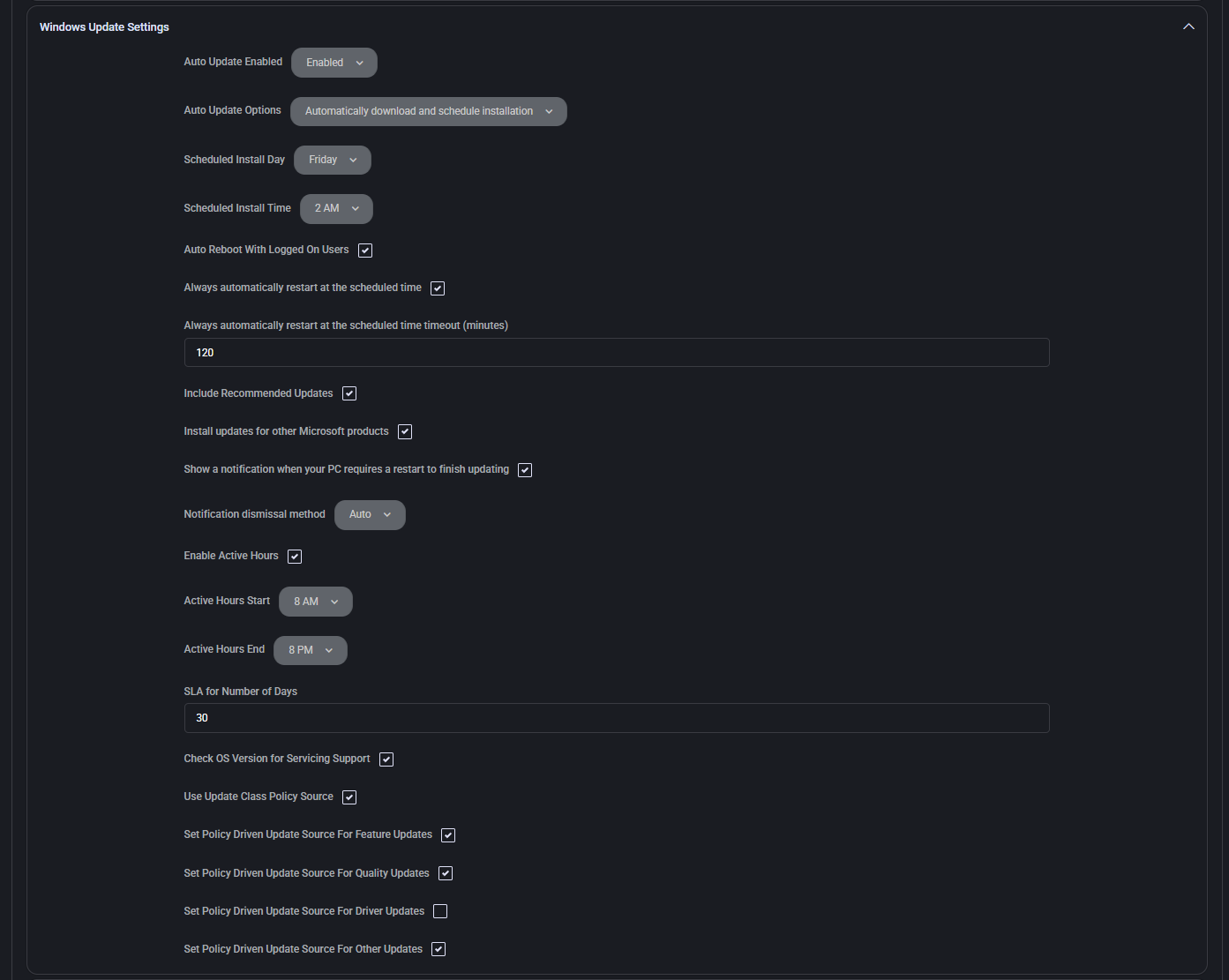
Review the automatic-update mode, scheduled install day and time. Confirm which policy actually controls the device before changing its maintenance window.
Check the logged-on-user options, restart notification and active-hours settings together. The screenshot does not establish that a restart is safe or that other Windows policies cannot override the intended behavior.
Review the servicing-support check and separate source controls for feature, quality, driver and other updates. Verify the effective device state after a change.
The operating workflow
Select the intended organization, device group and Windows population. Check whether updates are controlled by local policy, domain Group Policy, WSUS or Intune. Resolve conflicting policy ownership before changing a schedule or moving devices to another source.
Review reported feature and quality status, device connectivity, last heartbeat and last update information. Separate unknown or stale records from known failures. A device that has stopped reporting needs follow-up even when its last recorded state looked current.
Open the device details to inspect pending critical-class updates, failed updates, update-stack health, reported errors and reboot status. Compare the finding with the intended schedule and deferral policy; an age-based band is not a complete vulnerability assessment.
Review the device profile and restart settings. Start with an approved test group and inspect its outcome before expanding your own rollout. Supported Windows Update for Business rings can express deferrals, deadlines, grace periods and active hours; confirm the effective Intune assignment.
Use the permitted install-updates command or request Windows Update remediation when the update mechanism needs attention. Treat application updating through WinGet as a separate workflow. Commands can require an online agent and may lead to a restart; coordinate the change with the customer.
Inspect command/task results and fresh device reports. If Windows requires a restart, complete it through the approved process and recheck. Record unresolved failures and deferred work with an owner; do not close the review merely because a request was accepted.
What MSPControl supports
Use the surface that owns the next action. The MSPControl Autopilot agent, Microsoft Intune and Windows Autopatch are different components with different prerequisites.
The Windows Update Dashboard provides feature, quality and overall status views with supported organization, OS and location filters. Device diagnostics provide reported pending updates, failures, update-health details and restart context.
Device settings expose supported automatic-update, scheduling, source and restart controls. Authorized actions can queue update installation or Windows Update remediation for an agent-managed device. Verify delivery and completion separately.
In versions containing this integration, WUfB-mode device-template synchronization can create or update an Intune ring and assign it to the resolved device group. Supported fields include deferrals, deadlines, grace period and active hours. Licensing, enrollment, Graph permissions and successful synchronization still matter.
Supported application updating uses Windows Package Manager with configurable task, restart and execution-context settings. The portal can request a WinGet update run. This does not cover every installed application, custom business package or installer behavior.
Interpretation and coverage
| Decision criterion | MSPControl evidence to review | Important boundary |
|---|---|---|
| Visibility across customers | Reported feature/quality status, supported filters and device diagnostics. | Check access scope and freshness. Unknown or stale data is not compliance. |
| Meaning of a status band | The current dashboard uses device diagnostics for feature state and last-update age for quality bands. | Quality bands currently use 7/15-day thresholds; they are not a per-CVE verdict or proof that an intended Intune deferral has been evaluated. |
| Deployment and reboot control | Supported device-policy settings and WUfB ring fields. | Confirm effective policy ownership, Windows support and assignment. Deadlines and other policies can affect restart behavior; active hours are not an unconditional no-reboot guarantee. |
| Failure diagnosis and repair | Reported errors, failed updates, update-health information and the remediation command. | Sending a repair request does not prove the update stack recovered. Recheck health and installation results. |
| Deferred or excluded work | Review supported update-hiding and application block-list settings alongside your change record. | A hidden update or configured exclusion is not a complete approval system with owner, expiry and audit evidence. |
| Third-party application coverage | WinGet-based application updating where supported and configured. | Package availability, version detection, execution context and installer behavior limit coverage. Do not assume every business application can be updated. |
Configuration and next actions
Common questions
Start with the work you need to verify: reliable device inventory, freshness, clear failure reasons, supported policy and restart controls, application coverage, and evidence of completion. Test those requirements on representative devices. This page explains MSPControl’s supported scope; it does not claim an independent best-product ranking.
The portal can queue an install-updates command for an authorized, agent-managed device. The agent must receive and execute it. Check the command or task result, fresh update data and any restart requirement; a submitted command is not proof of installation.
A Windows Update remediation command is available for supported agent-managed devices. It requests a repair attempt, not guaranteed recovery. Review the reported update-health error before using it, then verify the resulting health and a subsequent update operation.
The inspected implementation supports creating or updating a Windows Update for Business ring and assigning it to the device template’s resolved group when WUfB mode is configured. Confirm the installed version, Microsoft prerequisites, write permissions, synchronization result and effective assignment. This does not establish automatic Windows Autopatch enrollment.
No. The dashboard summarizes reported update diagnostics and age-based quality bands. It is not a complete vulnerability scan or a guarantee that all applicable patches are installed. Check current device data, the actual updates, failed operations and pending restarts.
Supported application updating uses WinGet and its configured task, execution context and restart settings. Coverage depends on package and installer support. Review policy ownership and test representative devices; no configuration on this page is a guarantee that every application updates or that a restart can never occur.

Self-hosted. Free license available. No credit card required.