The Entra ID Domain Service page in MSPControl is used to prepare and create the Azure-side configuration for a managed domain service connected to the current organization. This page focuses on infrastructure choices such as the resource group, managed domain, Azure location, virtual network, and subnet layout.
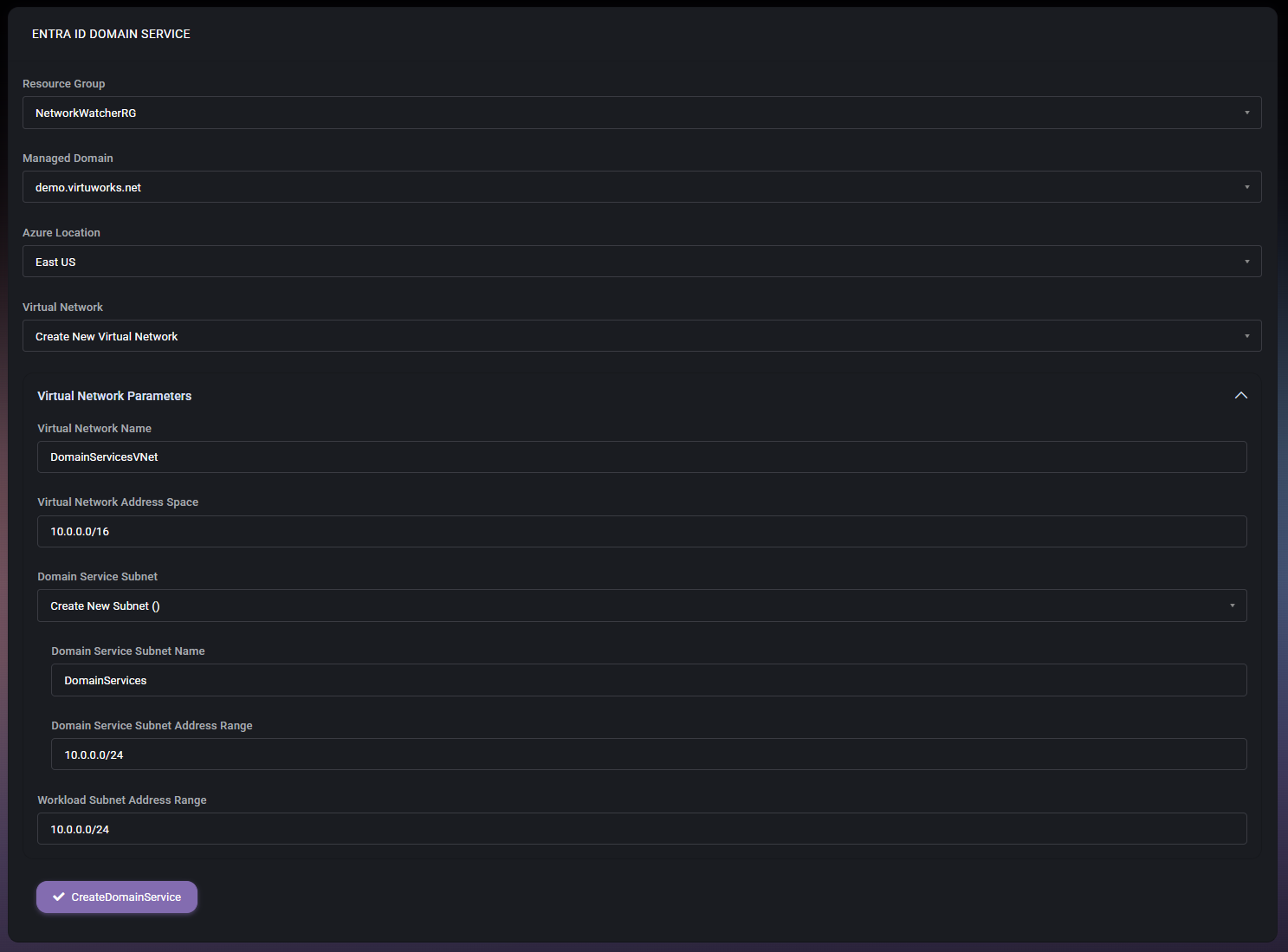
This page is part of Organizations > Azure > Entra ID Domain Service. It is also the destination opened from the Domains area when administrators need to move from domain allocation into Entra ID domain service setup. Because these settings affect Azure network structure and managed domain placement, the values should be reviewed carefully before creating the service.
The Entra ID Domain Service page is a setup screen for defining where the service should be created and how its supporting network structure should look. It combines Azure infrastructure choices and managed-domain settings in one place, which makes it easier to prepare the environment without switching across multiple pages.
In the example shown, the page is being used with Create New Virtual Network selected. That is why the additional Virtual Network Parameters section is visible. This means the page can support both reuse of existing Azure networking and creation of new network components from within the same workflow.
These fields define the main deployment context. Before proceeding, administrators should make sure they are working in the correct Azure region and using the intended managed domain and resource group.
When a new virtual network is being created, MSPControl displays the Virtual Network Parameters section. This section is used to define the network structure required for the domain service.
This section is especially important because network design choices made here affect how the managed domain service will fit into the broader Azure environment.
The Virtual Network dropdown determines whether MSPControl should work with an existing Azure virtual network or build a new one as part of the setup. When an existing network is selected, administrators would use the already prepared Azure network structure. When Create New Virtual Network is selected, MSPControl exposes the additional network parameters needed to define the virtual network and subnet values directly on this page.
The same logic applies to the Domain Service Subnet selection. If a new subnet is being created, MSPControl asks for the subnet name and address range. This makes the page flexible enough to support both fresh deployments and environments where the Azure networking already exists.
The CreateDomainService button starts the domain service creation process using the values entered on the page. This is the final action that tells MSPControl to use the selected Azure and network settings for the new service.
Before clicking this button, administrators should confirm that the resource group, domain, region, virtual network choice, and subnet values all match the intended Azure design.
This page connects domain management with Azure infrastructure setup. Earlier in the workflow, domains can be prepared and allocated in the appropriate organization context. This page then takes that domain-related context and applies it to the Azure-side managed domain service configuration.
That makes the Entra ID Domain Service page an important bridge between hosted-organization domain planning and actual Azure deployment. It keeps managed-domain setup tied to the organization rather than leaving it as a separate undocumented Azure task.

Self-hosted. Free license available. No credit card required.
