
Identify the partner
Use the email and guest principal name together. A familiar display name alone is not enough to confirm the intended account.
Microsoft 365 guest access management
External collaboration should not leave forgotten accounts behind. Review guests in customer context, follow up on missing or old sign-in data, and carry approved access decisions through to verification.
For administrators and MSP technicians managing connected Microsoft tenants. Available data and actions depend on the installed version, tenant setup, permissions and licensing.
Microsoft 365 guest access management is the ongoing work of inviting external identities, reviewing why they still need access and changing or removing that access when the work ends. MSPControl provides a Guest Users workspace for the selected organization, with invitations, supported lifecycle actions, expiration records and reports. Resource ownership, approval decisions and SharePoint or OneDrive sharing reviews remain separate parts of the process.
Match the external identity, inspect available dates and choose the next action in the selected customer organization. Layout and available controls vary by installed version.
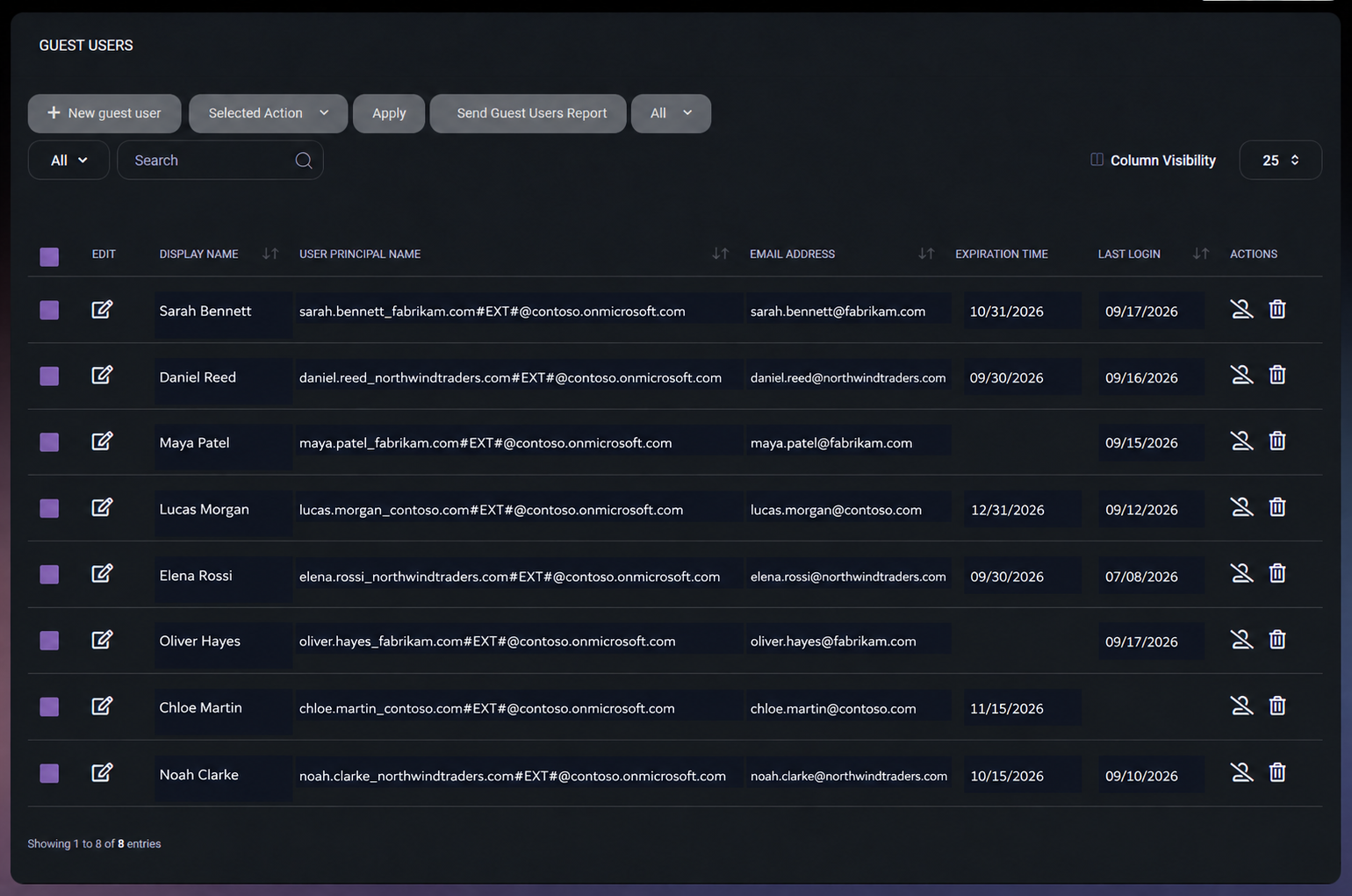
Use the email and guest principal name together. A familiar display name alone is not enough to confirm the intended account.
Blank expiration or Last Login fields leave questions for the reviewer. They are not evidence that the account is safe or unused.
Review the selected rows, choose the approved action and check the resulting account state and task errors.
The operating workflow
Open the customer’s Guest Users workspace. Match the display name, guest user principal name and email address to the intended external partner. Confirm the connected tenant before selecting an individual or bulk action.
Record the business owner, purpose, resource and next review date in your ticket or review record. A directory entry does not establish continuing need. Confirm the decision with the resource owner before removing access.
Review available Last Login and expiration values. The no-login filters include guests whose sign-in date is missing as well as those with an older date. Resolve missing data before concluding that an account is unused; a recorded sign-in attempt does not prove successful resource use.
Check the relevant groups, Teams, enterprise applications and SharePoint or OneDrive permissions in their owning administrative surfaces. Inspect anonymous sharing links separately. The Guest Users list is not an inventory of every resource an external person can reach.
Invite a new guest, update the supported display name or expiration, or enable, disable or delete selected guests. Check the selection and approval first. If using expired-guest removal, confirm the task’s platform-wide expiration-record scope before enabling it.
Inspect task errors and confirm the resulting Microsoft account state and resource access. Deliver the guest report to approved recipients, record the owner’s decision and set the next review date. A report schedule sends evidence; it does not conduct an access-certification campaign.
What MSPControl supports
Use the selected organization’s Guest Users workspace for the supported account operations. Review the result of each change rather than treating submission as completion.
Invite a guest with an email address, display name and message. Set an optional expiration in days and update supported guest details later. Confirm that the invitation and resulting identity are correct.
Enable, disable or delete selected guests. Bulk processing can return individual errors, so verify each intended outcome. Disabling a directory account is not a guarantee of immediate removal of every existing session or sharing path.
MSPControl stores guest expiration dates. A separately configured task processes expired records and attempts deletion, with results and errors available for review. The reviewed removal routine scans expired records across the platform, not only the organization currently open.
Send the supported guest report immediately or on a configured schedule. The report includes identity, expiration and available Last Login data. Confirm mail delivery, recipient permissions and collection results; an email without rows is not evidence of complete coverage.
Interpretation and coverage
| Review surface | What it tells you | What still needs checking |
|---|---|---|
| MSPControl Guest Users | The selected organization’s guest identities, supported actions, expiration and available Last Login. | The owner’s decision and each guest’s actual resource permissions. |
| Last Login and no-login filters | An available sign-in-attempt timestamp or a missing value; an old/missing date can identify review candidates. | Data availability, successful access and business purpose. Missing timestamps are included in no-login results. |
| Expired-guest removal task | A configured process that attempts to delete guests with expired MSPControl records. | Platform-wide record scope, schedule, errors and resulting Microsoft state. It is not instant expiry enforcement. |
| SharePoint and OneDrive sharing | Site and content permissions, guest sharing and anonymous Anyone links. | These settings and links need a separate review; removing one guest is not a universal sharing cleanup. |
| Microsoft Entra access reviews | Microsoft’s review workflows for supported groups, applications and other resources. | Microsoft licensing, eligible scope and configuration. Guest-report delivery in MSPControl is not this feature. |
Configuration and next actions
Common questions
Technicians can work with guests in each connected organization’s context. The reviewed Guest Users workspace supports invitations, updates, lifecycle actions and reports for the selected organization. This is not a promise of one global guest-and-sharing inventory.
The workspace offers no-login filters for 45, 90, 180 and 365 days. They include missing sign-in dates as well as older dates. Treat the results as review candidates, not proof of inactivity. The implementation requests sign-in data through its detected Premium P2 path, and Microsoft permissions and available data still apply.
No. The reviewed implementation maps Microsoft Graph lastSignInDateTime, which represents an interactive sign-in attempt and can include unsuccessful attempts. Check Microsoft sign-in evidence when successful access matters.
The date is stored in MSPControl. Removal depends on the separately configured expired-guest task running successfully. The reviewed routine processes expired records across the platform. Validate that scope, inspect individual errors and confirm the Microsoft result; do not assume immediate enforcement at the displayed time.
No. Guest identity, resource permissions and anonymous links are different access paths. Review SharePoint, OneDrive, groups and applications separately. An Anyone link does not depend on that one guest identity.
No. A scheduled report supplies records for review; it does not obtain owner approval or conduct a Microsoft Entra access-review campaign. Keep the decision in your review process, or configure the applicable Microsoft review feature separately.
Check the selected tenant and users, per-user errors, resulting Microsoft account state and relevant resource access. Record exceptions and the next action. A submitted batch or a sent report does not establish that every change succeeded.

Self-hosted. Free license available. No credit card required.