Intune policy export and import

Reuse Intune Policy Settings Without Rebuilding Them

Start with settings your team has already reviewed. Export a template, import supported values into a separate working template, and check the differences before applying them to a customer.

For administrators and MSP technicians. Check the installed version, available catalog, permissions and Microsoft licensing before applying changes.

ExportRetain the saved source settings and their context.

ImportProcess the JSON into a separate working template.

CompareCheck values, dependencies and missing settings.

PilotVerify customer scope and effective device settings.

What Does Intune Policy Export and Import Do?

Intune policy export and import uses a JSON file to carry configuration settings into another policy or template workflow. In MSPControl, the Intune Device Templates editor supports exporting template settings and importing values that match its available platform catalog. It helps reuse configuration work; the file is not a full tenant backup and does not establish that assignments or device state have been transferred.

Check the Values You Are About to Reuse

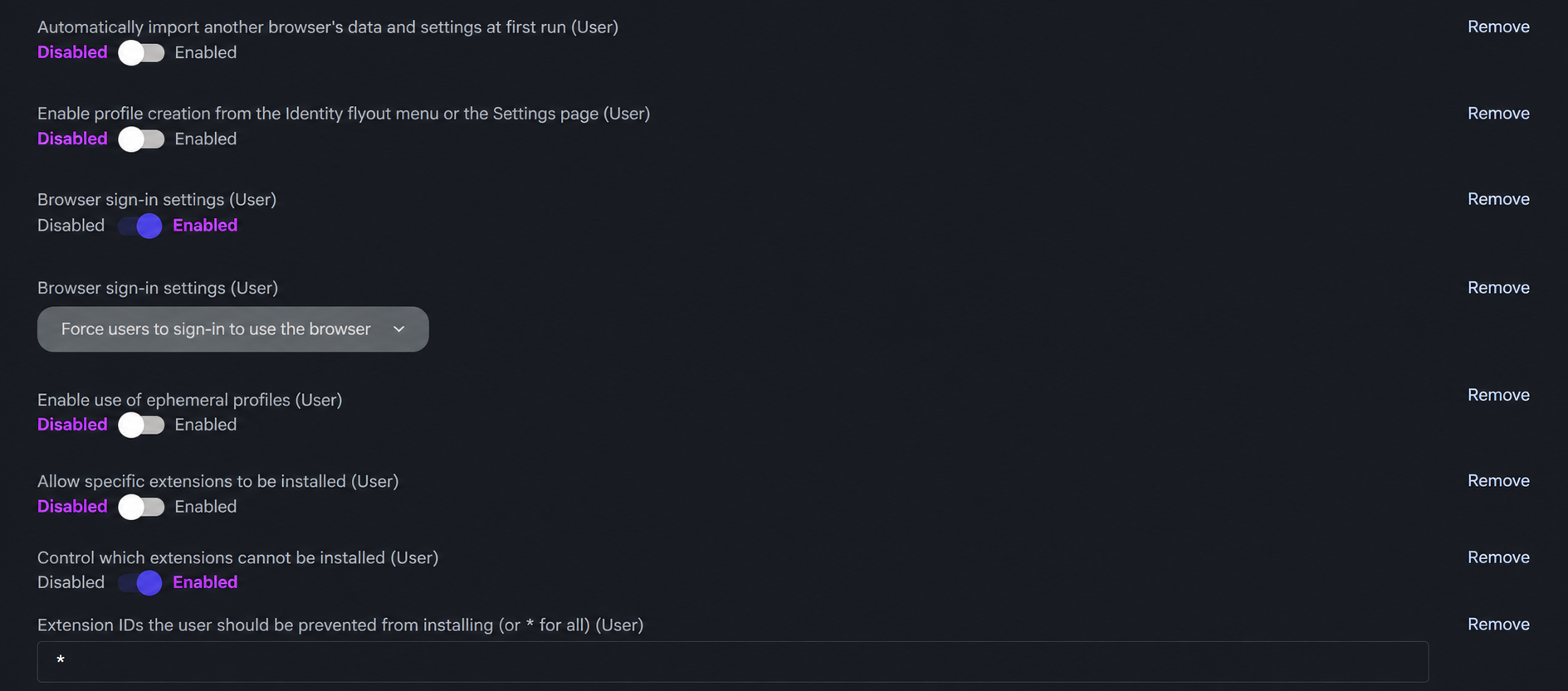
Review both the selected option and its related fields. Browser sign-in and extension controls show why a policy name alone is not enough: compare the actual values before saving the destination template.

MSPControl Intune policy settings with browser sign-in and extension controls populated. Edited crop of a November 2025 product screenshot; annotation removed. Layout varies by version.

The values shown illustrate a settings review, not a recommended baseline. Check dependencies and the intended customer scope separately before deployment.

The operating workflow

Move the Settings, Then Verify the Result

Identify the saved source

Open Settings > Devices > Intune Device Templates and select the intended source. Confirm its name, platform and settings. If changes are needed, review their impact before saving; reopen the saved template before exporting rather than assuming unsaved editor changes are included.

Export and keep the context

Select Export. The reviewed editor downloads exported.json. Rename your retained copy to identify the source, platform and date, and store it with the change record in approved storage. Record intended scope separately; a file name is not assignment or version-history metadata.

Start with a separate template

Create a new template with a clear name and the matching platform. Keep it out of customer use while preparing the import. Editing a shared template can affect organizations already using it. Do not use a production-assigned template as a scratchpad.

Import, then compare

Expand Import, select the JSON file and choose Process. Inspect every intended setting and value, including dependent settings. Only entries matched to the available platform catalog are loaded. Check for missing entries and existing values that were changed; a processed file is not evidence of complete transfer.

Save the reviewed configuration

Resolve validation warnings and save only after the comparison is complete. Reopen the saved template and confirm the values. Importing into the editor and saving the template are separate operations. Keep your source copy and the approved change record.

Apply through a pilot and verify

Use the supported organization profile workflow for the approved customer and a limited test scope. Confirm tenant, permissions, licensing, assignments, synchronization results and effective settings on test devices. Expand only after that verification; a successful template save does not prove policy application.

What MSPControl supports

Use the Template Controls for Their Actual Scope

Export and import operate on supported device-template settings. Keep the saved configuration, customer assignment and resulting device state as separate checks.

JSON export

Export serializes the template’s settings with platform and technology information. The reviewed download is named exported.json. Verify its content before treating it as a retained configuration record.

Catalog-aware import

Process maps file values to settings available for the selected platform. Unmatched or filtered entries are not a guarantee of coverage. Compare the source file with the visible imported selection.

Review before saving

The editor exposes the imported settings for review. Save runs setting-compatibility validation. Validation does not replace testing against the customer’s environment or checking Microsoft-side errors.

Shared templates, customer profiles

Templates are defined centrally and used through organization profiles. Prepare a separate template when a customer needs different values, and verify which organizations already use a template before editing it.

Current boundary: This guide covers supported Intune device-template settings. It does not promise full tenant backup, historical restore, transfer of assignments or object identities, universal compatibility with third-party JSON, or automatic migration across every Intune policy type. Microsoft compliance, app-protection, enrollment and application workflows need their own checks.

Interpretation and coverage

Keep Four Different Outcomes Separate

What you have What it establishes What to verify next
A downloaded JSON file A serialized settings payload from the selected template. Expected settings and values are present; retain source and date context separately.
Settings visible after Process The importer matched and loaded supported catalog entries. Compare missing, changed and dependent settings. Existing entries can remain.
A saved MSPControl template The reviewed configuration was submitted through the template save workflow. Reopen it, check task errors and confirm which customer profiles use it.
A customer profile and assignment The configuration has an intended deployment scope. Confirm Microsoft-side policy and assignment state, device check-in and actual settings.

Configuration and next actions

Open the Guide That Owns the Next Step

Common questions

Intune policy export and import FAQ

Can I export Intune policy settings from MSPControl?

Yes. The Intune Device Templates editor provides Export for its settings payload. The reviewed version downloads exported.json. Confirm the saved template and inspect the file; this is not a tenant-wide configuration archive.

Can I import a JSON file into an Intune device template?

The editor provides Import and Process for supported JSON content. It matches settings against the available catalog and selected platform. Compare all required values before saving; file acceptance alone does not prove that every setting was imported.

Will import replace all existing settings?

No. The reviewed editor merges imported entries into its current settings and can update matching values. Other existing entries can remain. Use a new separate template and verify the complete selection before saving.

Can I move policies between Microsoft tenants this way?

You can reuse supported configuration values as part of an operator-controlled workflow. Customer profiles, assignments, tenant-specific references and Microsoft-side results require separate review. This guide does not promise automatic tenant migration or direct compatibility with every exported policy file.

Does an exported file provide rollback?

It can retain settings for later inspection or a reviewed re-import, but it does not establish a complete restore point. Assignments, external dependencies and device state must be assessed separately. No historical or selective tenant-restoration workflow is claimed.

How do I know the change reached devices?

Check synchronization and task errors, inspect the policy and its assignments in the intended Microsoft tenant, and verify effective settings on pilot devices. Saving or exporting a template is not proof of successful deployment.