Groups
The Groups section in MSPControl is used to manage organization groups, including viewing existing group records, applying bulk actions, importing groups from connected directory sources, exporting group data, and creating new secure groups manually. This page is important for administrators who need to organize users, maintain access structures, and keep group records aligned with directory services such as Active Directory and Entra ID.
Because groups are often used as the foundation for permissions, membership management, synchronization workflows, and policy targeting, this page should be treated as a core administrative area. It combines list management, import tools, filtering, and manual group creation in one place.
Table of Contents
Groups Overview
The Groups page displays the groups associated with the selected organization and provides the tools needed to manage them. From this screen, administrators can filter the list by location, search existing records, control visible columns, and perform actions on one or more selected groups.
The page also supports import workflows from both Active Directory and Entra ID, which makes it useful in hybrid and cloud-connected environments. In addition, administrators can manually create a secure group and optionally configure it to synchronize with Azure AD.
This page is especially useful when administrators need to maintain group consistency across environments, perform directory onboarding, or review the total number of groups already created for the organization.
Groups List Page
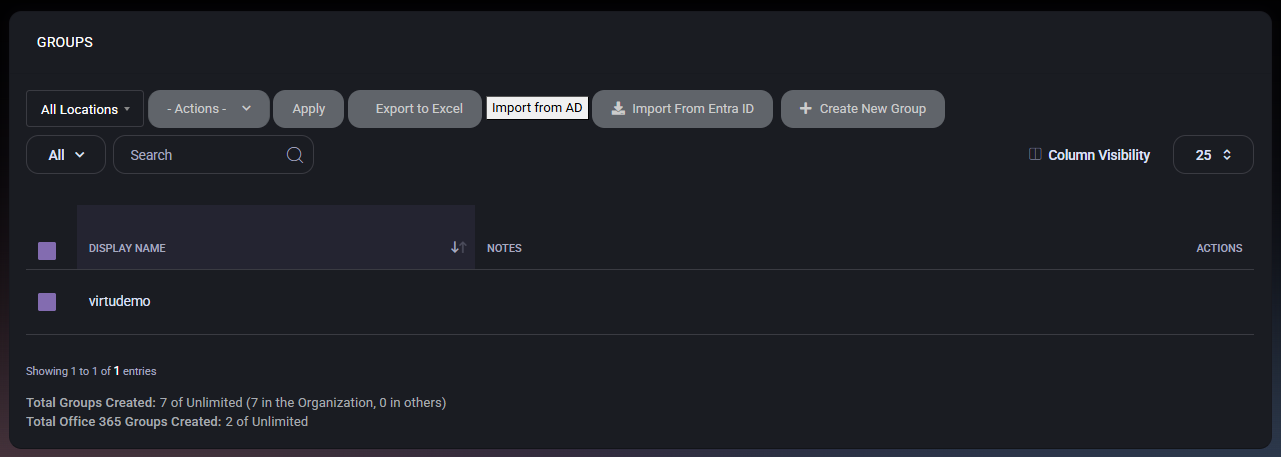
The main Groups page displays existing groups in a table and provides several controls above the grid for filtering and management.
Groups Page Controls
- Location Filter allows administrators to view groups by location context. In the example shown, the current selection is All Locations, which means the page is showing all available location-scoped group entries.
- Bulk Actions Dropdown allows administrators to choose an action that should be applied to one or more selected groups.
- Apply runs the selected bulk action against the checked group records.
- Export to Excel exports the current group list to an Excel file for review, sharing, or offline analysis.
- Import from AD starts the workflow for importing groups from Active Directory.
- Import From Entra ID starts the workflow for importing groups from Microsoft Entra ID.
- Create New Group opens the form used to manually create a secure group.
- Category Filter allows administrators to narrow visible results using the available dropdown options.
- Search helps locate a group by typing part of the display name or another searchable value.
- Column Visibility allows administrators to control which columns are visible in the table.
- Page Size Selector controls how many rows are shown in the table at once.
Groups Table Columns
- Selection Checkbox allows one or more rows to be selected for bulk actions.
- Display Name shows the visible group name.
- Notes shows any note value associated with the group.
- Actions is the row-level action area for group-specific operations.
At the bottom of the grid, MSPControl also shows total group counters for both overall groups and Office 365 groups, which helps administrators understand current group usage at a glance.
Groups Bulk Actions
The bulk actions dropdown provides actions that can be applied to selected groups. In the provided screenshot, the available options are:
- Sync Group is used to synchronize the selected group with the connected directory context. This is useful when the group exists in MSPControl and needs to be aligned with the external identity platform.
- Unsync Group is used to remove or stop that synchronization relationship for the selected group. This is useful when a group should remain managed locally in MSPControl or no longer participate in the sync workflow.
- Set Location is used to assign or update the location associated with the selected group records. This can help keep group organization aligned with the correct office, site, or tenant structure.
Because these actions can affect multiple groups at once, administrators should confirm the selected rows carefully before clicking Apply.
Import and Export Actions
The Groups page includes several actions for bringing group data into MSPControl or taking it out for reporting purposes.
- Export to Excel generates an Excel export of the current list view. This is useful for audits, reconciliation, customer reporting, or offline analysis.
- Import from AD imports groups from Active Directory into MSPControl. This is useful in environments where groups already exist in the on-premise or hosted directory and should be brought under MSPControl visibility or management.
- Import From Entra ID imports groups from Microsoft Entra ID into MSPControl. This is useful when the organization uses cloud-managed group structures that need to be reflected in the platform.
These import options help reduce manual effort and keep MSPControl aligned with the actual directory group inventory used by the organization.
Create Secure Group
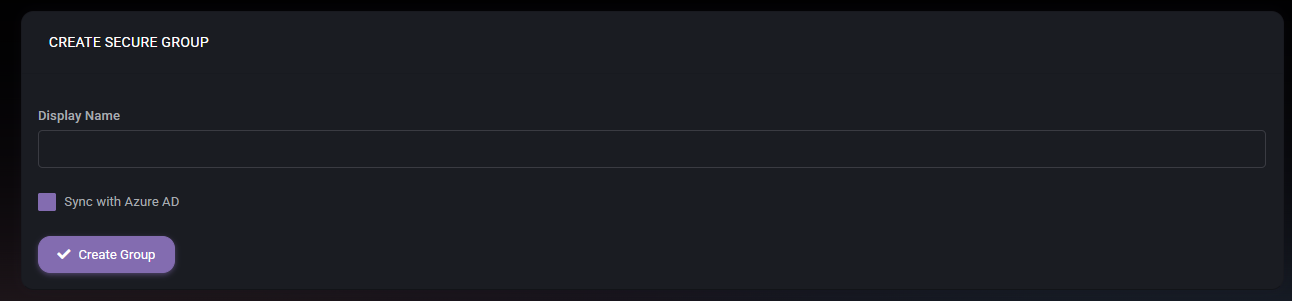
The Create Secure Group page is used to manually create a new group inside MSPControl. This workflow is useful when a required group does not yet exist in the connected directory, when a new group must be created directly from MSPControl, or when administrators want to control the initial setup manually.
Create Secure Group Fields
- Display Name defines the visible name of the new group. This should be clear and descriptive so administrators can immediately recognize the group’s purpose in lists and membership workflows.
- Sync with Azure AD determines whether the newly created group should be synchronized with Azure AD. This option is important in environments where MSPControl-created groups must also exist in the cloud directory context.
This page is intentionally simple, which suggests that the most important decision during creation is the group identity and whether it should participate in Azure AD synchronization.
Create Secure Group Action
- Create Group saves the new secure group using the values entered in the form.
Before using Create Group, administrators should verify that the display name follows the organization’s naming convention and that the Azure synchronization option matches the intended management model.
Groups Summary Counters
At the bottom of the list page, MSPControl displays summary counters that provide additional context about the group inventory.
- Total Groups Created shows the number of groups currently created compared to the allowed limit. In the example shown, the counter also includes a breakdown such as (7 in the Organization, 0 in others).
- Total Office 365 Groups Created shows how many Office 365 groups currently exist compared to the allowed limit.
These counters are useful for capacity monitoring and for quickly understanding how much group structure has already been created for the organization.
How Groups Fit into MSPControl
Groups are typically used as shared membership containers that help control access, communication, permissions, and policy targeting. Because of that, the Groups page often supports workflows far beyond simple naming or listing. Importing from directory platforms, syncing and unsyncing groups, and assigning locations all suggest that group objects are an important structural element within MSPControl.
In hybrid environments, this page can also serve as a bridge between MSPControl and external identity systems by making it easier to keep group structure aligned across on-premise and cloud sources.
Best Practices
- Use clear and consistent group names so administrators can understand the purpose of each group without opening additional detail pages.
- Use Import from AD or Import From Entra ID when existing directory groups should be brought into MSPControl instead of recreating them manually.
- Use Sync Group and Unsync Group carefully, because these actions affect the relationship between MSPControl and external directory systems.
- Review selected rows carefully before applying bulk actions, especially when working with multiple groups at once.
- Use Set Location to keep group records aligned with the correct organizational or site structure when location-based management matters.
- Enable Sync with Azure AD during group creation only when the group is intended to participate in Azure-based directory synchronization.
- Use the summary counters at the bottom of the page to monitor total group growth and Office 365 group usage over time.
- Export the group list when you need a point-in-time snapshot for review, reconciliation, or customer-facing reporting.

