The Service Health page in MSPControl provides a Microsoft 365 service status overview for the selected organization. This page helps administrators quickly identify whether Microsoft services are healthy or currently affected by advisories, incidents, or service degradation events.
It is useful for operational monitoring because it brings Microsoft 365 service health information into MSPControl, allowing administrators to review affected services, check advisory or incident details, and see when each issue was last updated.
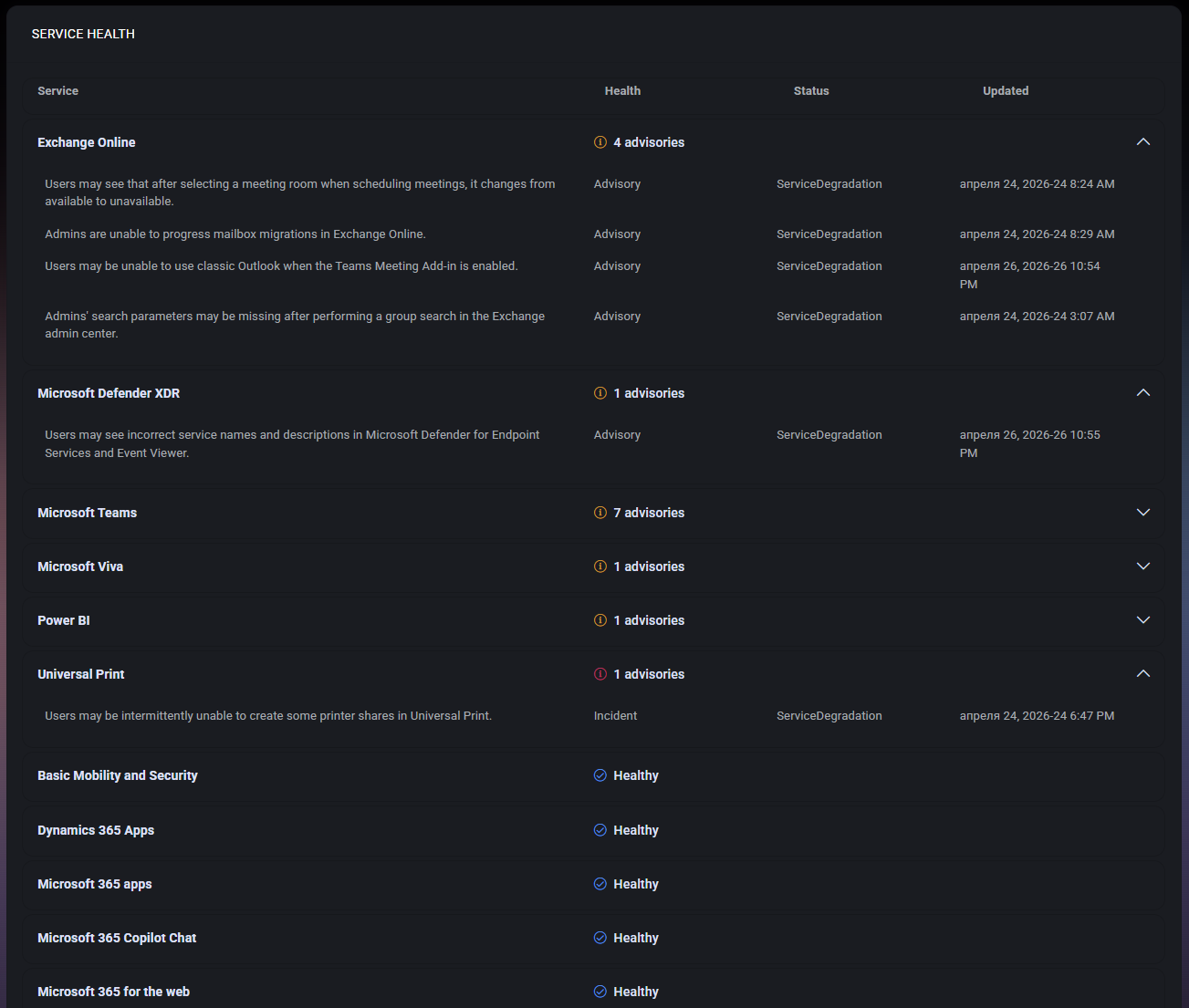
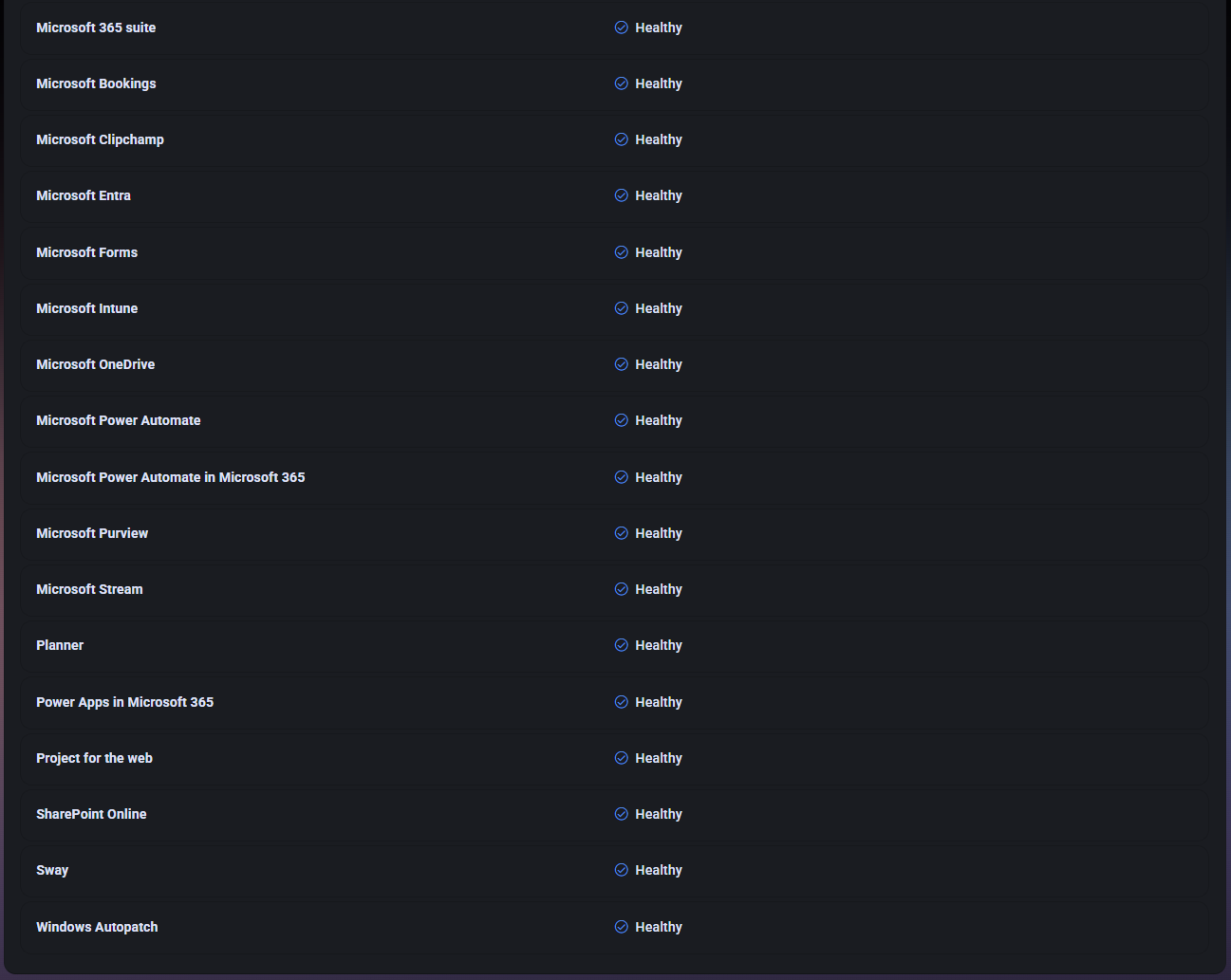
The Service Health page displays the current health state of Microsoft 365 services in a structured list. Each service row shows whether the service is healthy or whether there are active advisories or incidents that may affect users or administrators.
The page is useful when administrators need to confirm whether a reported issue may be caused by Microsoft service degradation rather than by a local tenant configuration, user device, network issue, or MSPControl-side setting.
For example, if users report Exchange Online, Teams, OneDrive, or Microsoft 365 app problems, this page can be checked early in the troubleshooting process to see whether Microsoft is already reporting a known service issue.
The main list displays Microsoft 365 services as expandable rows. Services with advisories or incidents can be expanded to show individual issue descriptions, health type, status, and update time. Services without active issues are shown as Healthy.
In the screenshots provided, some services show active advisories or incidents, while many other services are marked as healthy. This gives administrators a mixed operational view: which services require attention and which services currently do not report known problems.
The Service Health table is organized into the following columns:
These columns help administrators understand both the affected service and the current severity or type of the issue without leaving the page.
When a service row is expanded, MSPControl displays the individual advisory or incident details under that service. Each entry includes a short description of the issue, its health type, status, and last update time.
For example, an expanded service may show several advisories under Exchange Online, each describing a separate user-facing or admin-facing issue. Another service may show only one advisory or one incident.
This expanded view is important because a service can have multiple issues at the same time. Reviewing only the summary count may not be enough to understand the actual user impact.
Services marked as Healthy do not currently show active issues in this view. In the provided screenshots, many services are shown as healthy, including examples such as Basic Mobility and Security, Dynamics 365 Apps, Microsoft 365 apps, Microsoft Entra, Microsoft Forms, Microsoft Intune, Microsoft OneDrive, SharePoint Online, and others.
A healthy status does not necessarily prove that no user can experience a local or tenant-specific issue. It means that the service does not currently have a visible Microsoft service health issue in this list. If users still report problems with a healthy service, administrators should continue troubleshooting tenant settings, user configuration, network connectivity, device state, or application behavior.
The page can show both Advisory and Incident health types.
For example, the screenshot shows services such as Exchange Online, Microsoft Defender XDR, Microsoft Teams, Microsoft Viva, Power BI, and Universal Print with advisories or incidents. Administrators can expand these services to review the specific issue descriptions and decide whether they match user-reported problems.
The Service Health page helps administrators separate Microsoft-side service issues from tenant-specific or local issues. This is useful because many Microsoft 365 problems can look similar from the user’s perspective. For example, Outlook problems, Teams add-in issues, mailbox migration issues, printer share failures, or admin center problems may be caused by service degradation rather than local configuration.
By checking Service Health early, administrators can avoid unnecessary troubleshooting and provide more accurate communication to users or customers. The page also helps MSPs and internal IT teams understand whether multiple users may be affected by the same wider Microsoft service condition.

Self-hosted. Free license available. No credit card required.
