Password Policy
The Password Policy page in MSPControl is used to define the password requirements and password lifecycle behavior applied to the selected organization. This page allows administrators to configure password length rules, complexity requirements, expiration timing, password history, renewal behavior, notification settings, and optional lockout-related controls.
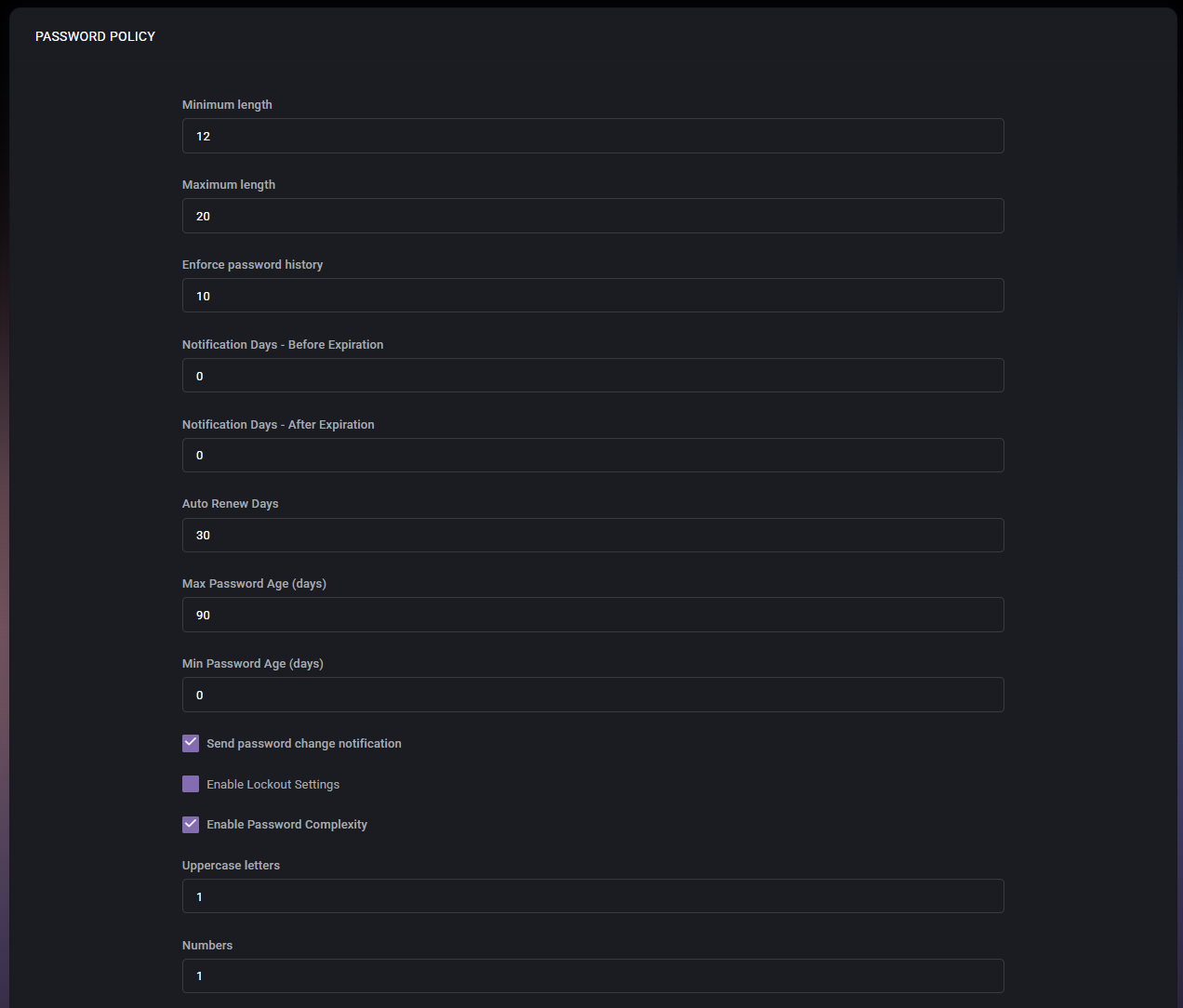

Because password policy directly affects account security and user sign-in behavior, this page should be treated as a high-impact configuration area. Changes made here can influence how strong passwords must be, how often they need to be changed, whether users are warned before expiration, and whether automatic renewal or additional restrictions are enforced.
Table of Contents
Password Policy Overview
The Password Policy page is a centralized place for controlling password rules for the organization. The settings shown on this page define both technical password requirements and operational behavior around password expiration and renewal.
From the screenshots provided, the page includes numeric policy fields, multiple checkboxes, and a final save action. This indicates that MSPControl allows administrators to combine basic password-strength requirements with password-lifecycle rules in one policy screen.
This page is especially useful for organizations that need to align password behavior with internal security standards, compliance expectations, or customer-specific operational requirements.
Password Policy Fields
- Minimum length defines the minimum number of characters required for a valid password. In the example shown, the value is 12. This setting prevents users from choosing passwords that are too short.
- Maximum length defines the maximum allowed password length. In the example shown, the value is 20. This setting can be useful when password-processing systems or connected platforms must stay within a specific character limit.
- Enforce password history defines how many previous passwords are remembered and blocked from reuse. In the example shown, the value is 10. This helps prevent users from cycling back to recently used passwords.
- Notification Days – Before Expiration defines how many days before password expiration users should begin receiving notifications. In the example shown, the value is 0, which suggests that no advance notification is currently configured.
- Notification Days – After Expiration defines how many days after password expiration password-related notification behavior should continue. In the example shown, the value is 0.
- Auto Renew Days defines the number of days related to auto-renew password behavior. In the example shown, the value is 30. This setting is relevant when automatic password renewal is part of the organization’s password-management workflow.
- Max Password Age (days) defines how long a password can remain valid before it expires. In the example shown, the value is 90. This is one of the core password-lifecycle settings on the page.
- Min Password Age (days) defines the minimum number of days that must pass before a password can be changed again. In the example shown, the value is 0, which means users are not restricted by a minimum wait period before making another change.
- Send password change notification enables password-change notifications. When enabled, MSPControl can notify users or related stakeholders when password-change activity is relevant according to policy behavior.
- Enable Lockout Settings enables additional lockout-related password controls. In the screenshot, this option is visible but not enabled. This suggests that lockout behavior can be governed from this policy when needed.
- Enable Password Complexity enables complexity enforcement for password composition. In the example shown, this option is enabled, which means the fields below are active as part of the required password structure.
- Uppercase letters defines how many uppercase letters must be present in a valid password. In the example shown, the value is 1.
- Numbers defines how many numeric characters must be included in a valid password. In the example shown, the value is 1.
- Non-alphanumeric symbols defines how many special characters must be included in a valid password. In the example shown, the value is 1.
Expiration and Renewal Settings
The expiration and renewal fields determine how long passwords remain valid and how MSPControl should behave before or after expiration. These settings are important because they influence both security posture and user experience.
Max Password Age (days) controls the primary expiration window. A shorter value increases password-rotation frequency, while a longer value reduces the number of forced changes. Min Password Age (days) helps prevent users from changing passwords repeatedly in a short period, which can otherwise make password-history rules less effective.
Notification Days – Before Expiration and Notification Days – After Expiration affect how much warning or follow-up users receive. Auto Renew Days supports workflows where password renewal may be managed automatically under defined conditions.
Password Complexity Settings
When Enable Password Complexity is turned on, MSPControl enforces composition rules that require certain character types to appear in the password. In the example shown, the policy requires at least one uppercase letter, one number, and one non-alphanumeric symbol.
Complexity settings are useful when the organization wants to reduce the risk of weak or predictable passwords. These requirements work together with the length settings to form the overall password-strength baseline.
Administrators should make sure the complexity requirements remain realistic for end users while still meeting the organization’s security standard. Overly weak settings reduce protection, while overly restrictive settings can lead to poor password habits if users struggle to remember compliant passwords.
How the Policy Works Together
The password policy should be understood as a combined rule set rather than a collection of isolated fields. For example, a strong minimum length combined with complexity requirements and password history creates a much stronger baseline than any one of those settings alone.
At the same time, lifecycle settings such as expiration age, notifications, and renewal timing determine how users interact with those password requirements over time. This means administrators should review the full policy as a complete security workflow instead of adjusting one field without considering the others.
Page Actions
- Save Changes applies the configured password policy settings to the organization.
Before saving, administrators should review all numeric values and enabled checkboxes carefully, because even a small policy change can affect many users at once.
Best Practices
- Use a strong Minimum length together with complexity requirements instead of relying on short complex passwords alone.
- Keep Enforce password history enabled with a meaningful value so users cannot quickly reuse recently changed passwords.
- Set Max Password Age according to the organization’s security and compliance requirements, but avoid forcing unnecessary changes if other strong controls are already in place.
- Use Notification Days – Before Expiration to warn users in advance so password expiration does not create avoidable support requests.
- Enable Password Complexity only with requirements that remain strong but practical for daily user adoption.
- Review whether Enable Lockout Settings should be used as part of the broader security policy, especially in environments concerned about repeated sign-in attempts or account abuse.
- Check that Auto Renew Days aligns with the organization’s intended password-renewal workflow before relying on automated password handling.
- After changing the password policy, communicate the new expectations clearly to affected users if the settings will alter sign-in behavior.



