


The Azure Monitor page in MSPControl is used to manage Azure Monitor workspaces connected to the current organization. This section gives administrators a central place to store workspace details, maintain monitoring-related configuration, and review whether Microsoft Sentinel watchlist synchronization is enabled for a workspace.
This page is especially useful in Azure-connected environments where monitoring data, analytics, or security-related telemetry must be linked to a specific Log Analytics workspace. Instead of keeping those settings outside the platform, MSPControl allows administrators to manage the workspace connection directly in the Azure section.
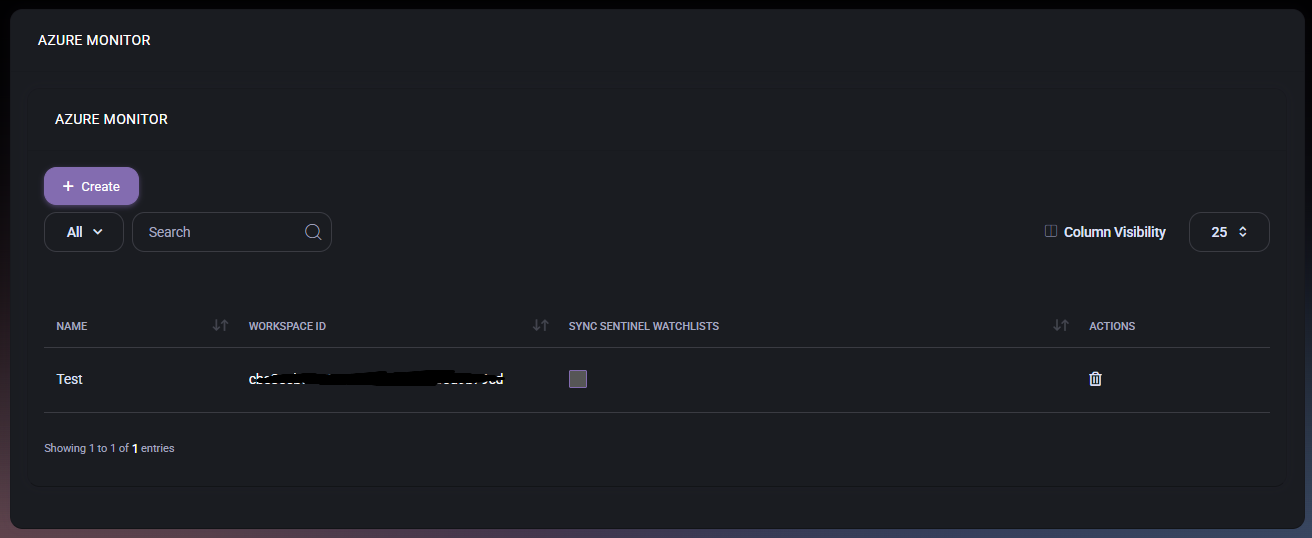
The Azure Monitor section acts as a workspace management page. It allows administrators to see which Azure Monitor workspace records already exist, create a new one, and update monitoring-related configuration for a selected workspace.
Based on the screen layout, this page is centered around Log Analytics or Azure Monitor workspace connectivity rather than general dashboarding. The presence of fields such as Workspace ID, Primary key, and Data Collection Rules indicates that this page is intended for configuration and integration, not only for reporting.
The main Azure Monitor page displays configured workspace records in a table. This list helps administrators quickly review the current workspaces and confirm whether Sentinel watchlist synchronization is enabled for each entry.
This list is useful for confirming which workspaces are already configured and whether they are set up for additional Sentinel-related synchronization.
When administrators create a new workspace or open an existing one, MSPControl shows a dedicated Workspaces page. This page contains the main workspace connection settings and a nested section for Data Collection Rules.
This means the workspace record in MSPControl is not only a label. It serves as a connection point for monitoring-related Azure configuration and optional Sentinel watchlist synchronization.
These fields form the core workspace configuration. The Workspace ID and Primary key are especially important because they represent the actual connection details used by the monitoring integration.
The Data Collection Rules section is used to manage data collection rule records related to the workspace. In the screenshot provided, the section contains a button for creating a new data collection rule and a table for displaying existing rule entries.
At the moment shown in the screenshot, no records exist yet. The section still reveals the intended structure of the feature and shows which details are expected for each rule.
This section suggests that MSPControl is prepared to manage rule-based ingestion or monitoring scope within the workspace context, even if the current example does not yet contain configured rules.
The Sync Sentinel WatchLists option is important because it indicates that the workspace can also participate in Microsoft Sentinel-related workflows. This makes the Azure Monitor workspace relevant not only for general monitoring and analytics, but also for security and watchlist-based processes when the organization uses Sentinel.
Keeping this option on the workspace itself also makes administration easier, because administrators can see at a glance which workspaces are being used only for monitoring and which ones are additionally tied to Sentinel watchlist synchronization.
Because workspace connection settings are sensitive and important for monitoring integration, administrators should verify the entered values before saving.
The Azure Monitor page gives MSPControl a dedicated place for workspace-level monitoring configuration. Instead of storing workspace credentials and Sentinel-related settings outside the platform, administrators can maintain them directly in the Azure section for the hosted organization.
This makes the page useful as both a configuration record and an operational reference point. It connects the organization to the Azure Monitor workspace and provides a place to expand into additional data collection rule management over time.

No credit card required for free, limited license.