Hosted Organizations
The Hosted Organizations section in MSPControl is used to manage organization containers that hold customer-related structure and identity data. In practical terms, this area represents the tenant-level container or organizational unit where organization-specific objects and settings are grouped. Depending on the environment, this can relate to a hosted Active Directory, local Active Directory, or Microsoft Entra Domain Services deployment. It is the place where administrators can review hosted organization entries, create new ones, and manage how MSPControl treats them inside the platform.
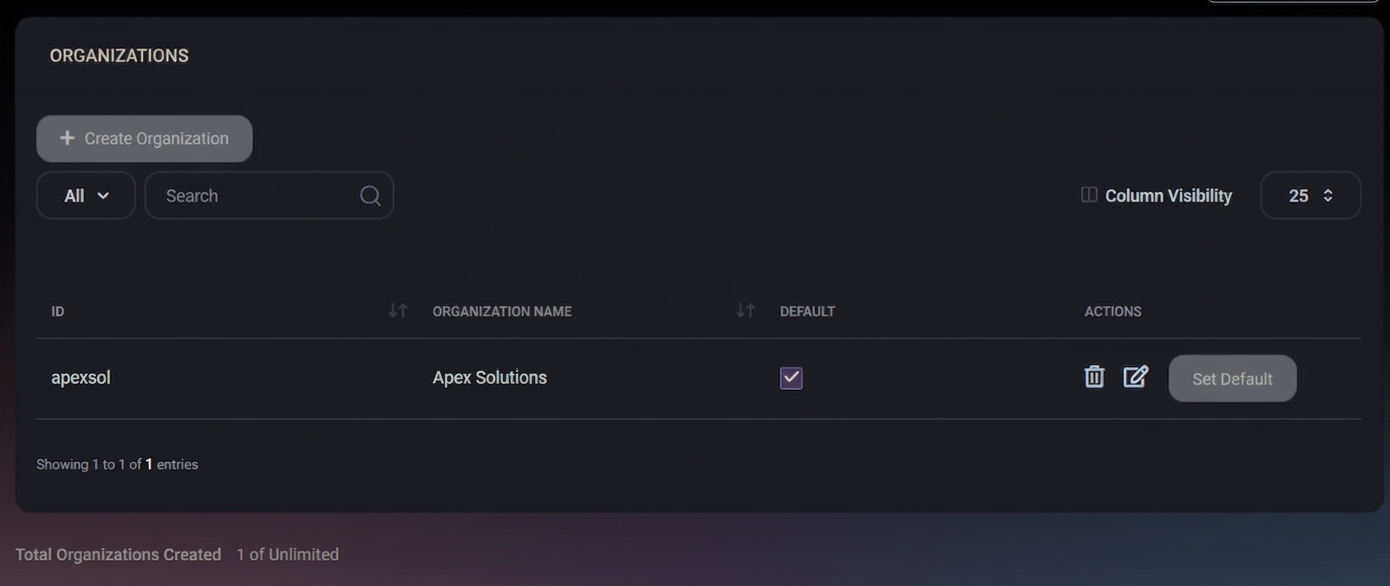
Each hosted organization acts as a logical container for organization-related resources such as users, groups, and other connected records. This makes the page important for environments that rely on clear separation between customer structures, delegated management boundaries, or directory-based organization mapping.
Table of Contents
Hosted Organizations Overview
The Hosted Organizations page displays the list of organization containers available in MSPControl. These entries are used to define and organize the structures that host organization-specific data. In directory-based environments, this usually maps to the organizational unit or equivalent tenant container that represents the customer structure inside hosted AD, local AD, or Microsoft Entra Domain Services.
The page is designed for administrative review and management. It allows administrators to quickly identify hosted organizations, verify which one is marked as the default, and use row-level actions to maintain or adjust the configuration.
Because hosted organizations define the structural boundary for organization data, this page should be treated as a foundational configuration area rather than a routine end-user management page.
Hosted Organizations List Page
The main Hosted Organizations page displays all configured organization containers in a table. This list helps administrators review the available hosted organizations and confirm how they are represented inside MSPControl.
At the top of the page, administrators can create a new organization, search existing entries, control visible columns, and manage how many records are shown in the table. Even in environments with only one hosted organization, this page remains important because it shows the structural identifier and default status used by the platform.
Hosted Organizations Page Controls
- Create Organization opens the workflow for adding a new hosted organization container to MSPControl. This is used when a new tenant, customer environment, or directory-backed organization structure needs to be created.
- Category Filter allows administrators to narrow the visible results using the available dropdown options.
- Search helps find a hosted organization by typing part of the ID, organization name, or other searchable values from the table.
- Column Visibility allows administrators to choose which columns remain visible in the list.
- Page Size Selector controls how many records are shown on one page.
- Sorting Controls on the table headers allow the list to be reordered by column values, which helps when working with multiple hosted organizations.
Hosted Organizations Table Columns
The table provides a compact overview of each hosted organization entry.
- ID shows the internal identifier of the hosted organization. In this context, the ID corresponds to the name that is actually visible in the directory structure for the organizational unit or equivalent container. This makes it an important technical reference field when comparing MSPControl data with hosted AD, local AD, or Microsoft Entra Domain Services structure.
- Organization Name shows the display name of the hosted organization as presented inside MSPControl.
- Default shows whether the hosted organization is currently marked as the default organization container.
- Actions provides row-level controls for managing the hosted organization entry.
Below the table, MSPControl also shows the total number of created organizations compared to the allowed limit. This helps administrators understand current usage of organization capacity.
Hosted Organizations Actions
The Actions column contains the controls used to manage each hosted organization record.
- Delete removes the hosted organization entry from MSPControl. Because hosted organizations act as containers for organization-related structure, this action should be used with extreme caution.
- Edit opens the selected hosted organization so its settings or properties can be modified.
- Set Default marks the selected hosted organization as the default container used by MSPControl.
The Set Default action is especially important in environments with multiple hosted organizations, because the default entry may affect how new records are assigned, how organization context is interpreted, or which tenant container is used when no other specific selection is made.
Since a hosted organization represents a tenant-like structure or directory container, administrators should always confirm they are modifying the correct entry before using any action from this column.
Create Hosted Organization
The Create Organization page is used to add a new hosted organization container to MSPControl. This is the setup screen where administrators define the core identity of the hosted organization and connect it to the correct directory context. Because hosted organizations act as the structural container for users, groups, and related organization resources, the values entered here should be planned carefully before saving.
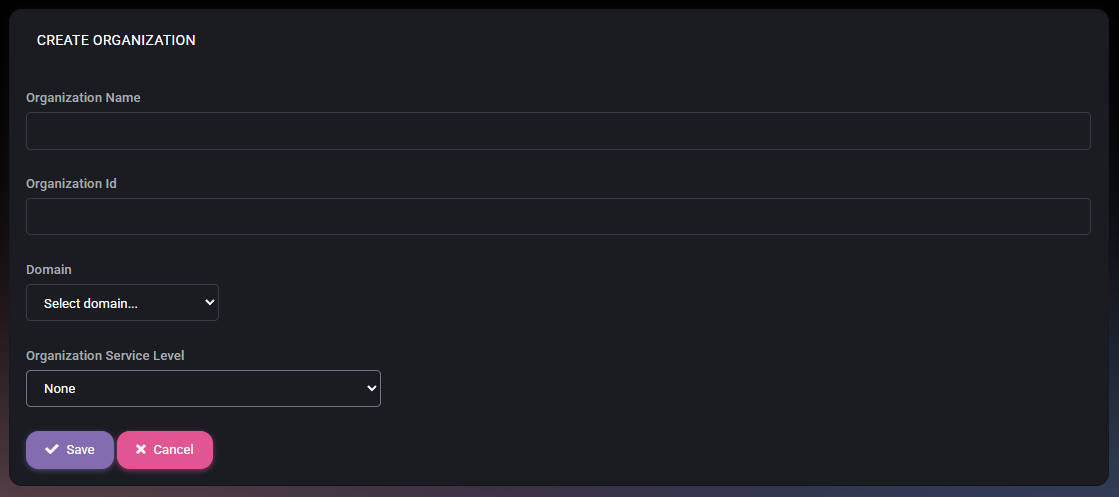
This page is especially important in multi-tenant environments or in deployments where each customer, business unit, or managed entity must be separated into its own hosted AD, local AD, or Microsoft Entra Domain Services container.
Create Hosted Organization Fields
- Organization Name defines the display name of the hosted organization inside MSPControl. This is the human-readable label administrators will see in lists and selection screens, so it should clearly identify the customer, tenant, or organizational entity.
- Organization Id defines the technical identifier for the hosted organization. Based on the page context and earlier list view, this value is the directory-facing identifier that corresponds to the organizational unit name or equivalent container name visible in the connected environment. It should be chosen carefully because it is used as a structural reference rather than just a display label.
- Domain allows the administrator to select the domain where this hosted organization will exist. This field does not create a new domain from this screen. The domain must already exist in Organizations > Organization > Domains before a hosted organization can be created. This means the field is used to select a previously configured domain and link the hosted organization to the correct directory scope. In deployments with multiple domains or multiple connected environments, choosing the wrong domain may place the organization in the wrong identity structure.
- Organization Service Level allows the administrator to assign a service level at the moment of creation. This can be used to reflect support tier, entitlement level, or another organization-wide classification used by MSPControl.
Create Hosted Organization Actions
- Save creates the hosted organization using the values entered on the page.
- Cancel closes the creation process without saving the new hosted organization.
Before using Save, administrators should verify that the organization name is correct, the ID matches the intended directory container naming, the selected domain already exists and is the correct target environment, and the service level reflects the expected organizational classification.
How to Use the Create Organization Page
- Create or verify the required domain first in Organizations > Organization > Domains.
- Enter a clear Organization Name that administrators will easily recognize later.
- Enter the Organization Id using the correct naming convention for the target directory container or OU-style structure.
- Select the correct Domain so the organization is created in the intended hosted AD, local AD, or Microsoft Entra Domain Services context.
- Choose the appropriate Organization Service Level if service classification should be assigned during creation.
- Click Save to create the hosted organization, or Cancel to stop without applying changes.
Why Hosted Organizations Matter
A hosted organization is more than just a display record. It represents the structural container that holds organization-related objects such as users, groups, and other related data. In many deployments, this is effectively the tenant boundary inside MSPControl.
Because of that, the Hosted Organizations page plays a key role in directory alignment and organizational structure management. The ID field is especially important because it reflects the actual directory-visible name of the organizational unit or equivalent container, which means it can be used as a direct reference when checking synchronization, validating environment structure, or troubleshooting tenant mapping issues.
This is relevant whether the environment is based on hosted Active Directory, local Active Directory, or Microsoft Entra Domain Services. In all cases, the Hosted Organizations page helps ensure that the MSPControl organization structure matches the underlying identity container structure used by the deployment.
The domain relationship is also part of this structure. A hosted organization is created inside a selected existing domain, so correct domain preparation in the Domains section is an important prerequisite for correct tenant setup.
For administrators working with multi-organization or multi-tenant environments, understanding this page is essential for maintaining clean separation and correct organizational structure.
Best Practices
- Use the ID field as the main technical reference when comparing MSPControl hosted organizations with the underlying directory container structure.
- Keep the Organization Name clear and easy to recognize so administrators can quickly distinguish hosted organization entries in larger environments.
- Create the required Domain first in Organizations > Organization > Domains before starting hosted organization creation.
- Select the correct Domain during creation, because this determines where the organization container belongs in the connected environment.
- Use the Set Default action carefully, especially in multi-tenant setups, because the default hosted organization may influence where new organization-related operations are applied.
- Review the correct row carefully before using Edit or Delete, since each hosted organization acts as a structural container for broader organization data.
- Treat hosted organizations as foundational tenant or directory containers rather than simple labels, because they define where organization-related resources belong.
- Check the total organizations counter periodically to monitor how many hosted organizations have already been created compared to the allowed platform limit.
- When troubleshooting mapping or synchronization issues, compare the Hosted Organizations ID value directly with the actual OU or equivalent directory container name in the connected environment.

