Websites
The Websites page lets customers manage hosted websites for their organization, including SSL (Let’s Encrypt), redirection, basic health controls (site/app pool), and optional WordPress provisioning. This section is designed for standard IIS-based website hosting where each site is bound to a domain and can be controlled from a single panel.
Prerequisites
Before you create a website, make sure the required resources already exist in your organization:
- Domain – The domain must be added in advance in Account > Domains. The Websites wizard expects domains to be available in the domain picker.
- Database (optional, for WordPress) – If you plan to install WordPress during provisioning, you can either create a new database in the wizard or reuse an existing one. Existing databases and users are managed in the Databases section.
If the domain is not present in the picker, add it first under Account > Domains, then return to Web > Websites.
Websites List
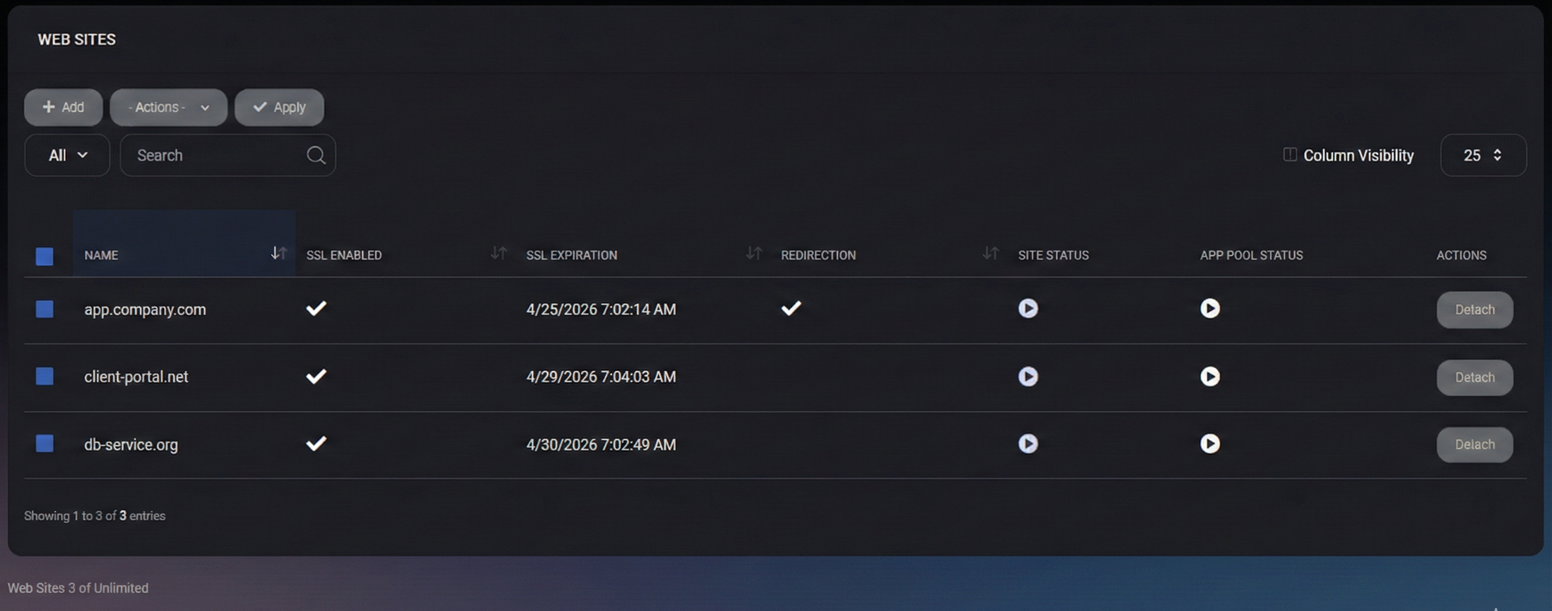
The list provides a high-level view of all websites created for the organization and their current state.
Columns
- Name – Website name (friendly identifier used in the list).
- SSL Enabled – Indicates whether SSL is enabled for the website.
- SSL Expiration – The expiration date/time of the currently installed certificate (if SSL is enabled).
- Redirection – Shows whether a redirect rule is configured for the site.
- Site Status – Operational state of the website (running/stopped).
- App Pool Status – Operational state of the application pool used by the site (running/stopped).
- Actions – Context actions for the site (for example, detach).
Filtering and search
- Search – Filter websites by name.
- All – Quick scope selector for list filtering (depends on your UI configuration).
- Column Visibility – Choose which columns are visible in the list for your session.
Bulk Actions
You can select one or more websites using the checkboxes and apply actions from the Actions menu.
Actions menu
- Start – Starts the selected website(s). Use this when a site is stopped for maintenance or after changes.
- Stop – Stops the selected website(s). Use this to immediately take a site offline without deleting it.
- Restart App Pool – Restarts the application pool for the selected website(s). This is useful after deploying changes or when a site becomes unstable but you do not want to stop the site completely.
After selecting an action, click Apply to execute it.
Create Website
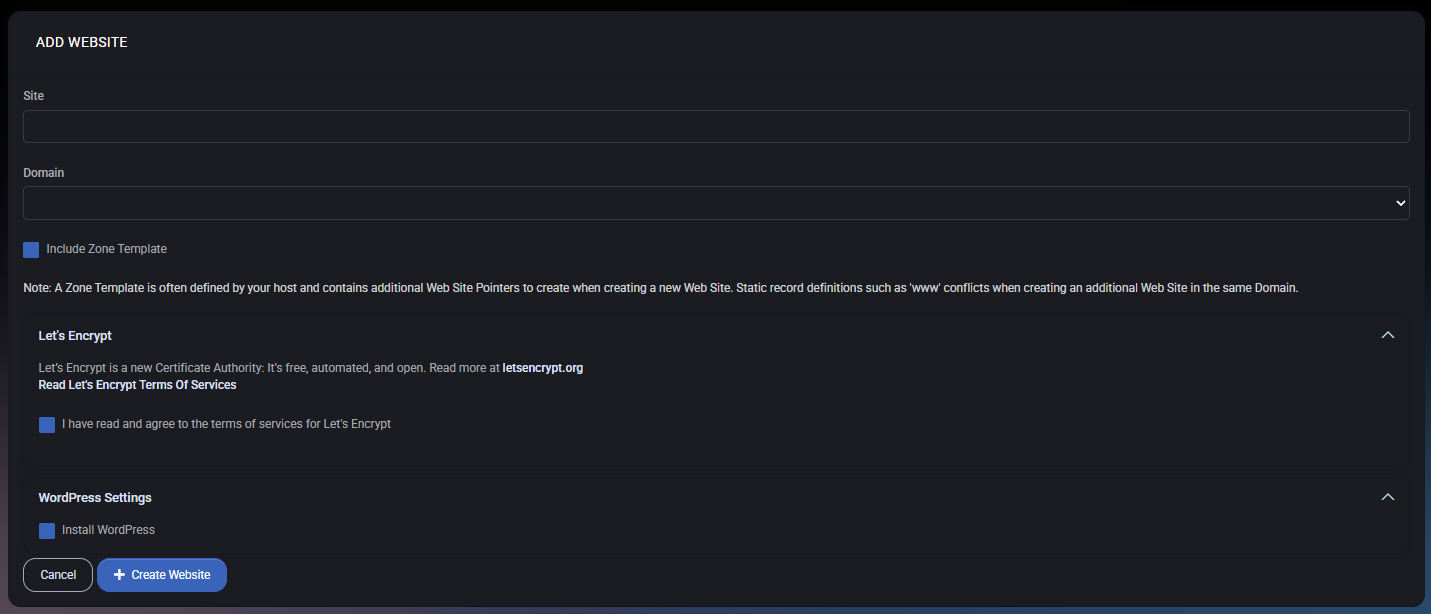
To create a new website, click Add. This opens the website provisioning wizard.
Site
- Site – A friendly site name used to identify the website in MSPControl. Choose a descriptive name (for example, the primary domain or project name).
Domain
- Domain – Select a domain that was previously added under Account > Domains. This domain will be used for binding and for SSL certificate issuance (if enabled).
Include Zone Template
- Include Zone Template – When enabled, MSPControl can apply a predefined DNS zone template for the selected domain (if your hosting environment provides one). This is commonly used to ensure required records (including typical www patterns) are created consistently and to avoid conflicts when adding additional websites under the same domain.
DNS Records
If DNS zone template and DNS management are available for your hosting environment, the wizard may display a DNS Records table:
- Add record – Creates a new DNS record entry.
- Name – Record hostname (for example, www or a subdomain).
- Type – Record type (for example, A).
- Data – Record target (for example, an IP address).
- Global / Site – Indicates whether a record is global for the zone or scoped to the site.
- Actions – Edit/delete record operations (depends on environment configuration).
Let’s Encrypt
The wizard can automatically configure SSL for the website using Let’s Encrypt, which provides free, automated certificates with renewals handled by the platform.
Read and accept terms
- I have read and agree to the terms of services for Let’s Encrypt – Must be enabled to proceed with Let’s Encrypt for the site.
Use Let’s Encrypt when you want a fast, automated SSL setup and renewal flow with minimal manual certificate handling.
WordPress Settings
The wizard can optionally install WordPress as part of website provisioning. Expand WordPress Settings and configure the required parameters below.
Install WordPress
- Install WordPress – Enables WordPress provisioning steps for the new website.
Database configuration (WordPress)
- MySQL Version – Select the MySQL engine version that will back the WordPress installation (for example, MySQL 8).
- MySQL Database – Choose whether to create a New Database or select an Existing Database.
- Database name – Required if you are creating a new database (use a unique, descriptive name).
Important: If you want to reuse an existing database, it must already exist and be visible in the dropdown. You can create and manage databases from the Databases menu.
User configuration (WordPress)
- MySQL User – Choose whether to create a New User or select an Existing User.
- Username – Required when creating a new user. Use a dedicated per-site user where possible.
- Password / Confirm password – Credentials for the selected/created database user.
- Generate Password – Generates a strong password for the database user.
For security, avoid reusing the same database user across multiple sites. If you reuse an existing user, ensure its permissions are limited to the specific database used by this WordPress instance.
Create Website
When the wizard configuration is complete:
- Click Create Website to start provisioning.
- Use Cancel to close the wizard without making changes.
After provisioning completes, the website appears in the list with its SSL state, expiration date, redirection indicator, and operational statuses.
Operations and Troubleshooting
Site doesn’t appear in the domain dropdown
- Ensure the domain is added under Account > Domains.
- Reload the Websites page and reopen the wizard.
Let’s Encrypt cannot be enabled
- Confirm the domain resolves correctly and required DNS records are set (depending on your hosting environment).
- Make sure you accepted the Let’s Encrypt terms in the wizard.
Website is up but changes are not reflected
- Use Restart App Pool to reload the application without stopping the site.
- If needed, Stop and then Start the site.
Best Practices
- Prepare domains first – Add domains under Account > Domains before provisioning websites to avoid wizard interruptions.
- Prefer Let’s Encrypt – Use automated SSL unless you have strict enterprise certificate requirements.
- Use dedicated DB users – For WordPress, create a separate database user per site when possible and keep privileges minimal.
- Restart app pools safely – When a site behaves incorrectly after updates, try Restart App Pool before stopping the website.
- Keep naming consistent – Use a clear naming standard for sites, databases, and users so support and audits are easier.



