User Creation Rules
The User Creation Rules section in MSPControl is used to define automated rule-based behavior for newly created users. Instead of manually assigning the same settings, groups, permissions, or applications every time a new account is provisioned, administrators can create reusable rules that apply predefined actions when specific conditions are met.
This page is especially useful in environments where different user types require different onboarding logic. A rule can be used to automatically apply service-level settings, password behavior, security assignments, group membership, application publishing, and other provisioning-related actions during user creation.
Table of Contents
User Creation Rules Overview
The User Creation Rules page displays all rules that can be used to influence how MSPControl handles new user provisioning. Each rule is designed to evaluate defined conditions and then apply one or more actions to matching users.
This gives administrators a way to standardize onboarding logic across departments, roles, business units, or customer environments. Instead of relying on manual consistency, the rule engine helps ensure that the correct settings are applied automatically during account creation.
User Creation Rules List Page
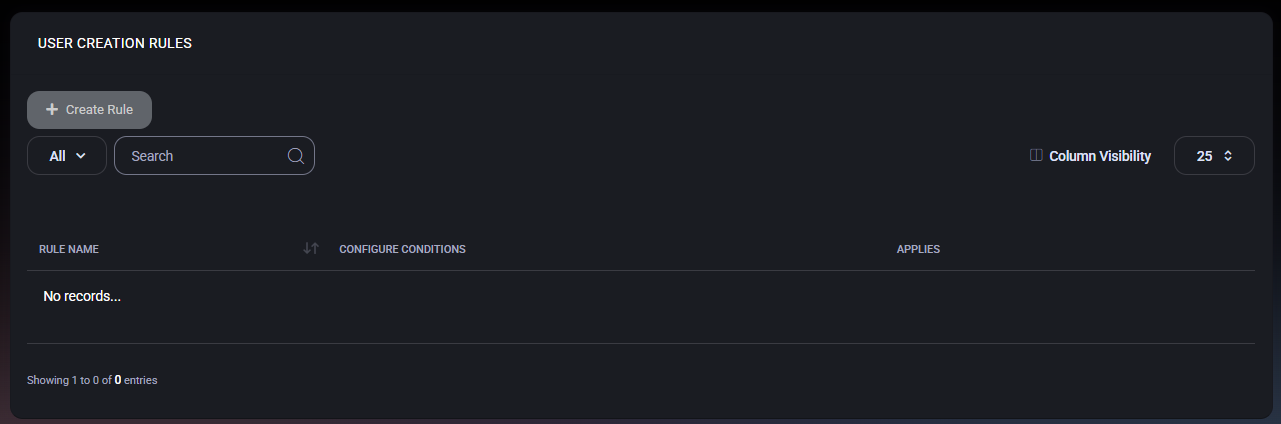
The main User Creation Rules page displays the list of all configured rules in a table. This is the starting point for reviewing existing automation logic and creating new provisioning rules.
At the top of the page, administrators can create a new rule, search existing entries, control visible columns, and manage the number of rows shown in the table. In the provided example, the page contains no records yet, which means no user creation rules have been created for the current organization.
User Creation Rules Page Controls
- Create Rule opens the rule creation window where administrators can define rule logic and provisioning actions.
- Category Filter allows administrators to narrow the visible results using the available dropdown options.
- Search helps find an existing rule by typing part of the rule name or other searchable values.
- Column Visibility allows administrators to choose which columns remain visible in the table.
- Page Size Selector controls how many rule records are displayed on the page.
- Sorting Controls on the column headers allow the rule list to be reordered.
User Creation Rules Table Columns
- Rule Name shows the name assigned to the provisioning rule.
- Configure Conditions shows the conditions that determine when the rule should apply.
- Applies indicates the scope or effective applicability of the rule.
This page is primarily an administrative overview. The real provisioning logic is defined inside the rule creation window.
Create User Creation Rule
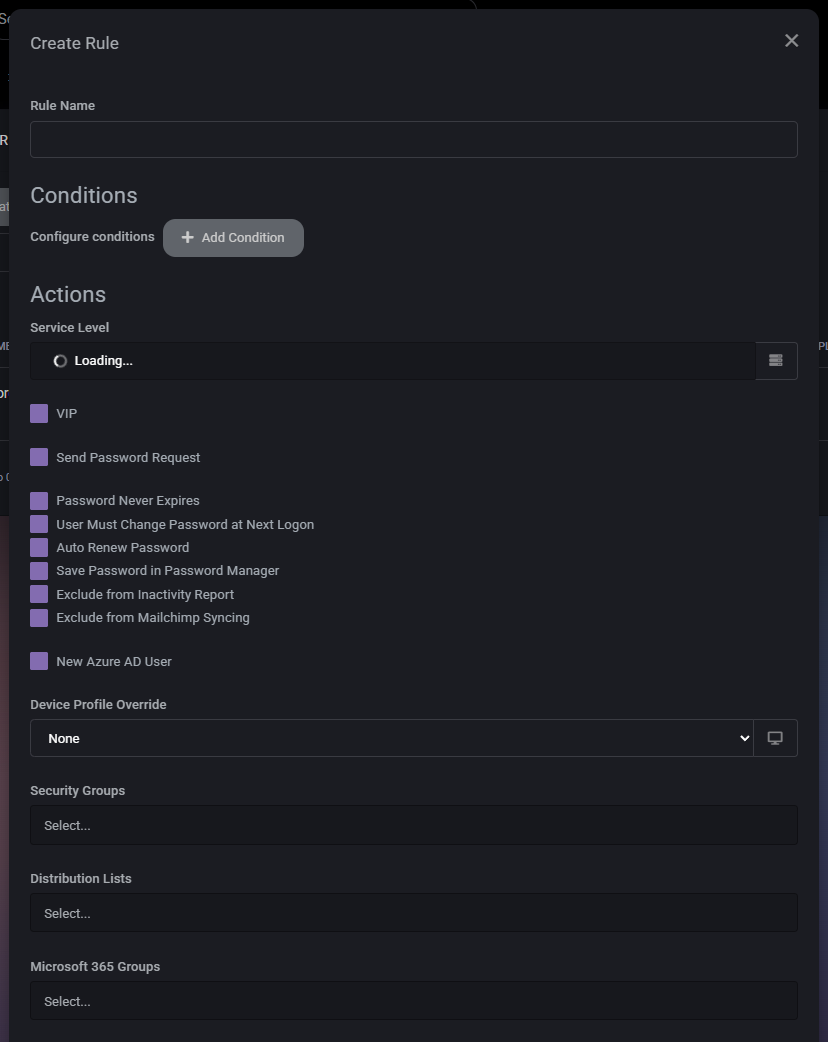
The Create Rule window is used to define a new provisioning rule for user creation. This window is divided into logical sections so administrators can define the rule name, add conditions, and then choose which actions should be applied when the rule matches.
The structure of this page suggests that MSPControl supports both decision logic and action automation within the same workflow. This means the rule does not only describe what should be checked, but also what should happen if the conditions are satisfied.
Rule Definition and Conditions
- Rule Name defines the name of the rule. This should clearly describe the purpose of the automation so administrators can understand its function later.
- Configure conditions is the section where rule matching logic is defined.
- Add Condition allows administrators to add one or more conditions that determine when the rule should apply.
Conditions are the control layer of the rule. They define which users should receive the actions configured below. This makes rule naming and condition design especially important in environments where multiple onboarding scenarios exist.
Rule Actions Section
The Actions area defines what MSPControl should do when the rule conditions are met. Based on the provided screenshots, the available options include account behavior flags, service-level assignment, profile overrides, security assignments, group membership, distribution lists, Microsoft 365 groups, permissions, RDS collections, and applications.
Account and Service Options
- Service Level allows the administrator to assign a service level as part of the rule. This is useful when users created under specific conditions should automatically inherit a particular support or service classification.
- VIP marks the created user as a VIP user when the rule applies.
- Send Password Request enables password request behavior during provisioning.
- Password Never Expires applies a non-expiring password setting to the created account.
- User Must Change Password at Next Logon enforces a password change when the user signs in for the first time.
- Auto Renew Password enables automatic password renewal behavior.
- Save Password in Password Manager stores the generated or assigned password in the password manager workflow.
- Exclude from Inactivity Report excludes the user from inactivity-related reporting.
- Exclude from Mailchimp Syncing prevents the created user from being included in Mailchimp synchronization.
- New Azure AD User marks the created account as a new Azure AD user within the rule logic.
These settings allow the rule to shape user lifecycle, authentication handling, reporting visibility, and third-party sync behavior immediately at creation time.
Provisioning Targets and Membership
- Device Profile Override allows the rule to override the default device profile behavior for matching users. This is useful when a particular user type should receive a different device configuration baseline.
- Security Groups allows administrators to assign the created user to one or more security groups automatically.
- Distribution Lists allows the user to be added to selected distribution lists during provisioning.
- Microsoft 365 Groups allows the user to be added to Microsoft 365 groups as part of account creation.
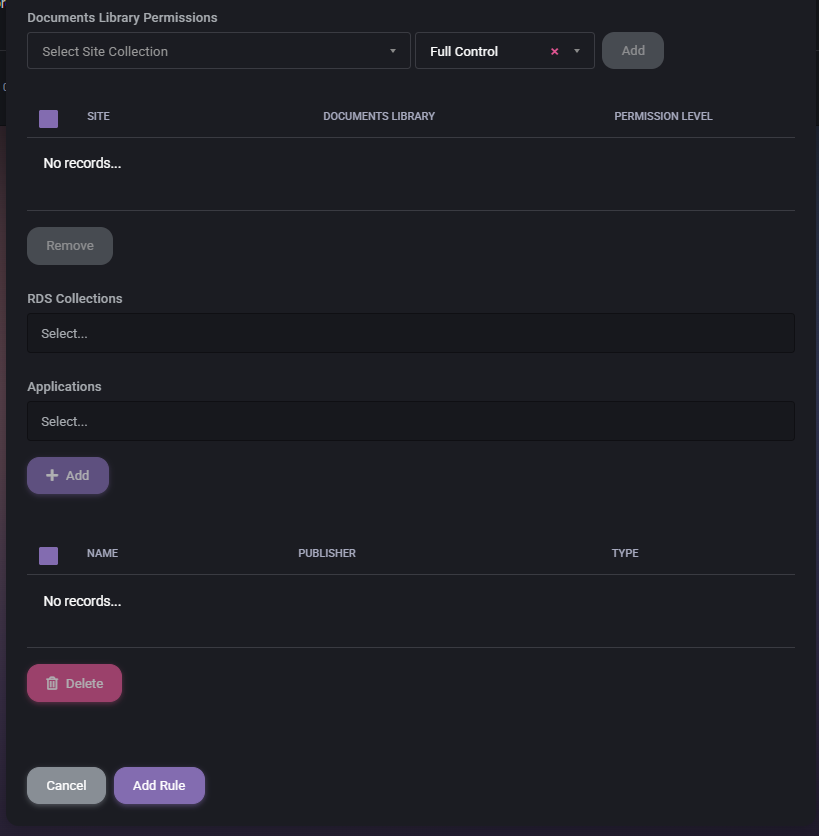
- RDS Collections allows the rule to assign the created user to one or more Remote Desktop Services collections.
These fields are especially important when onboarding needs to automatically place users into the correct access, communication, and resource groups without manual follow-up.
Documents Library Permissions
The Documents Library Permissions area is used to assign SharePoint or document library-related permissions during user provisioning.
- Select Site Collection allows the administrator to choose the target site collection.
- Permission Level allows the administrator to define the permission level that should be applied. In the example shown, the selected value is Full Control.
- Add adds the selected permission assignment to the rule configuration.
- Permissions Table displays configured entries using columns such as Site, Documents Library, and Permission Level.
- Remove removes the selected permission assignment from the rule.
This section is useful when specific users must automatically receive document platform access during onboarding instead of having those permissions assigned later by hand.
Applications Section
The lower portion of the rule window includes application-related provisioning controls.
- Applications allows the administrator to select one or more applications that should be included in the rule.
- Add adds the selected application entries to the rule configuration.
- Applications Table displays added entries with columns such as Name, Publisher, and Type.
- Delete removes selected application assignments from the rule configuration.
This makes the rule useful not only for access and group placement, but also for standardized application publishing and onboarding consistency.
Rule Window Actions
- Cancel closes the rule creation window without saving the rule.
- Add Rule saves the new user creation rule.
- Close in the upper-right corner closes the modal window.
Because this rule can define broad automated behavior, administrators should review all configured actions and memberships before selecting Add Rule.
Best Practices
- Create rules only for repeatable onboarding scenarios, so automation remains predictable and easy to maintain.
- Use clear and descriptive Rule Name values so administrators can understand the purpose of each rule without opening it.
- Keep rule conditions precise to avoid assigning incorrect groups, permissions, or applications to the wrong users.
- Be careful with password-related settings such as Password Never Expires or Auto Renew Password, since these affect security posture.
- Use automatic assignment for Security Groups, Distribution Lists, and Microsoft 365 Groups only when group membership logic is stable and well understood.
- Validate document library permissions carefully before adding them to a rule, especially when high-access levels such as Full Control are involved.
- Use application assignment through rules only for software that should consistently be provisioned for the matching user type.
- Review and test new rules carefully before relying on them in production onboarding workflows.



