


The Domains section in MSPControl is used to manage the domains assigned to the current hosted organization. This page does not create brand-new domains from scratch. Instead, it allows administrators to allocate domains that were already added earlier in Account > Domains and make them available for use in the current hosted organization.
This separation is important because a domain may be available in the broader account scope but not every hosted organization needs to use it. The Domains page provides the control layer that lets administrators allocate only the domains that are actually required for the current hosted organization and its services.
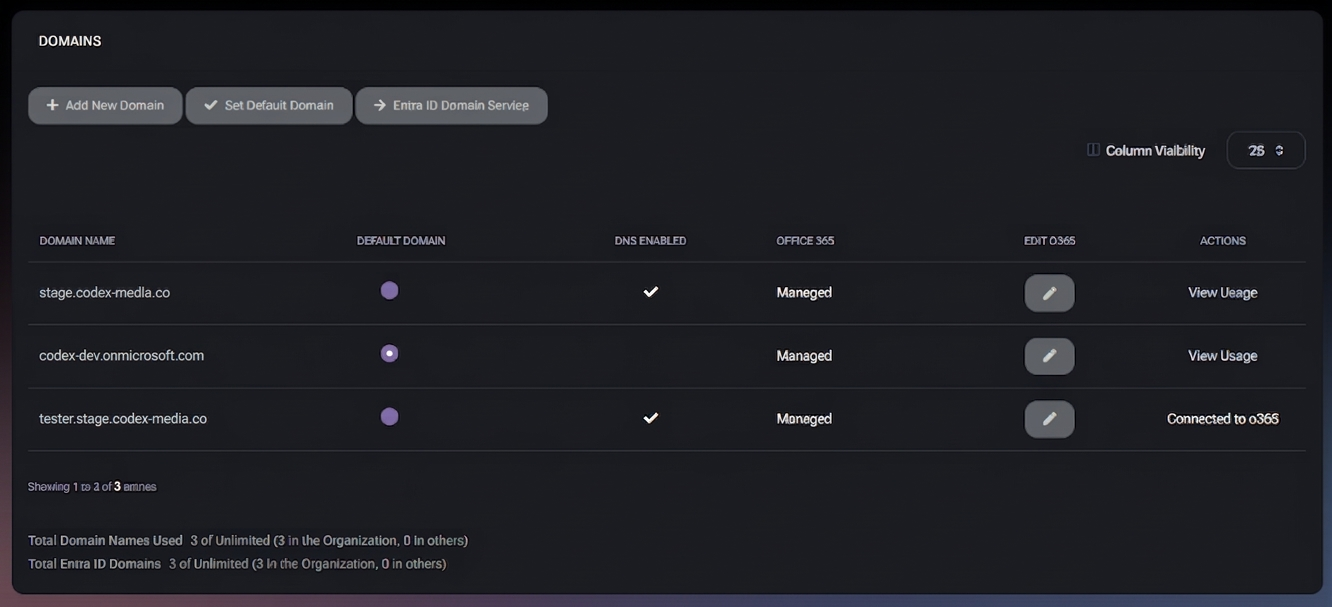
The Domains page displays the domains currently allocated to the hosted organization. These domains can then be used by services associated with that organization, such as email-related features, Office 365 integration, and other hosted-organization functions that depend on domain availability.
This page is especially useful in environments where multiple domains exist at the account level but only some of them should be available inside a particular hosted organization. By controlling allocation here, MSPControl helps keep the hosted organization clean and limited to only the domains it actually needs.
The main Domains page displays the currently allocated domain names in a table. From this page, administrators can add another existing account-level domain to the hosted organization, mark a domain as the default one, open Entra ID Domain Service settings, and review usage or Office 365-related status for each domain.
These actions make the page both a domain-allocation view and a lightweight management center for hosted-organization domain usage.
At the bottom of the page, MSPControl also displays summary counters such as Total Domain Names Used and Total Entra ID Domains. These counters help administrators understand how many domains are currently allocated in the organization context.
When administrators click Add New Domain, MSPControl opens the Add Domain Name window. This window is used to allocate an existing domain to the current hosted organization.
This is not a domain-creation workflow. The domain must already exist in Account > Domains before it can be selected here. The purpose of this page is to make the domain available inside the current hosted organization only when it is actually needed.
This approach is useful because domains may support different services and not every hosted organization should automatically receive every available domain. By allocating domains here, administrators can keep service scope limited and intentional.
The Entra ID Domain Service button leads to the Azure > Entra ID Domain Service page. This means the Domains page is also connected to Azure-related domain service configuration and acts as a navigation point for administrators who need to move from hosted-organization domain allocation into Entra ID domain service management.
This is useful in hybrid or cloud-connected environments where domain setup and Azure directory services must be reviewed together.
The ability to mark one domain as the Default Domain is important because many workflows depend on having one primary domain for the hosted organization. This may affect how new objects are created, how domain-related services behave, or which domain is used first when the platform needs a default choice.
Because domains may be used by different services, administrators should review carefully which domain is allocated and which one is set as default. The page is designed to make sure only required domains are available here rather than automatically exposing all account-level domains.
The Domains page sits between account-level domain preparation and hosted-organization service usage. First, domains are added in Account > Domains. Then, only the domains needed by a specific hosted organization are allocated here.
This separation gives administrators better control over scope and reduces accidental overexposure of domains to hosted organizations that do not need them. It also helps keep service configuration cleaner, because only relevant domains are available in the organization context.

No credit card required for free, limited license.