Mail Lists
The Mail > Lists page lets you create and manage classic mailing lists (distribution lists with posting rules, moderation, and list commands) for simple hosted mail providers (for example, SmarterMail).
Unlike Aliases (one-to-one forwarding) and Groups (simple one-to-many distribution), Lists are designed for controlled posting, subscriber behavior, and email header handling — closer to a traditional mailing list experience (announcements, internal broadcasts, moderated lists, or discussion-style lists depending on configuration).
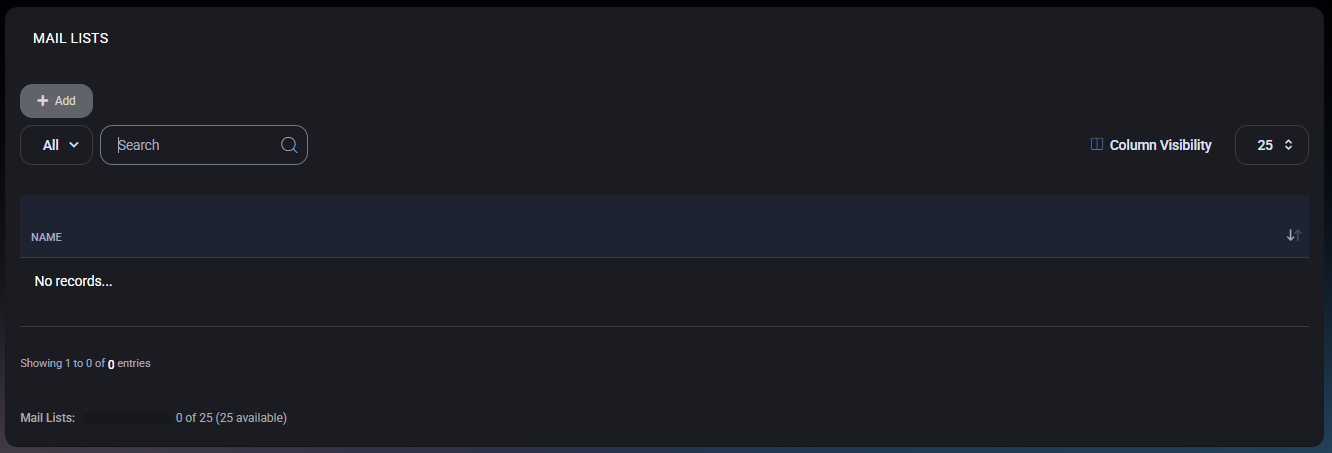
Table of Contents
Overview
A mailing list is a dedicated list address (for example, announcements@yourdomain.com) with:
- a defined membership list (recipients/subscribers),
- rules for who can post,
- optional moderation controls,
- message limits (size, recipients),
- header behavior (From/Reply-To), and
- optional list commands (subscribe/unsubscribe behaviors).
This is useful when you need predictable mail behavior for broadcasts or internal communications, rather than ad-hoc forwarding rules.
Lists Page
The list view shows all configured mailing lists and provides standard table controls.
- Add – Opens the mail list creation form.
- View Filter (for example, All) – Switches between available views if configured.
- Search – Filters lists by name/address.
- Column Visibility – Shows or hides table columns (if additional columns are available in your environment).
- Page Size (for example, 25) – Controls how many lists are shown per page.
Displayed Columns
- Name – The mailing list address shown in the table.
Capacity Indicator
The footer displays list capacity usage (for example, 0 of 25, with 25 available). Use this to confirm you can create additional lists without exceeding plan or license limits.
Create a Mail List
Click Add to open Mail List Properties. At minimum, creating a list requires:
- defining the list address, and
- adding members (one email address per line).
After creation, you can tighten posting permissions, enable moderation, enforce size limits, and configure headers.
Mail List Properties
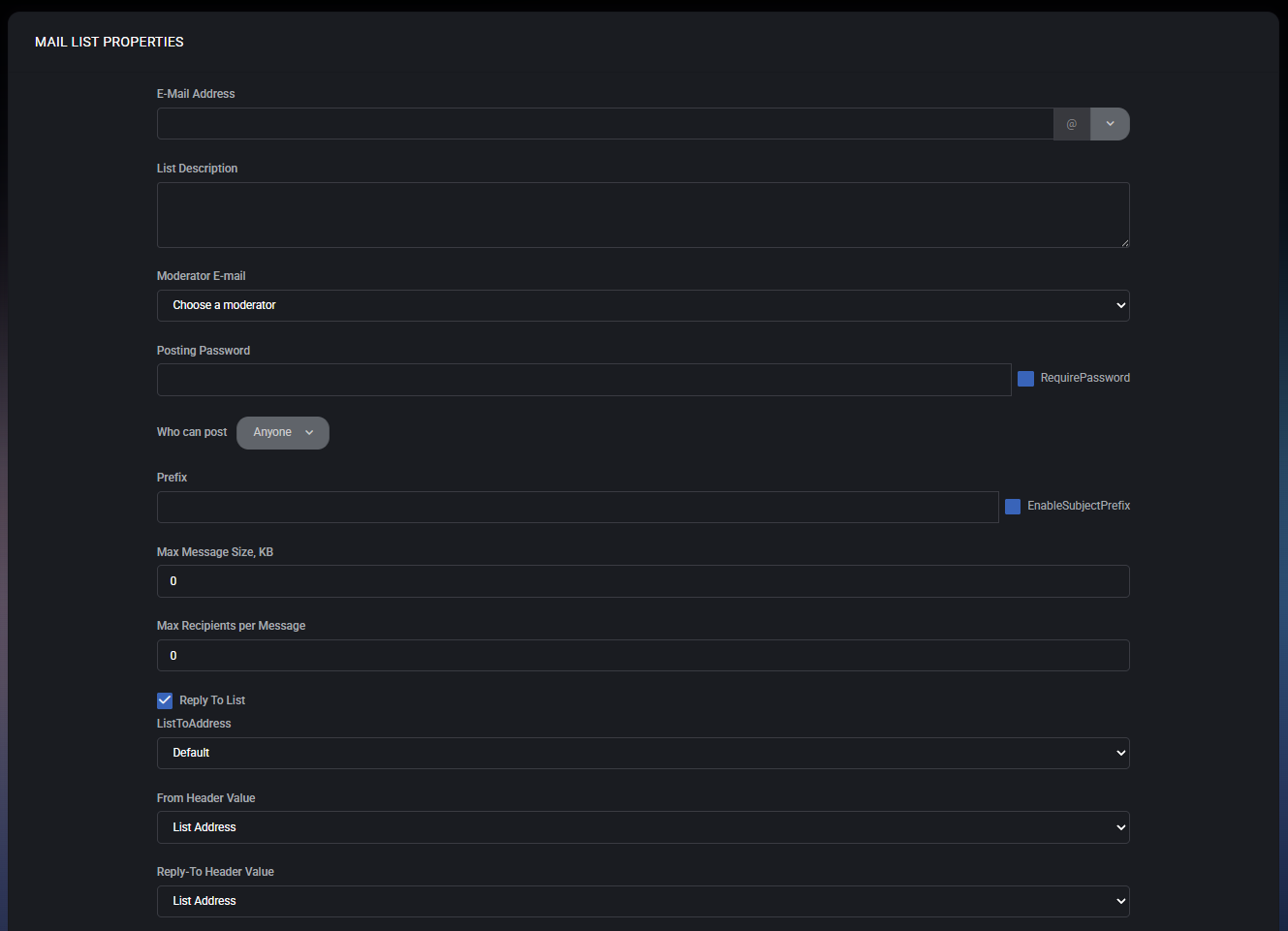
The Mail List Properties</strong form controls how the list behaves: who can post, whether a posting password is required, what headers are used, and whether subject prefixes or limits apply.
E-Mail Address
- E-Mail Address – The mailing list address. Use the domain selector to ensure the list is created under the correct hosted domain.
List Description
- List Description – Optional text describing the list purpose (for example, “Company announcements” or “IT maintenance updates”). Useful for administration and long-term clarity.
Moderator E-mail
- Moderator E-mail – Selects a moderator identity for the list (dropdown). Use this when list workflows require an accountable owner or when your mail provider enforces moderation logic tied to a moderator mailbox.
Posting Password and Posting Permissions
- Posting Password – A password value used to authorize posting, when enabled.
- RequirePassword – When checked, a posting password is required for sending to the list (useful to reduce abuse when external sending is possible).
- Who can post – A dropdown defining posting permissions (for example, Anyone). Set this to a restricted option if the list should only accept posts from members or approved senders.
Subject Prefix
- Prefix – Text prefix applied to list messages (for example, “[ANN] ” or “[IT] ”) to help recipients identify list traffic quickly.
- EnableSubjectPrefix – When enabled, the prefix is applied to outgoing list messages.
Message Limits
- Max Message Size, KB – Maximum message size allowed for posts to this list. Use to prevent oversized attachments from flooding mailboxes.
- Max Recipients per Message – Limits the number of recipients allowed per posted message. Use to reduce mass-mail amplification and control mail system load.
- Reply To List – When enabled, replies are directed back to the list rather than directly to the original sender (typical for discussion lists).
- ListToAddress – Controls how list addressing is handled (dropdown, for example Default).
- From Header Value – Controls what appears in the From header (dropdown, for example List Address).
- Reply-To Header Value – Controls what appears in the Reply-To header (dropdown, for example List Address).
Actions
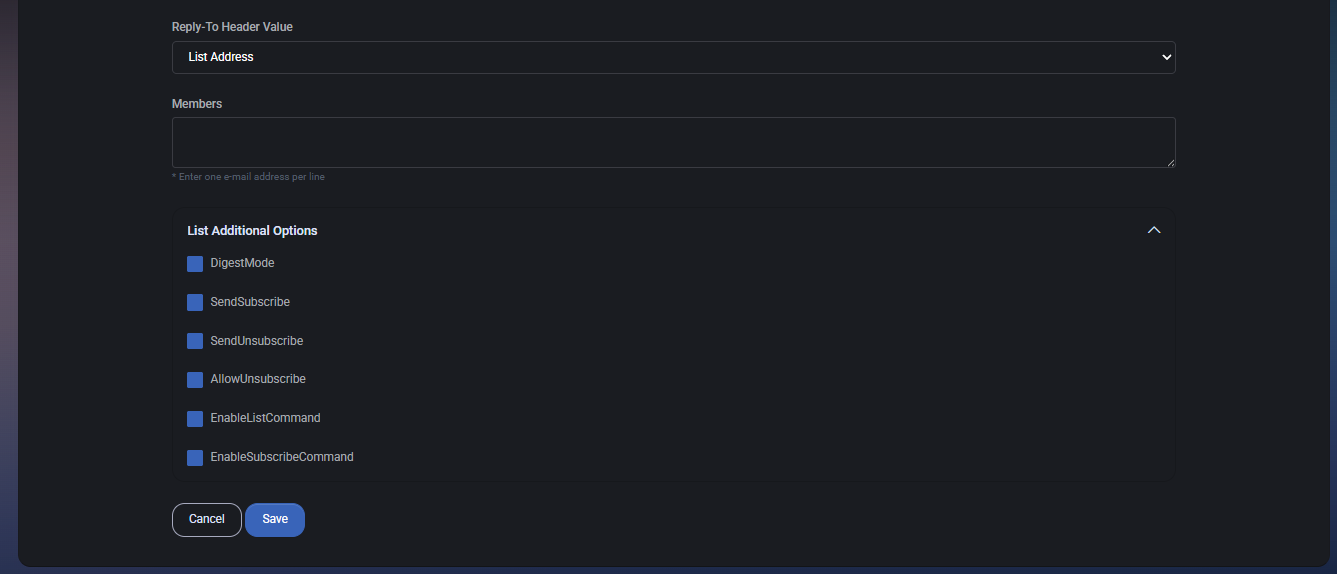
- Save – Creates or updates the mail list.
- Cancel – Closes the form without saving changes.
Members
The Members field contains the recipient list for the mailing list.
- Members – Enter one email address per line. Each address will receive messages posted to the list, depending on list behavior configured in the mail provider.
Keep this list clean and current to avoid delivering sensitive list traffic to former staff or external recipients by mistake.
List Additional Options
The List Additional Options block provides common mailing list behaviors often supported by classic mail providers:
- DigestMode – Sends messages as a digest (batched delivery) instead of immediate delivery, when supported by the mail provider.
- SendSubscribe – Sends a subscription confirmation/notification when someone subscribes (provider-dependent behavior).
- SendUnsubscribe – Sends an unsubscribe confirmation/notification when someone unsubscribes.
- AllowUnsubscribe – Allows members to unsubscribe (useful for opt-in lists; disable for mandatory internal lists).
- EnableListCommand – Enables list command handling (provider-dependent), typically used to accept list-related commands via email.
- EnableSubscribeCommand – Enables subscribe command handling (provider-dependent), allowing email-based subscribe actions.
These options are implemented by the underlying mail platform (for example, SmarterMail). Enable only what matches your organization’s policy and expected user behavior.
Best Practices
- Use lists for predictable broadcast or discussion workflows, and use Groups when you only need simple distribution.
- For internal announcement lists, restrict Who can post and enable EnableSubjectPrefix (for example, “[ANN] ”) so recipients instantly recognize list traffic.
- Set Max Message Size to prevent large attachments from impacting mailbox storage and delivery performance.
- Use Posting Password only when necessary; prefer sender-based restrictions where your mail provider supports them.
- Enable Reply To List only for discussion-style lists. Keep it off for announcement lists where replies should go to the sender.
- Review Members regularly and remove external/unapproved addresses to prevent accidental data disclosure.
- Enable unsubscribe/subscribe commands only for lists that are intended to be user-managed and opt-in.



