Mail Groups
The Mail > Groups page lets you create simple mail distribution groups for classic hosted mail providers (for example, SmarterMail). A mail group routes messages sent to a single group address (for example, support@yourdomain.com) to multiple recipient email addresses.
Use mail groups when multiple people must receive the same inbound emails (helpdesk intake, billing notifications, sales leads, operations alerts), without creating forwarding rules on individual mailboxes.
Table of Contents
Overview
A mail group is a single email address that distributes incoming messages to multiple recipients. This differs from a mail alias:
- Mail Alias typically forwards to one destination mailbox/address.
- Mail Group distributes to multiple addresses listed as members.
Groups are useful when membership changes frequently, because you can update the recipients list in one place without modifying individual mailbox settings.
Groups List Page
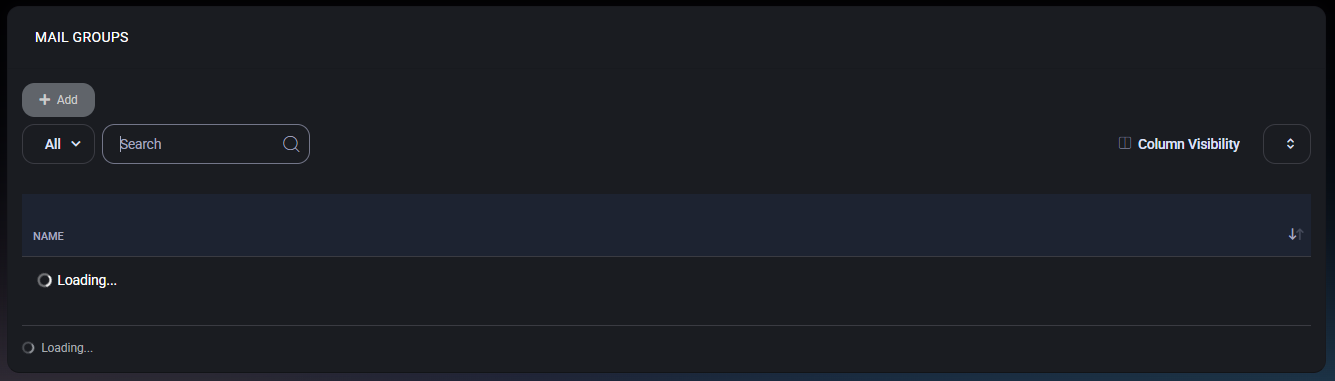
The groups list displays existing distribution groups and provides standard list controls.
- Add – Opens the group creation form.
- View Filter (for example, All) – Switches between available views if configured.
- Search – Filters groups by name/address.
- Column Visibility – Shows or hides table columns (if your environment exposes additional columns).
Displayed Columns
- Name – The mail group address shown in the list.
If no groups exist, the table will show an empty or loading state until data is available. Use Add to create the first group.
Create a Mail Group
Click Add to open Mail Group Properties. Creating a group requires:
- defining the group email address (the address users will send to), and
- defining the member recipients who should receive copies of inbound messages.
Mail Group Properties
The Mail Group Properties form defines how distribution works for the group.
Fields
- E-Mail Address – The group address to create. Use the domain selector to ensure the group is created under the correct hosted domain.
- Group E-Mails – The recipient list for the group. Enter one email address per line. Each address will receive mail sent to the group.
Actions
- Save – Creates or updates the group and its membership list.
- Cancel – Closes the form without saving changes.
Best Practices
- Use group addresses for shared operational functions (for example, support@, billing@, sales@) rather than forwarding from a single mailbox.
- Keep membership current and remove personal addresses for former staff to prevent accidental data exposure.
- Prefer shared/team mailboxes for workflows that require a single “source of truth” inbox, and use groups when distribution is the priority.
- Use a consistent naming convention (for example, dept.function@domain) so groups are easy to find and audit.



