Locations IP Addresses
The Locations IP Addresses section in MSPControl is used to manage IP address records that are linked to specific locations. This page helps administrators keep network-related information tied to the correct site, making it easier to understand which addresses belong to which office, branch, or customer location. It also provides tools for adding IP records, allocating or deallocating them, deleting selected entries, exporting reports, and reviewing unallocated addresses.
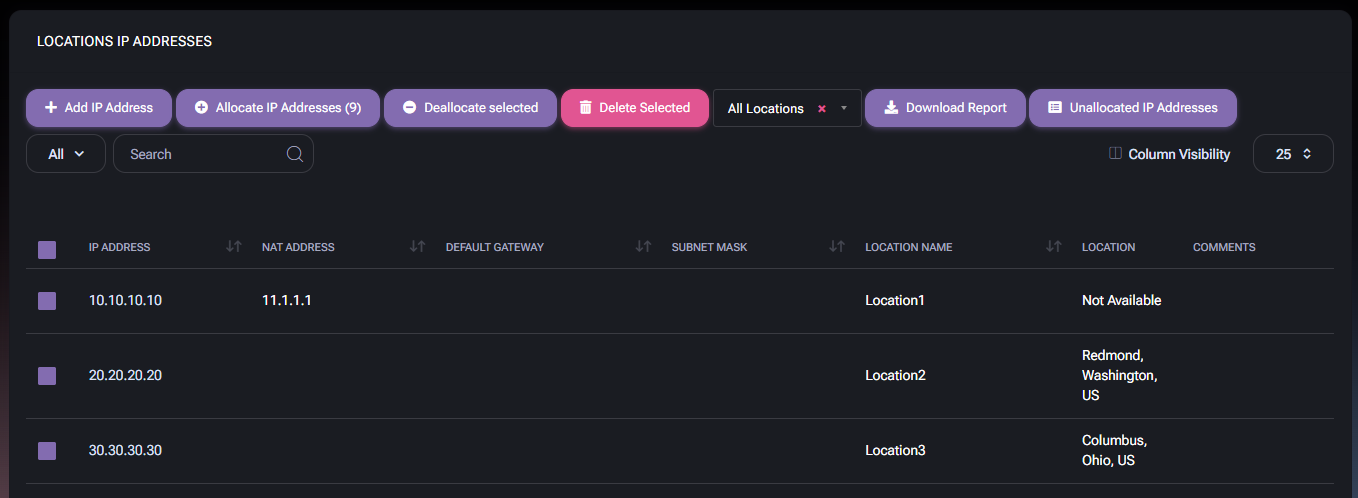
Because network information is often operationally important, this page works as both a management view and a reporting view. It allows administrators to maintain a location-based IP inventory while also giving broader visibility into allocation state, associated devices, network ownership, and provider-related information.
Table of Contents
Locations IP Addresses Overview
The Locations IP Addresses page is the central place for managing IP addresses across all locations. Unlike the IP Addresses tab inside a single location record, this page gives a broader organization-wide view of location-linked IP records. This makes it useful when administrators want to review addresses across multiple sites at once, perform allocation tasks in bulk, or download a report for further analysis.
This page is especially useful in environments with many offices, customer branches, or distributed infrastructure where IP records must be maintained in an organized and location-aware way.
Locations IP Addresses List Page
The main Locations IP Addresses page displays all location-linked IP records in a table. The page provides both action buttons and filtering tools so administrators can quickly manage address assignments and review network details.
Locations IP Addresses Actions
- Add IP Address opens the form used to create a new location IP address record.
- Allocate IP Addresses opens the allocation window for assigning selected IP addresses to a location.
- Deallocate selected removes the current location allocation from the selected IP address records.
- Delete Selected deletes the selected IP address entries. This should be used carefully because it removes the records themselves.
- Location Filter allows administrators to filter the page by location. In the screenshot shown, the selection is All Locations.
- Download Report exports the IP address report for offline review or external analysis.
- Unallocated IP Addresses opens a filtered or dedicated view focused on IP records that are not currently allocated.
- Category Filter allows additional narrowing of visible results using the available dropdown options.
- Search helps find a specific IP record by typing an address, NAT value, location name, or another searchable value.
- Column Visibility allows administrators to control which columns are visible in the table.
- Page Size Selector controls how many rows are displayed at one time.
Because several of these actions affect multiple entries at once, administrators should review selected rows carefully before applying changes.
Locations IP Addresses Table Columns
- Selection Checkbox allows one or more IP records to be selected for bulk actions.
- IP Address shows the stored IP address.
- NAT Address shows the NAT address linked to the IP record when applicable.
- Default Gateway shows the gateway value associated with the IP record.
- Subnet Mask shows the subnet mask value.
- Location Name shows the name of the location the IP is linked to.
- Location shows location-related display information, such as city, region, and country when available.
- Comments shows additional remarks stored for the IP record.
This table is useful because it combines both technical network information and location context in the same view.
Add Location IP Address
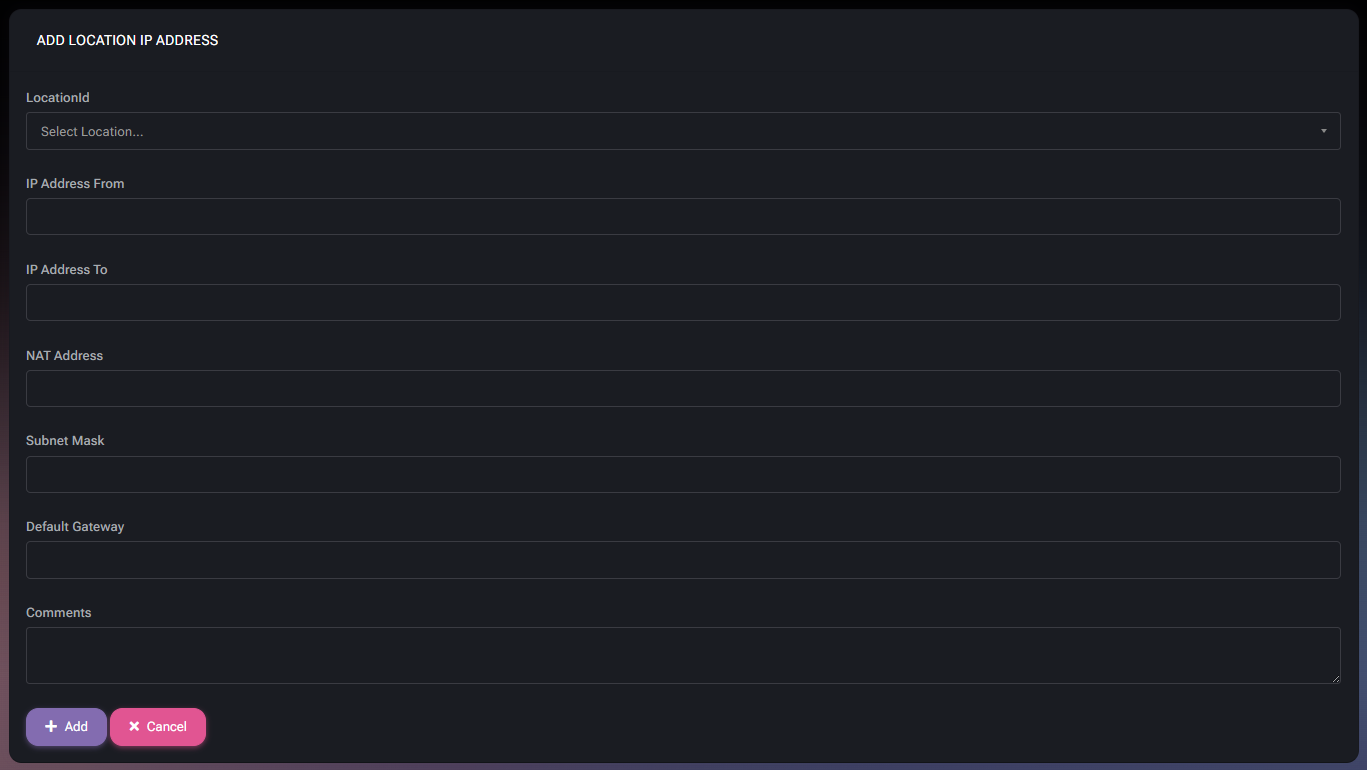
When administrators click Add IP Address, MSPControl opens the Add Location IP Address window. This form is used to create a new IP entry and attach it to a selected location. This makes it easy to document network details in the same place where site assignments are managed.
Add Location IP Address Fields
- LocationId allows the administrator to select the location that the IP record should belong to.
- IP Address From defines the starting IP address. This is useful for a single address or the beginning of a range.
- IP Address To defines the ending IP address. This is useful when storing an address range rather than only one value.
- NAT Address stores the related NAT address when applicable.
- Subnet Mask stores the subnet mask for the record.
- Default Gateway stores the gateway associated with the IP address or range.
- Comments stores extra information such as usage notes, provider context, technical remarks, or device mapping information.
This form supports both single-address and range-based documentation, which is useful for different network scenarios.
Add Location IP Address Actions
- Add saves the new IP record.
- Cancel closes the form without saving.
Allocate Location IP Addresses
When administrators click Allocate IP Addresses, MSPControl opens the Location Allocate IP Addresses window. This form is used to assign selected IP address records to a specific location. This is useful when IP records already exist in the system but still need to be linked to the correct site.
Allocate IP Addresses Fields
- Select IP addresses from the list allows the administrator to choose one or more existing IP records that should be allocated.
- LocationId allows the administrator to choose the target location for the selected IP records.
This workflow is useful when IP records are entered first and assigned later, or when existing addresses must be moved under the correct site structure.
Allocate IP Addresses Actions
- Add applies the selected allocation.
- Cancel closes the window without making changes.
Locations IP Addresses Report
The Download Report action exports a report containing not only the core IP record, but also additional operational, geographic, and provider-related information. This makes the report useful for both infrastructure tracking and broader external IP analysis.
Locations IP Addresses Report Fields
- Location Name shows the location linked to the IP record.
- IP Address shows the IP itself.
- Comments shows stored remarks for the record.
- NAT Address shows the associated NAT value.
- Default Gateway shows the configured gateway.
- Subnet Mask shows the subnet mask.
- Allocated/Not Allocated shows whether the IP is currently allocated to a location.
- Last Seen shows the last time the IP was observed or detected.
- IP Address Type shows the address type classification.
- Number of Devices shows how many devices are associated with the IP.
- Associated Devices lists the devices linked to the IP.
- Location – Country shows the country derived for the IP or linked location.
- Location – Region shows the region or state.
- Location – City shows the city value.
- Location – Latitude shows the geographic latitude value.
- Location – Longitude shows the geographic longitude value.
- Location – Postal Code shows the postal code value.
- Time Zone Offset by UTC shows the timezone offset value.
- Domains Associated with the IP shows domains linked to the IP.
- Autonomous System – ASN shows the autonomous system number.
- Autonomous System – Name shows the autonomous system name.
- Autonomous System – Route shows the route value of the autonomous system.
- Autonomous System – Domain shows the associated autonomous system domain.
- Autonomous System – Type shows the autonomous system type.
- Internet Service Provider shows the ISP related to the IP.
- Connection Type shows the detected connection type.
This report is useful for network inventory review, provider analysis, location validation, and operational troubleshooting. It can help administrators understand not only what IPs are stored, but also how those addresses relate to devices, providers, and geographical context.
How Locations IP Addresses Fit into MSPControl
The Locations IP Addresses page extends the broader Locations concept by giving each site a place for network identity and IP tracking. This keeps network records tied to the right location instead of leaving them disconnected in a generic list.
That is useful for distributed organizations, managed customer environments, branch offices, and any setup where IP addresses, NAT values, gateways, and network allocations must remain associated with the correct site.
Best Practices
- Always assign IP records to the correct location so site-based network documentation remains reliable.
- Use the Comments field to store practical technical context such as firewall usage, provider details, or internal notes about the address.
- Use Allocate IP Addresses when existing IP records need to be connected to a location instead of recreating them.
- Use Deallocate selected carefully, because it removes the location relationship from the chosen IP records.
- Delete IP records only when they are no longer needed, since Delete Selected removes the records themselves.
- Download the report regularly when network inventory must be reviewed outside MSPControl or shared with other teams.
- Use the report fields such as Last Seen, Associated Devices, ISP, and Autonomous System values for deeper troubleshooting and validation when needed.
- Review unallocated IP records periodically so important addresses do not remain disconnected from the correct site.



