


The Locations section in MSPControl is used to manage physical or organizational locations associated with the current organization. A location can be used as a structured record for offices, branches, customer sites, or other place-based entities that need their own address details, contact numbers, default manager, and location-specific records. This page is useful when administrators want to keep users, groups, operational notes, credentials, files, and network details aligned with real-world sites or operational locations.
In addition to the main location list, MSPControl provides a detailed edit view for each location. That view includes separate tabs for General, Notes, Photos, Passwords, Certificates, Documents, and IP Addresses. This structure allows administrators to connect all location-specific information to one place by default, making it easier to manage the site as a complete record and easier for users to work with the correct location-based data without switching between unrelated areas.
The Locations page acts as the central place for managing location records inside MSPControl. A location can represent a branch office, customer office, remote site, warehouse, department site, or any other place-based entity the organization wants to track.
Because locations can be tied to users and other resources, this page is not only a simple address book. It is a structural part of the tenant that helps organize operational data by site. This becomes especially useful in environments where different users, groups, notes, passwords, documents, certificates, photos, and IP addresses need to be associated with a specific physical or business location.
The location record also makes daily administration easier. Instead of storing site-related information in separate unrelated sections, MSPControl allows administrators to keep it under the location itself. This gives users and administrators a more natural way to manage real-world offices and customer sites as complete entities.
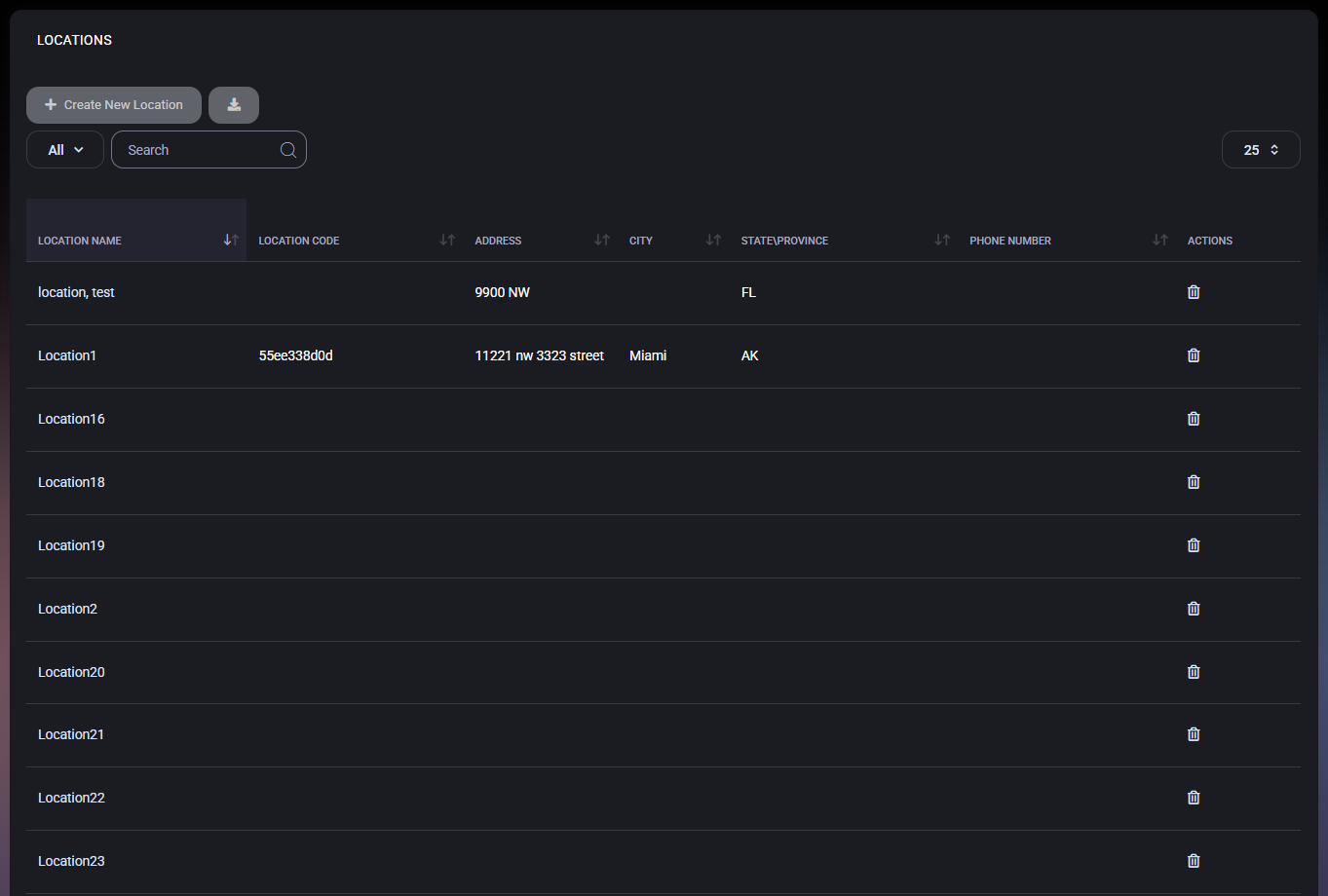
The main Locations page displays all created locations in a table. This list provides a quick overview of each location and allows administrators to create new entries, search the list, export data, and remove existing locations.
This list is useful for quickly reviewing the organization’s site structure and confirming that important address and contact values are already stored.
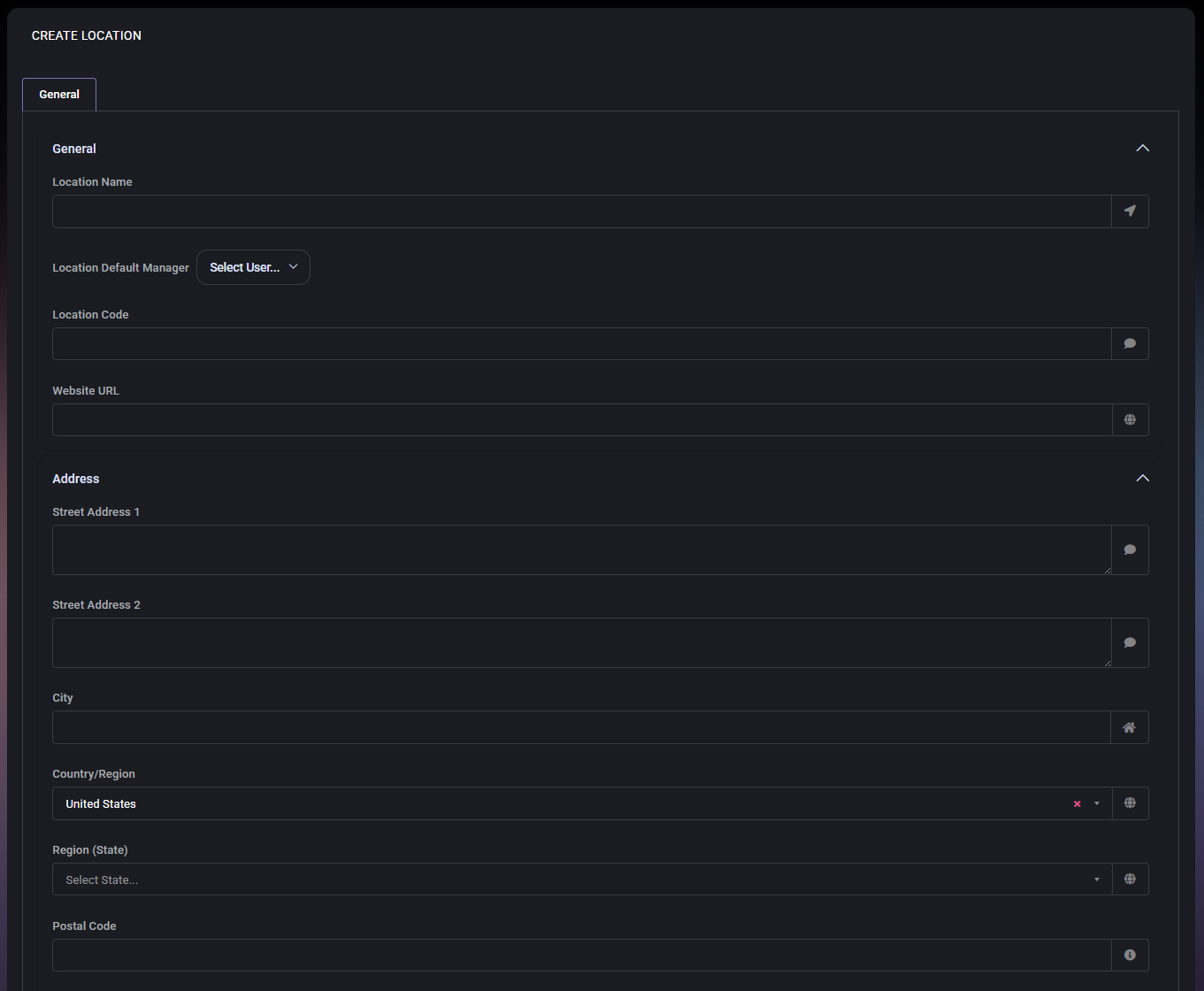
The Create Location page is used to define a new location record. The form is divided into two main blocks: General and Address. This structure makes it easier to separate identity-related fields from postal and contact information.
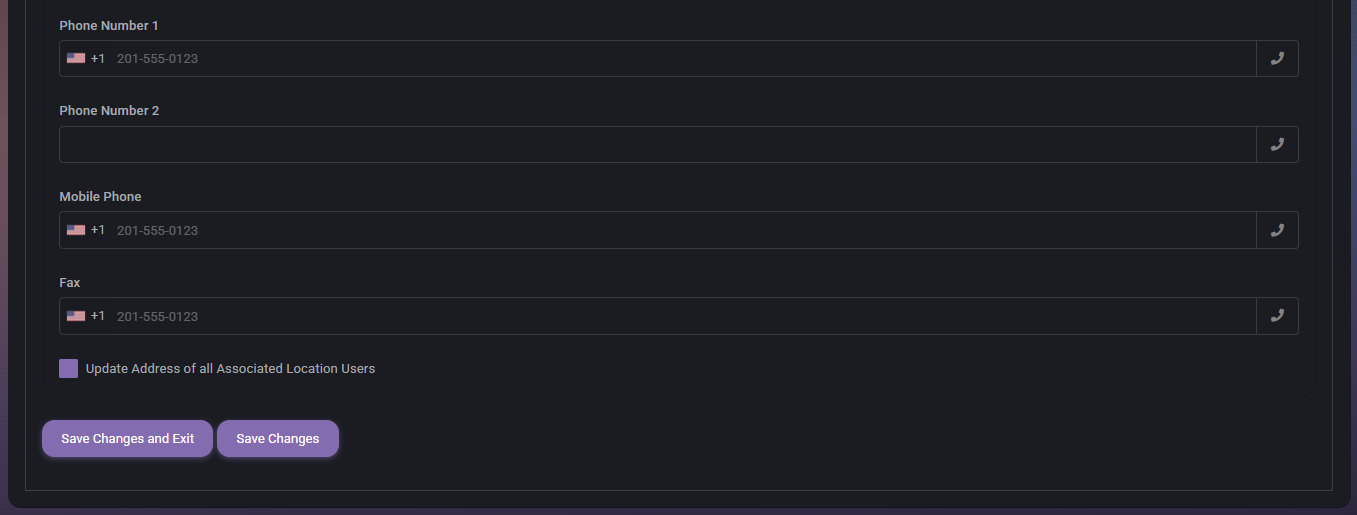
This last option is especially important because it suggests that location data can propagate to linked users. Administrators should use it carefully to avoid unintentionally overwriting user address information.
The Edit Location view uses the same core fields as the creation form, but it also adds multiple dedicated tabs. The General tab remains the main place to update the location name, manager, code, website, address, and contact information.
In the example shown, the edit screen confirms that location records can hold realistic site-specific data such as website URL, city, and manager assignment. This makes the location record more than just a label. It acts as a maintained site profile inside MSPControl.
The tabs inside the location record are there to keep all site-specific information attached to the location by default. This makes the location easier to manage as a real operational object instead of just an address entry. It also gives administrators and users a practical place to store and find everything related to that office or site.
For example, if a branch office has its own passwords, certificates, notes, local documents, photos, and IP addresses, storing all of them under the location makes the data easier to find and maintain. It also helps users work in a more natural way, because they can open the location and immediately access the information relevant to that specific place.
The Notes tab stores textual notes related to the location. It includes a list view with fields such as note content, tags, created date, updated date, and authorization requirement. This is useful for internal comments, operational instructions, site-specific reminders, or controlled notes that should stay attached to the location record.

This tab exists so administrators do not need to store location notes somewhere else and then manually remember which site they belong to. By attaching notes directly to the location, MSPControl keeps site context clear.
For a full explanation of how notes work in MSPControl, see Customer Notes.
The Photos tab is used for location-related images. This can be useful for storing pictures of the site, office equipment placement, room setup, signage, rack layout, or any other visual documentation related to the location.
This tab makes it easier to keep visual site references connected to the actual location instead of spreading them across unrelated records.
For a full explanation of how photos are managed in MSPControl, see Customer Photos.
The Passwords tab is used for storing location-related passwords. This can be useful for site Wi-Fi credentials, alarm codes, shared local access credentials, or other secure values tied to the physical or business location.
This tab exists so shared site credentials can remain attached to the site they belong to, making them easier to manage and easier to locate later.
For a full explanation of how passwords are managed in MSPControl, see Customer Passwords.
The Certificates tab is used for storing and tracking certificates related to the location. This may be useful when a location has local services, devices, or documents that require certificate tracking and management.
This keeps certificate records tied to the correct office or site instead of leaving them disconnected from the location they support.
For a full explanation of how certificates are managed in MSPControl, see Customer Certificates.
The Documents tab is used for storing location-related files and records. This can include local documentation, contracts, office instructions, site procedures, floor plans, or any other documents that should remain attached to the location record.
This tab helps keep important site files together with the location profile so users can access them in the right context.
For a full explanation of how documents are managed in MSPControl, see Customer Documents.
The IP Addresses tab is used to manage IP information associated with the location. This is useful when a site has one or more public or private IP addresses that should be tracked as part of the location profile.
This tab is useful for maintaining a location-level network inventory, especially when branch offices or customer sites need a clearly documented network reference inside MSPControl.
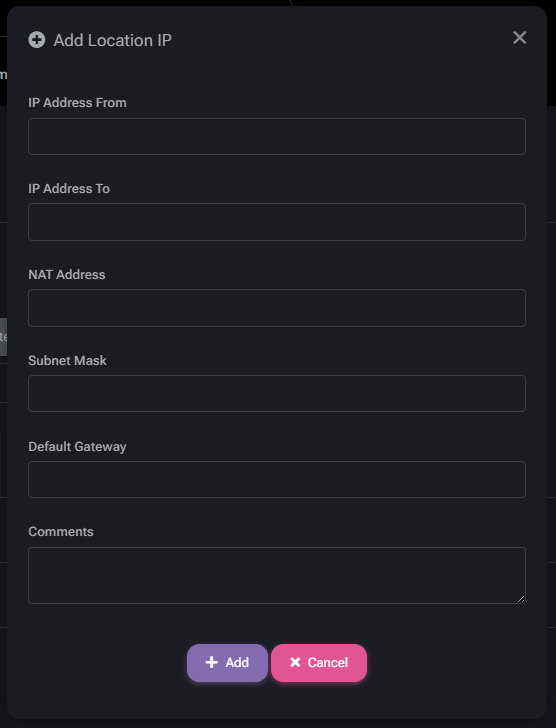
When administrators click Add IP Address, MSPControl opens the Add Location IP window. This form is used to create a new IP record and attach it directly to the current location. Keeping this workflow inside the location makes it easier to document network details in the exact place where they belong.
This form helps administrators record both single-address and range-based entries, which makes it useful for documenting different kinds of site network assignments.
Locations help connect physical or site-specific information to the rest of the organization. A well-maintained location record can provide address consistency, a clear manager assignment, location-specific notes, location-specific passwords, files, certificates, photos, and a network reference through IP tracking.
This makes the Locations page especially valuable in organizations with multiple offices, customer branches, remote sites, or any scenario where operations are distributed across different places.

No credit card required for free, limited license.