Passwords
The Passwords page is a secure credential repository within MSPControl. It allows you to store and manage passwords and related secrets used across your organization, while enforcing access control through authorization rules, peer sharing, and tag-based scoping.
Passwords can be associated with operational context using tags (Assets, Users, Locations, Devices) so they remain discoverable without being over-exposed to everyone in the organization.
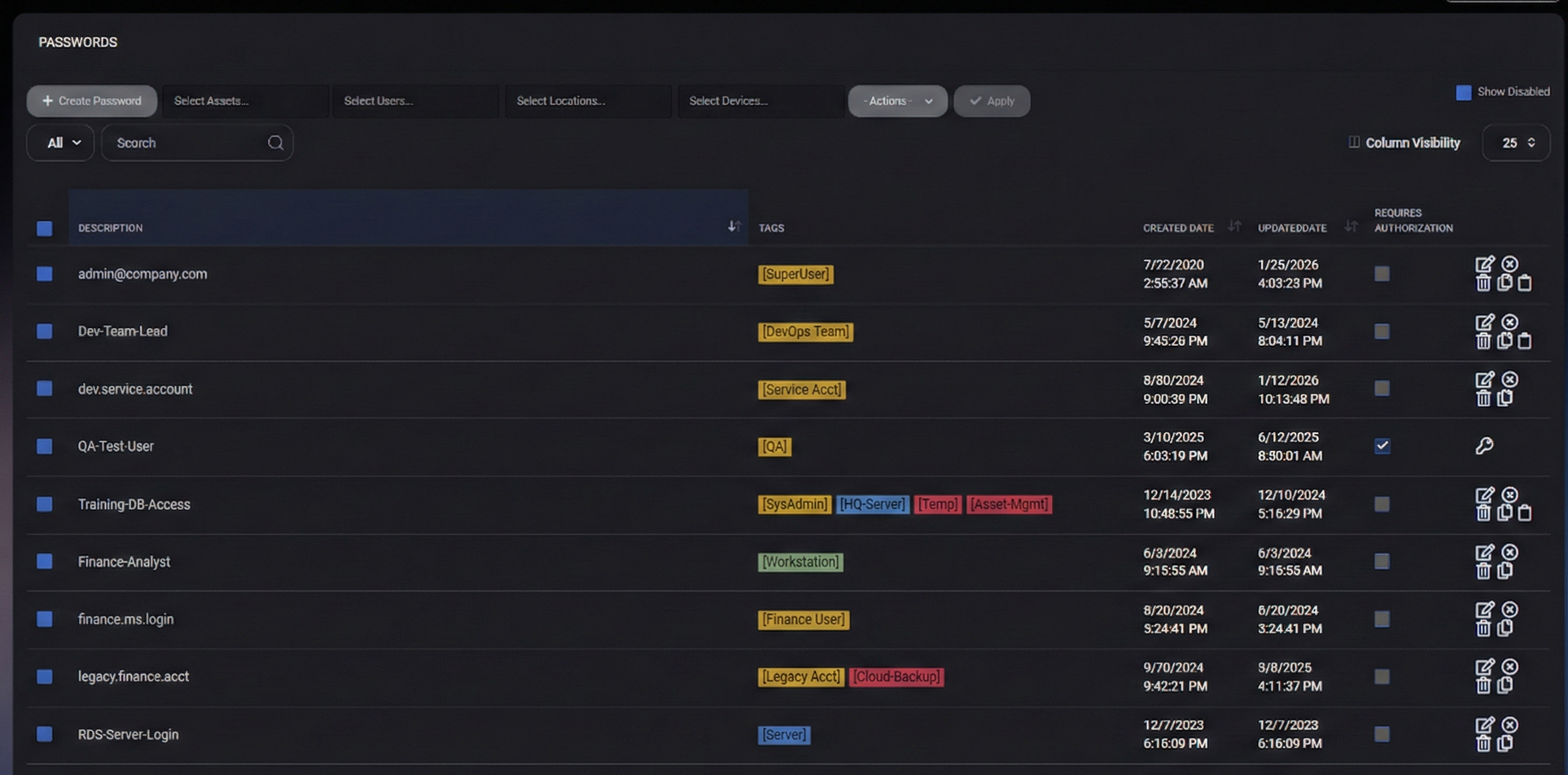
Table of Contents
Passwords Overview
The Passwords section is intended for storing credentials such as:
- local admin passwords for endpoints and servers
- service account credentials
- application logins
- database user passwords
- shared operational credentials (where permitted by policy)
To reduce security risk, MSPControl provides features such as:
- Requires Authorization enforcement
- Peer access sharing workflows
- Tag scoping to keep credentials discoverable only in the right context
- Audit-friendly actions (for example, explicit actions like sending passwords)
The top toolbar provides actions for creating passwords, narrowing the list, and running bulk operations.
Primary Actions
- Create Password – Opens the password creation dialog to add a new credential entry.
- Actions – Opens the bulk actions dropdown (authorization, peer access, tagging, send, deletion).
- Apply – Executes the selected bulk action for all selected password entries. This is typically disabled until:
- at least one password entry is selected, and
- a valid action is chosen from Actions.
Scope Filters
These filters limit results to passwords associated with the selected context:
- Select Assets – Filter by associated asset tags.
- Select Users – Filter by associated user tags.
- Select Locations – Filter by associated location tags.
- Select Devices – Filter by associated device tags.
Search and View Filter
- View Filter (for example, All) – Switches between available views if configured.
- Search – Searches password entries to locate them by keyword (for example, description or identifier).
Passwords List
The main table displays stored password entries along with metadata needed to manage access safely.
Displayed Columns
- Description – The identifier for the entry (for example, an email/login, system name, or short label).
- Tags – Context tags associated with the entry (Assets/Users/Locations/Devices), used for filtering and scoping.
- Created Date – When the password entry was created.
- Updated Date – When the password entry was last modified.
- Requires Authorization – Whether authorization is required before the password can be revealed or used.
Table Controls
- Column Visibility – Shows/hides columns depending on what metadata you need to work with.
- Page Size (for example, 25) – Controls how many entries are shown per page.
Row Actions
Each password entry row includes quick action icons on the right. The exact set may depend on permissions and the entry state, but commonly includes:
- Edit (pencil icon) – Opens the password entry for updating description, secret value, tags, and access rules.
- Delete (trash icon) – Deletes the password entry (subject to permission and policy).
- Duplicate/Copy (copy icon) – Creates a new entry based on the selected one (useful when onboarding similar systems).
- Other context actions – Additional icons may appear depending on whether the password is protected, disabled, or shared.
For operational safety, prefer bulk actions for consistent changes across many entries (tags, authorization, peer access).
Bulk Actions Dropdown
The Actions dropdown provides bulk operations for selected password entries.
Available Actions
- Set Requires Authorization – Applies or enforces authorization requirement for the selected entries.
- Add Peers With Access – Grants peer access to selected entries for one or more users (typically with an optional expiration).
- Delete Peers With Access – Removes peer access from selected entries.
- Add Assets Tag – Adds asset tag(s) to selected entries.
- Delete Assets Tag – Removes asset tag(s) from selected entries.
- Add Users Tag – Adds user tag(s) to selected entries.
- Delete Users Tag – Removes user tag(s) from selected entries.
- Add Locations Tag – Adds location tag(s) to selected entries.
- Delete Locations Tag – Removes location tag(s) from selected entries.
- Add Devices Tag – Adds device tag(s) to selected entries.
- Delete Devices Tag – Removes device tag(s) from selected entries.
- Send Password – Initiates sending or sharing the selected password(s) through the system’s supported method (subject to policy and permissions).
- Delete Selected – Deletes all selected entries.
How to Perform a Bulk Action
- Select one or more entries using the checkbox column.
- Open Actions and choose the operation.
- Click Apply to execute.
Send Password
Send Password is used when a password needs to be provided to an authorized recipient without forcing them to navigate and manually reveal it. This is typically used during onboarding, escalation, or time-sensitive incident response.
Because this action can be sensitive, it is recommended to combine it with:
- Requires Authorization for privileged credentials
- Peer access with expiration for temporary sharing
- Scoped tags to avoid exposing the entry broadly
Visibility Controls
The Passwords page includes a visibility toggle:
- Show Disabled – When enabled, disabled password entries are included in the list. Use this for audits, cleanup, or when reactivating legacy credentials.
If you do not see an expected entry, verify:
- your filters (Assets/Users/Locations/Devices)
- the Search term
- whether the entry is disabled and Show Disabled is required
Best Practices
- Use a consistent naming pattern in Description (for example: System – Role – Username) to make entries searchable and predictable.
- Always apply at least one relevant tag (Asset/User/Location/Device) so the password can be discovered in the correct operational context.
- Enable Requires Authorization for any privileged credentials (admin accounts, service accounts, infrastructure logins).
- Grant peer access with an expiration (for example: 1 hour) for temporary access during escalations.
- Use Send Password only when operationally necessary and aligned with your security policy.
- Regularly review entries shown by Show Disabled to remove obsolete credentials and reduce risk.
- Avoid duplicating secrets across multiple entries unless required — duplication increases the chance of drift and exposure.



