Certificates
The Certificates page is a secure repository for managing digital certificates associated with your organization. It is typically used for SSL/TLS certificates, service certificates, and other certificate material required for authentication, encryption, or secure communications.
Certificates can be scoped using tags (Assets, Users, Locations, Devices), protected with authorization rules, and tracked by expiration date to help avoid service disruptions.
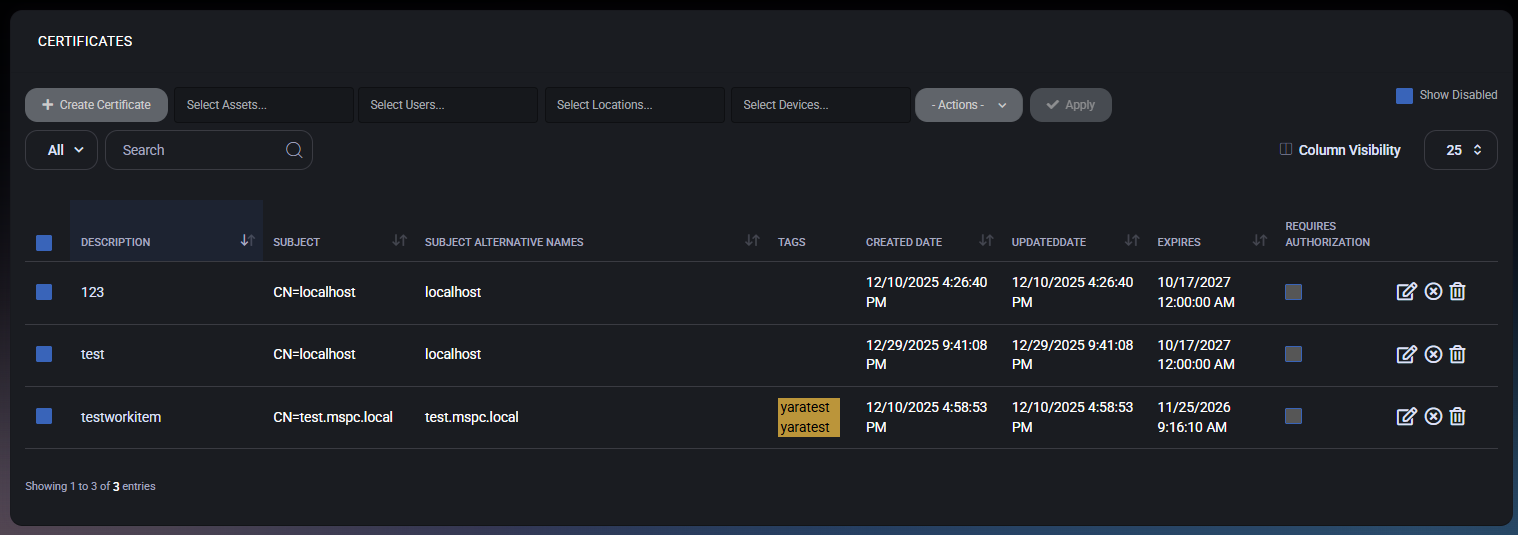
Table of Contents
Certificates Overview
The Certificates section is intended for storing certificate files and their metadata so they can be:
- linked to the right operational context using tags
- secured with authorization controls
- audited and reviewed by expiration date
- managed consistently through bulk actions
Typical certificate sources include PKI systems, cloud portals, web servers, device management platforms, or customer-provided certificate files.
The top toolbar provides actions for adding certificates and narrowing the list by context.
Primary Actions
- Create Certificate – Opens the certificate creation form to upload a new certificate and define its tags and security settings.
- Actions – Opens the bulk actions dropdown (authorization, peer access, tagging, export, deletion).
- Apply – Executes the selected bulk action for all selected certificate entries. This is typically disabled until:
- at least one certificate is selected, and
- a valid action is chosen from Actions.
Scope Filters
These filters reduce results to certificates associated with a specific operational scope:
- Select Assets – Filter by associated asset tags.
- Select Users – Filter by associated user tags.
- Select Locations – Filter by associated location tags.
- Select Devices – Filter by associated device tags.
Search and View Filter
- View Filter (for example, All) – Switches between available views if configured.
- Search – Searches certificates by keywords (commonly description/subject values).
Certificates List
The main table shows certificates stored in MSPControl along with metadata needed for operational tracking and access control.
Displayed Columns
- Description – A human-readable label for the certificate (purpose/system/service name).
- Subject – The certificate subject (for example,
CN=...).
- Subject Alternative Names – Additional DNS names/identities covered by the certificate.
- Tags – Context tags applied to the certificate (Assets/Users/Locations/Devices).
- Created Date – When the certificate entry was created in MSPControl.
- Updated Date – When the entry was last modified.
- Expires – Certificate expiration date and time.
- Requires Authorization – Indicates whether authorization is required to access the certificate.
Table Controls
- Column Visibility – Customize which columns are shown in the list.
- Page Size (for example, 25) – Controls how many entries are shown per page.
Row Actions
Each certificate row includes quick action icons on the right side. Common actions include:
- Edit (pencil icon) – Updates description, tags, authorization settings, and other editable metadata.
- Delete (trash icon) – Deletes the certificate entry (subject to permission and policy).
- Other context actions – Additional icons may appear depending on certificate state, permissions, or export capabilities.
For consistent updates across many certificates, use bulk actions instead of editing items one-by-one.
Bulk Actions Dropdown
The Actions dropdown provides bulk operations for selected certificates.
Available Actions
- Set Requires Authorization – Applies or enforces authorization requirement across selected certificates.
- Add Peers With Access – Grants peer access to selected certificates (typically with an optional expiration).
- Delete Peers With Access – Removes peer access from selected certificates.
- Add Assets Tag – Adds asset tag(s) to selected certificates.
- Delete Assets Tag – Removes asset tag(s) from selected certificates.
- Add Users Tag – Adds user tag(s) to selected certificates.
- Delete Users Tag – Removes user tag(s) from selected certificates.
- Add Locations Tag – Adds location tag(s) to selected certificates.
- Delete Locations Tag – Removes location tag(s) from selected certificates.
- Add Devices Tag – Adds device tag(s) to selected certificates.
- Delete Devices Tag – Removes device tag(s) from selected certificates.
- Delete Selected – Deletes all selected certificates.
- Export from PFX – Extracts and exports content from a selected PFX (for example, for portability or integration workflows).
How to Perform a Bulk Action
- Select one or more certificates using the checkbox column.
- Open Actions and choose the desired operation.
- Click Apply to execute.
Create Certificate
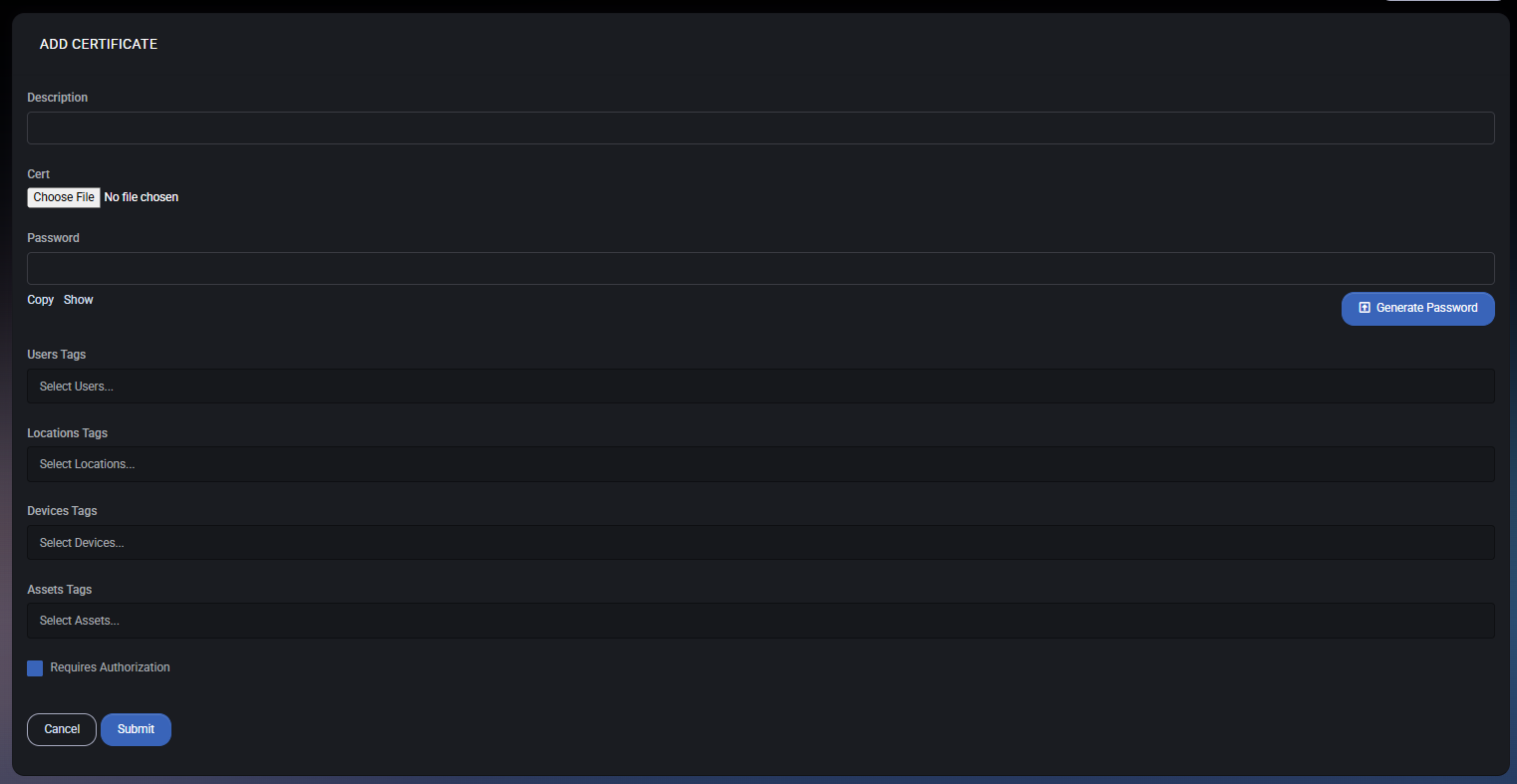
Click Create Certificate to open the certificate upload form. This form is used to attach a new certificate file to MSPControl and define how it is secured and scoped.
Fields
- Description – A short label describing what the certificate is used for (for example: HTTPS certificate for customer portal).
- Cert – Upload the certificate file. In many environments, this is commonly a
.pfx / .p12 file (certificate + private key), but supported formats depend on your implementation.
- Password – If the uploaded certificate file is protected, enter its password here.
- Copy – Copies the password value (when supported by the UI).
- Show – Reveals the password value on screen (use carefully and only in safe environments).
- Generate Password – Generates a strong password that can be used for the certificate file or for standardized handling.
Use tags to associate the certificate with the right operational scope:
- Users Tags – Scope the certificate to one or more users.
- Locations Tags – Scope the certificate to one or more locations.
- Devices Tags – Scope the certificate to one or more devices.
- Assets Tags – Scope the certificate to one or more assets.
Security
- Requires Authorization – When enabled, access to the certificate requires authorization, reducing exposure of private keys and sensitive material.
Form Actions
- Submit – Uploads and saves the certificate record.
- Cancel – Closes the form without saving.
Export from PFX
Export from PFX is available as a bulk action and is intended for workflows where certificate material stored in a PFX container needs to be extracted or exported.
Use this carefully, because exporting certificate/private key content may increase exposure risk if handled outside secure storage.
Visibility Controls
The Certificates page includes a visibility toggle:
- Show Disabled – When enabled, disabled certificate records are included in the list. This is useful for audits, cleanup, or reactivation tasks.
If a certificate is missing from the list, verify your filters, search keyword, and whether Show Disabled is required.
Best Practices
- Use clear descriptions (for example: Service – Environment – Purpose) so certificates are easy to identify later.
- Always track expirations by reviewing the Expires column regularly to prevent outages.
- Apply tags consistently so certificates are discoverable only where needed (avoid broad access by default).
- Enable Requires Authorization for certificates that contain private keys or provide privileged access.
- Restrict peer access to the smallest required group and use expirations when access is temporary.
- Use Export from PFX only when operationally necessary and ensure exported files are stored and transmitted securely.
- Periodically review entries shown by Show Disabled and remove obsolete certificate material where appropriate.



