Azure Policies
The Azure Policies section in MSPControl provides administrators with centralized management of Microsoft 365 and Azure-related services. These policies define how Office 365 offers, Microsoft products, CSP subscriptions, GDAP relationships, risk detection, alert templates, and cloud agreements are handled within the platform. By configuring these policies, providers can automate license distribution, maintain compliance, monitor risks, and strengthen overall tenant management.
Table of Contents
Office 365 Offers
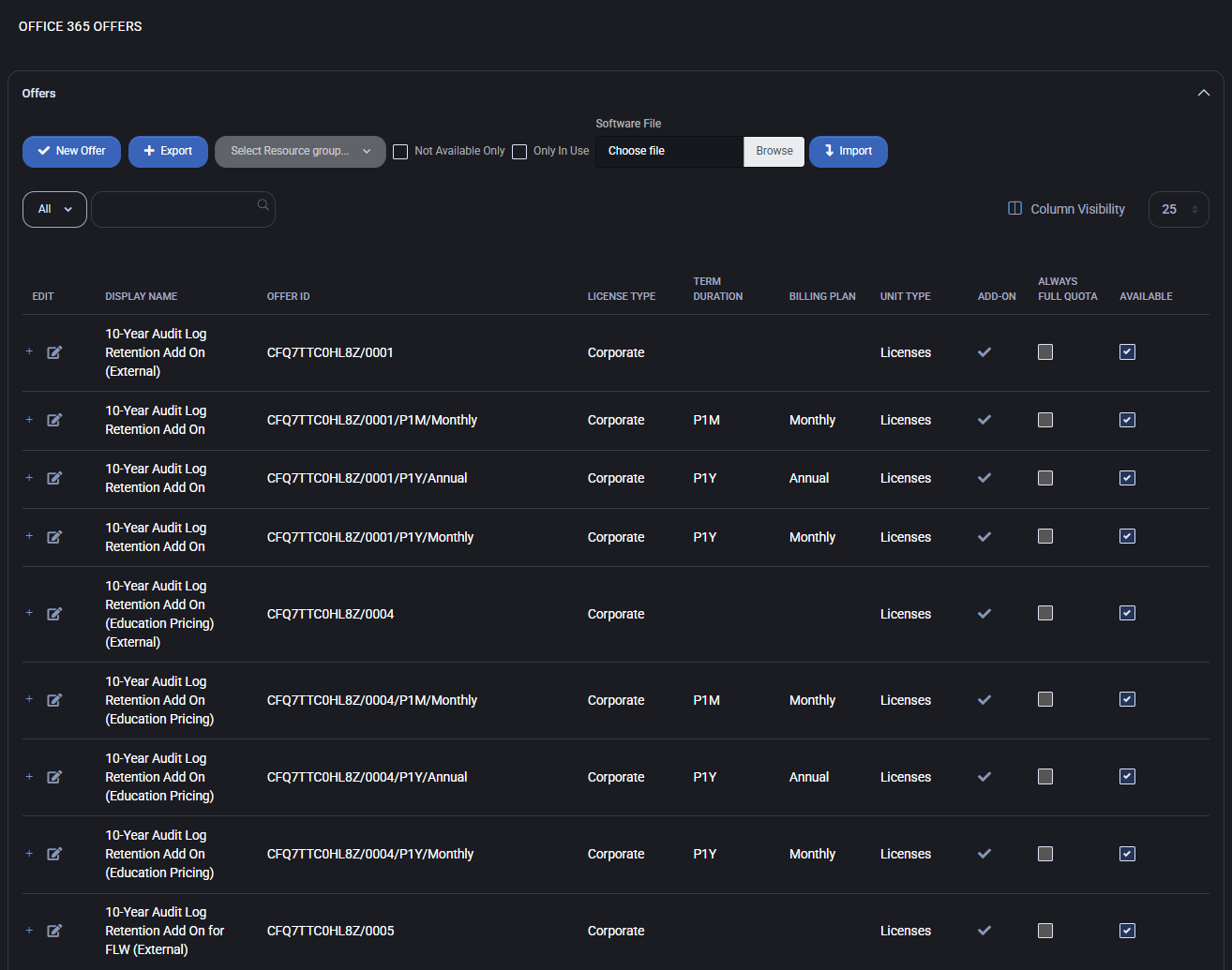
The Office 365 Offers policy in MSPControl allows administrators to manage the full catalog of Microsoft 365 subscriptions, add-ons, and related licensing options. From this interface, providers can create new offers, define pricing models, associate offers with resource groups, and manage upgrade paths. The system supports both Corporate and Education licensing scenarios, with flexible billing configurations.
Main Features
- New Offer
Create a new Office 365 offer by specifying Offer ID, Display Name, License Type, and associated resource groups.

- Export
Export the full catalog of offers into an Excel (.xlsx) file for reporting or integration. The export contains the following fields:
- Display Name
- Our Price, $
- Price to Customer, $
- Offer ID
- New Commerce
- License Type
- Term Duration
- Billing Plan
- Add-On
- Available
- Resource Groups
- Hosting Plans
- Upgrade Offers
- Resource Groups
Assign offers to Microsoft service categories such as Exchange Online, Microsoft Teams, SharePoint Online, Dynamics 365, Defender plans, and others.
- Billing Plans
Configure whether the offer is billed Monthly or Annually, with support for New Commerce Experience (NCE) rules.
- Add-On Flag
Mark an offer as an add-on if it requires a parent license.
- Always Full Quota
Ensures that the offer is always provisioned with full quota, regardless of underlying limits.
- Upgrade Paths
Define upgrade offers that can be applied when customers move to higher service tiers.
- Pricing Model
Set Our Price and Customer Price independently, enabling flexible margin management for resellers.
Offer Editing Panel
When editing or creating an offer, administrators can provide Offer ID, Display Name, set License Type, and link the offer with hosting plans. Resource groups and upgrade options can also be defined, along with currency-based pricing records.
Best Practices
- Use Export regularly to maintain an external backup of all Office 365 offers and prices.
- Leverage Resource Groups to align offers with specific services like Teams, Exchange, or Defender — this improves provisioning accuracy.
- Keep Upgrade Offers mapped for smooth customer transitions to higher-value subscriptions.
- When creating add-on licenses, always enable the Add-On flag to avoid provisioning errors.
- Define clear pricing rules for Our Price vs Customer Price to ensure transparent margins.
Microsoft Products
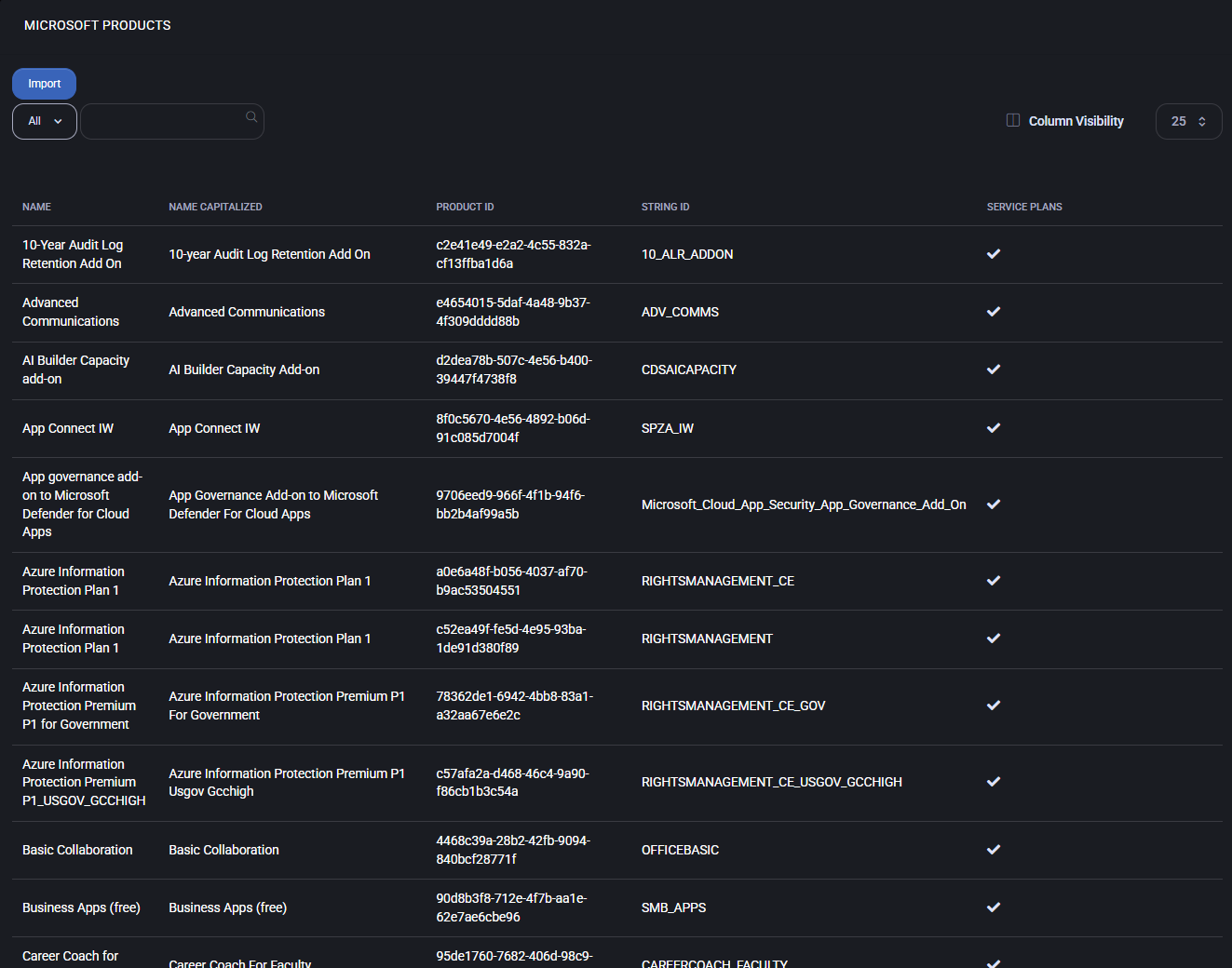
The Microsoft Products policy in MSPControl provides a centralized catalog of all Microsoft services and product SKUs available for provisioning and subscription management. This section lists detailed information about each product, including Name, Product ID, String ID, and available Service Plans. Administrators can review, search, and import Microsoft product definitions directly into the system for use in hosting plans and automated provisioning workflows.
Main Features
- Product Catalog
Displays the complete list of Microsoft SKUs, including base services (e.g., Exchange, SharePoint, Teams) and add-ons (e.g., AI Builder, Information Protection, Advanced Communications).
- Identifiers
Each product entry includes Product ID (unique GUID), String ID (service code), and a standardized Capitalized Name.
- Service Plans
Shows whether a given product includes one or more service plans that can be enabled during provisioning.
- Import Function
Allows administrators to refresh or extend the product catalog by importing updated Microsoft product definitions.
- Search & Filter
Quickly locate specific products using the search bar or dropdown filters.
- Integration
Imported products can be used in Hosting Plans, Office 365 Offers, and other policies that rely on Microsoft licensing.
Best Practices
- Run catalog imports regularly to ensure new Microsoft products and SKUs are available for use.
- Leverage String IDs when integrating with automation scripts or external systems, as they remain consistent across environments.
- Document mappings between Product IDs and Service Plans to simplify troubleshooting.
- Use search and filtering when configuring hosting plans to avoid misassigning similar product names.
- Cross-reference imported products with Microsoft’s official SKU reference to confirm accuracy.
Azure CSP Policy
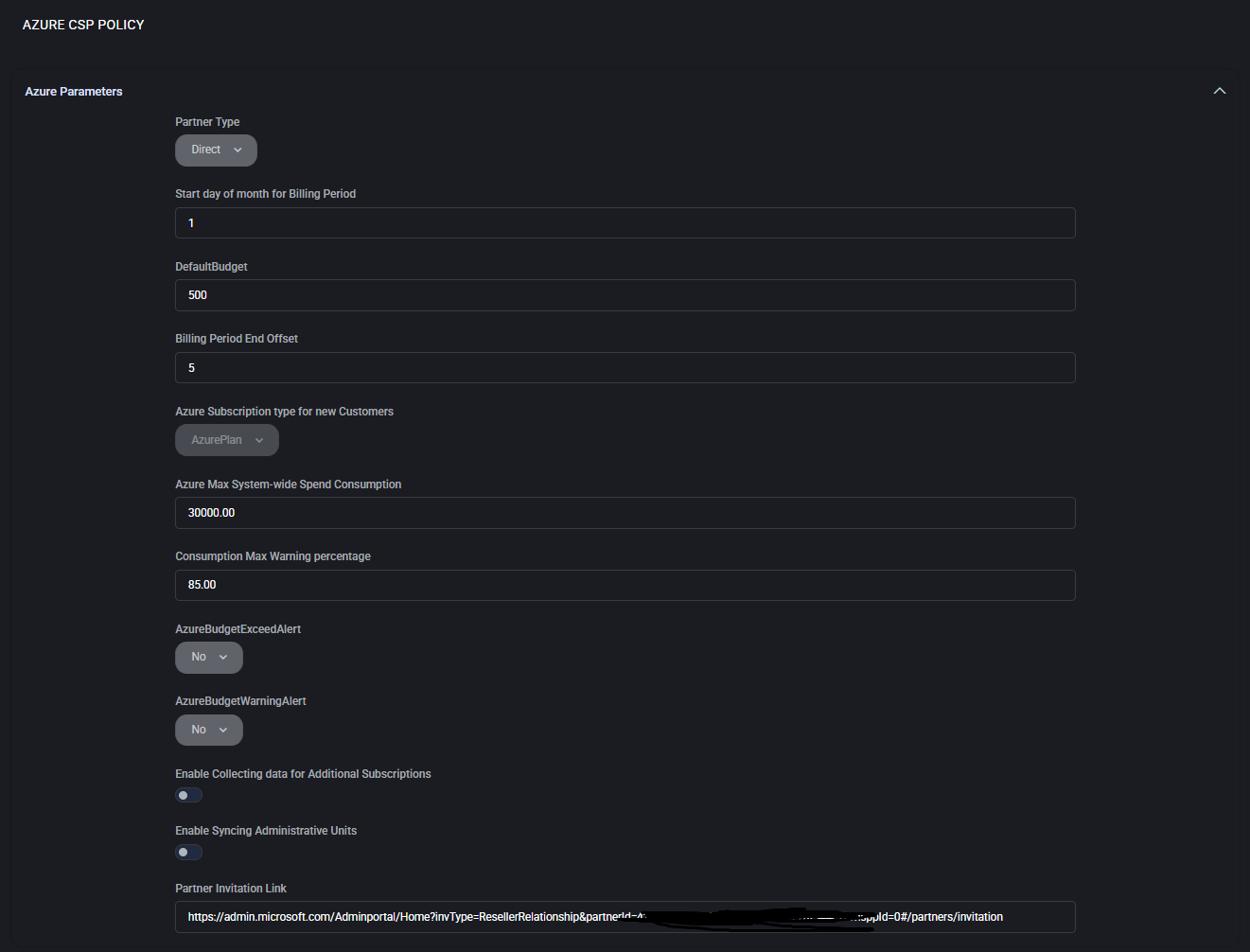
The Azure CSP Policy defines partner-level parameters, budget controls, monitoring, and authentication settings for Cloud Solution Provider (CSP) operations in MSPControl. It centralizes financial thresholds, security integrations, and authorization flows, ensuring compliance with Microsoft CSP requirements.
Azure Parameters
- Partner Type
Select Direct or Indirect CSP partner model.
- Start Day of Month for Billing Period
Defines billing cycle start (1–31).
- Default Budget
Initial budget assigned to new customers.
- Billing Period End Offset
Grace period (days) after billing cycle end.
- Azure Subscription Type for New Customers
Choose subscription template (e.g., Azure Plan).
- Azure Max System-wide Spend Consumption
Limit on overall Azure consumption.
- Consumption Max Warning %
Alert threshold percentage before exceeding the budget.
- Budget Exceed / Warning Alerts
Enable notifications for exceeding or approaching budget limits.
- Enable Collecting Data for Additional Subscriptions
Track usage across multiple subscriptions.
- Enable Syncing Administrative Units
Synchronize Azure AD administrative units with MSPControl.
- Partner Invitation Link
Microsoft Partner Center invitation URL for customer onboarding.
OMS Workspace Windows Event Logs
- Enable Device Azure Monitor
Turn on event log forwarding to Azure Monitor.
- Sync Sentinel WatchLists
Enable integration with Microsoft Sentinel watchlists.

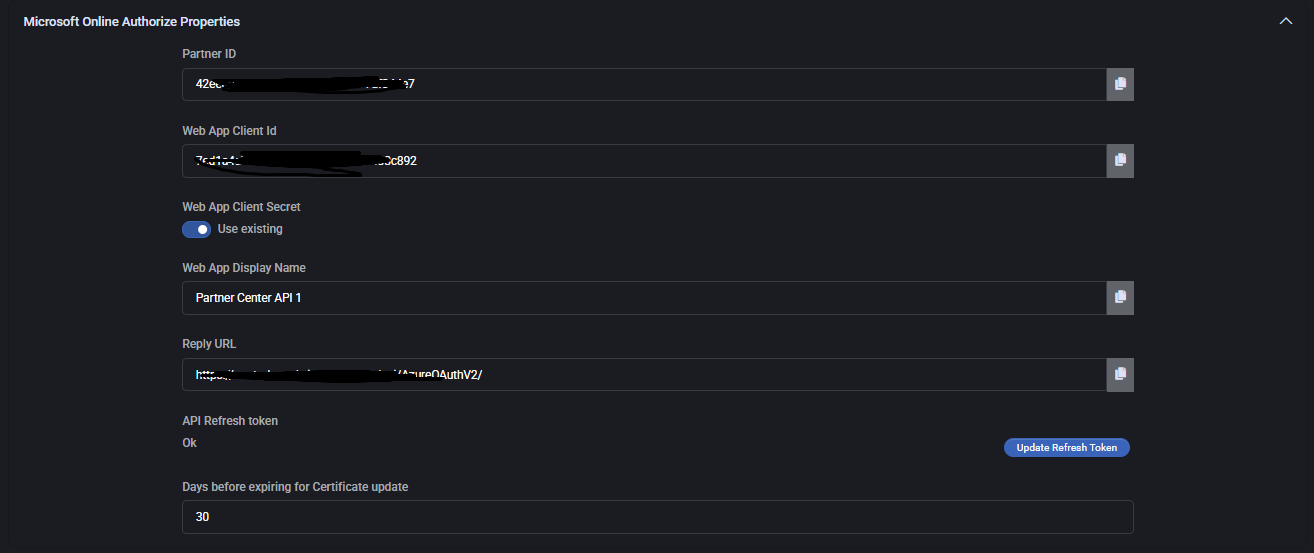
Microsoft Online Authorize Properties
- Partner ID
Unique identifier for partner tenant.
- Web App Client ID
Azure AD application identifier for API access.
- Web App Client Secret
Secure key used for authentication.
- Web App Display Name
Friendly name of the API client.
- Reply URL
Callback URL used by Microsoft Partner Center.
- API Refresh Token
Token used for continuous authentication.
- Days Before Expiring for Certificate Update
Renewal reminder period.
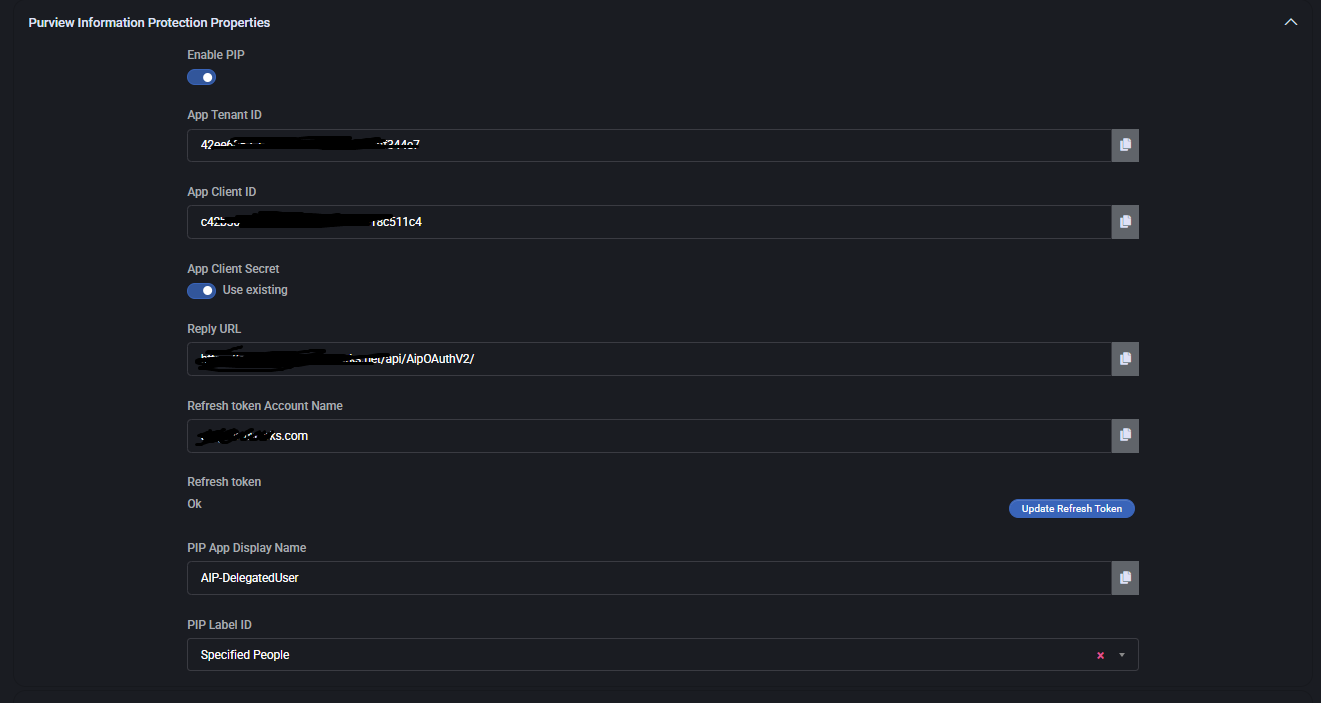
Purview Information Protection Properties
- Enable PIP
Activates Microsoft Purview Information Protection.
- App Tenant ID
Tenant identifier for Purview integration.
- App Client ID / Secret
Authentication parameters for Purview client app.
- Reply URL
Integration callback URL.
- Refresh Token Account Name
Account used to refresh Purview tokens.
- PIP App Display Name
Friendly name for the Purview app.
- PIP Label ID
Defines classification labels (e.g., Specified People).
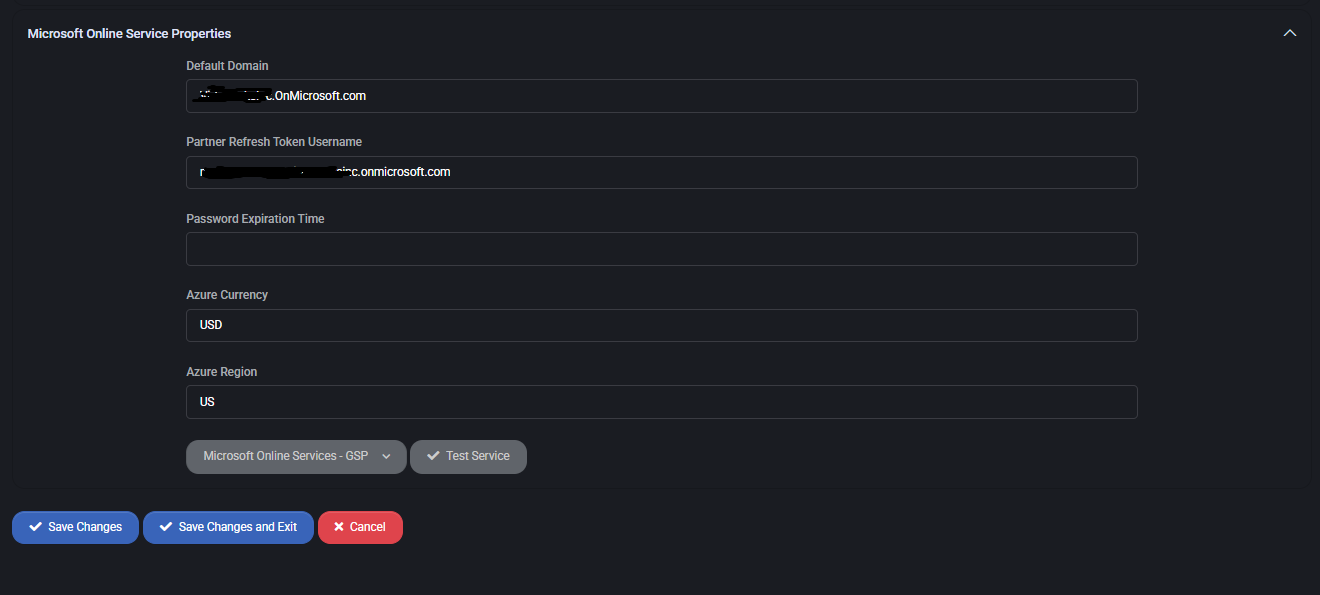
Microsoft Online Service Properties
- Default Domain
Partner’s default onmicrosoft.com domain.
- Partner Refresh Token Username
Account handling token renewals.
- Password Expiration Time
Defines password lifetime for the integration account.
- Azure Currency
Default billing currency (e.g., USD).
- Azure Region
Primary Azure region for deployments.
- Test Service
Validate connectivity to Microsoft Online Services.
Best Practices
- Always configure budget thresholds to prevent unexpected Azure charges.
- Use warning alerts (80–85%) and exceed alerts for proactive budget management.
- Enable Azure Monitor and Sentinel WatchLists for enhanced security visibility.
- Keep API credentials and refresh tokens updated and monitor expiration timers.
- Leverage PIP Labels to enforce compliance and data classification policies.
- Use Test Service after any configuration change to validate CSP integration.
Azure GDAP Policy
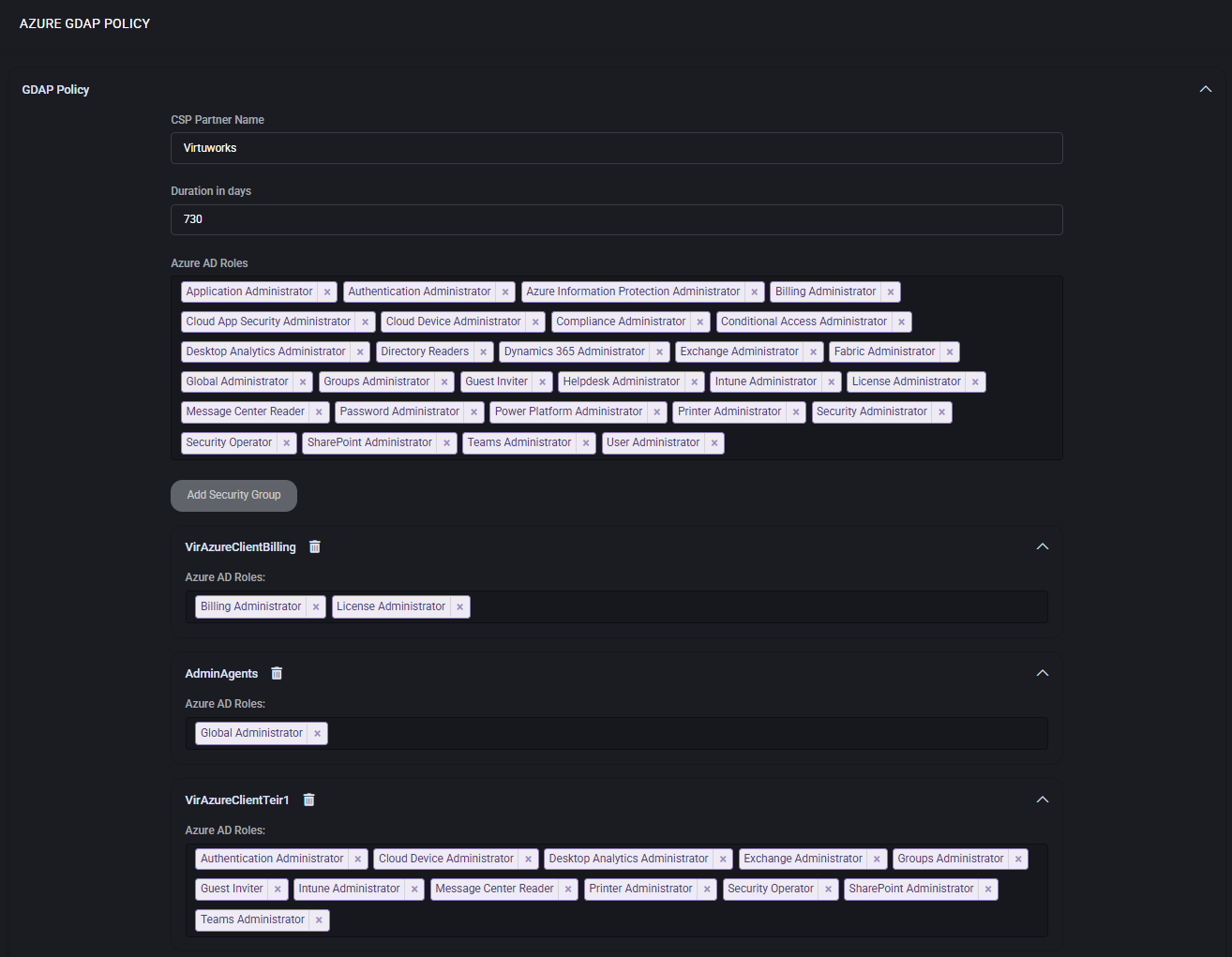
The Azure GDAP Policy in MSPControl manages Granular Delegated Admin Privileges (GDAP), enabling service providers to control the level of administrative access they hold in customer tenants. It ensures compliance with Microsoft’s least-privilege principle while maintaining operational flexibility for partners.
Main Features
- CSP Partner Name
Defines the partner organization registered with Microsoft CSP.
- Duration in Days
Specifies how long GDAP assignments remain valid (e.g., 730 days).
- Azure AD Roles
Assign only the required administrative roles to comply with the principle of least privilege.
- Security Groups
Organize delegated roles into groups for structured access management.
Role Delegation
Administrators can configure multiple role groups (security groups) that reflect operational responsibilities. For example:
- Billing Administrators
Focused on subscription, invoicing, and license management.
- Support and Helpdesk
Equipped with roles like Helpdesk Administrator or Password Administrator to handle customer incidents.
- Technical Admins
Assigned broader roles such as Exchange Administrator, Intune Administrator, or Teams Administrator for service configuration.
- Global Admin Tier
Reserved for critical operations and should be assigned sparingly.
Best Practices
- Use role-based groups instead of assigning privileges directly to reduce misconfiguration risks.
- Set duration periods that align with compliance and security policies (e.g., review every 2 years).
- Grant Global Administrator only when absolutely necessary.
- Regularly audit GDAP assignments to ensure expired or unused delegations are removed.
Risk Detection Policy
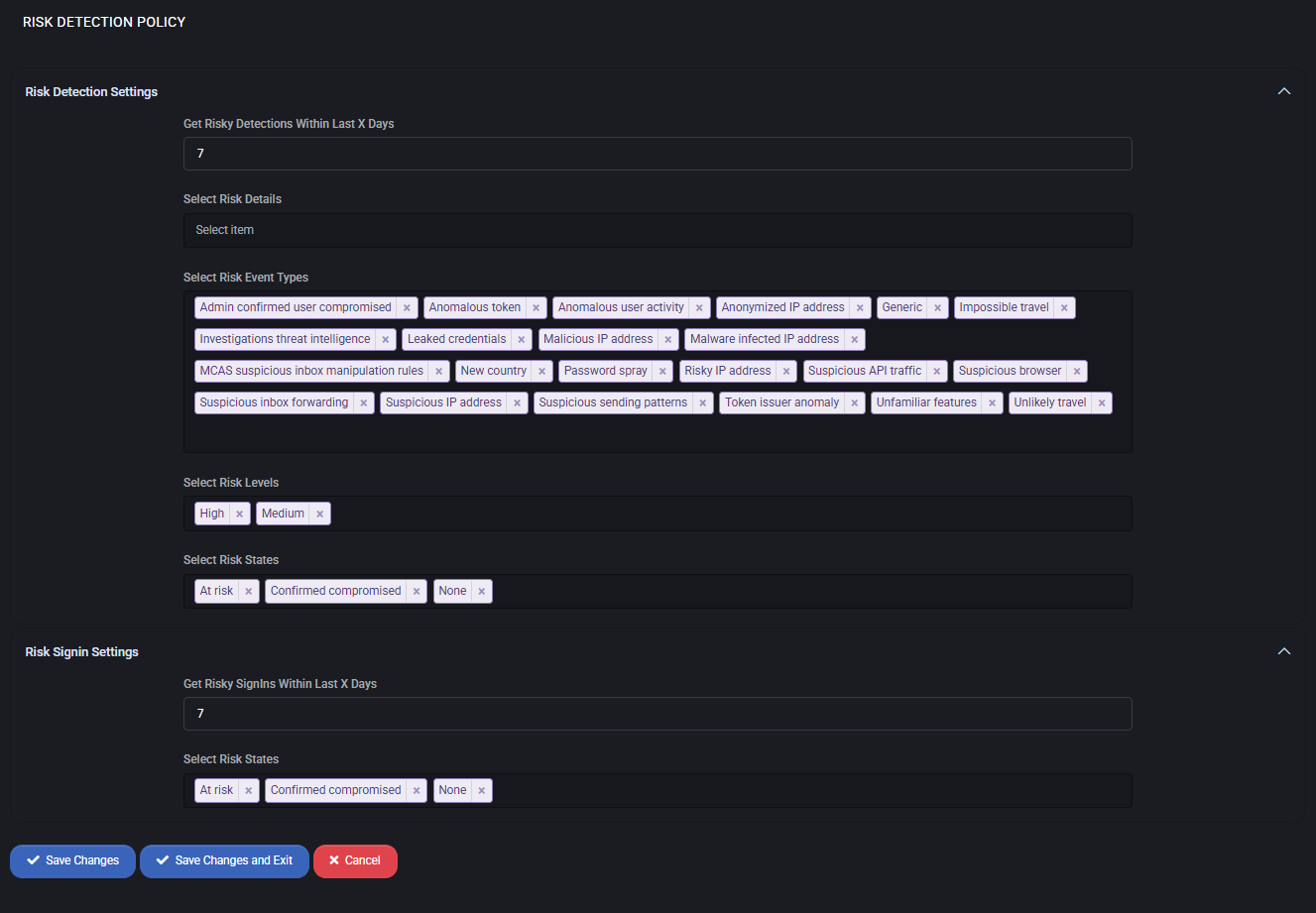
The Risk Detection Policy in MSPControl provides administrators with visibility into suspicious activities, compromised accounts, and unusual sign-ins across Microsoft 365 and Azure tenants. By defining detection rules, thresholds, and event types, this policy helps organizations identify potential threats early and act proactively.
Main Features
- Get Risky Detections Within Last X Days – Defines the time window for analyzing risk events (e.g., last 7 days).
- Select Risk Event Types – Configure which events to monitor, such as anomalous sign-ins, impossible travel, suspicious IP addresses, leaked credentials, password spray attempts, or malware-infected endpoints.
- Select Risk Levels – Filter risk detections by severity levels (High, Medium, Low).
- Select Risk States – Focus detection on At risk, Confirmed compromised, or None states.
Risk Sign-In Settings
- Get Risky Sign-ins Within Last X Days – Specifies the timeframe to track sign-ins flagged as risky.
- Select Risk States – Same state filters apply to sign-in activity, enabling correlation between risky sign-ins and overall risk detections.
Best Practices
- Set the detection period (X days) to align with your organization’s incident response cycle (e.g., 7–14 days).
- Monitor High and Medium risk levels daily to quickly identify compromised accounts.
- Include Confirmed compromised states in reports to escalate remediation actions immediately.
- Correlate Risk Events with Risk Sign-ins to build a complete picture of attack vectors.
- Integrate detection outputs with SIEM or SOC workflows for automated escalation and alerting.
Azure Alert Templates Policy
The Azure Alert Templates Policy in MSPControl allows administrators to define reusable alert rules for Azure resources and Microsoft 365 tenants. These templates control what is monitored, how alerts are filtered, and who receives notifications. Once configured, templates can be applied across customers and tenants to standardize monitoring.
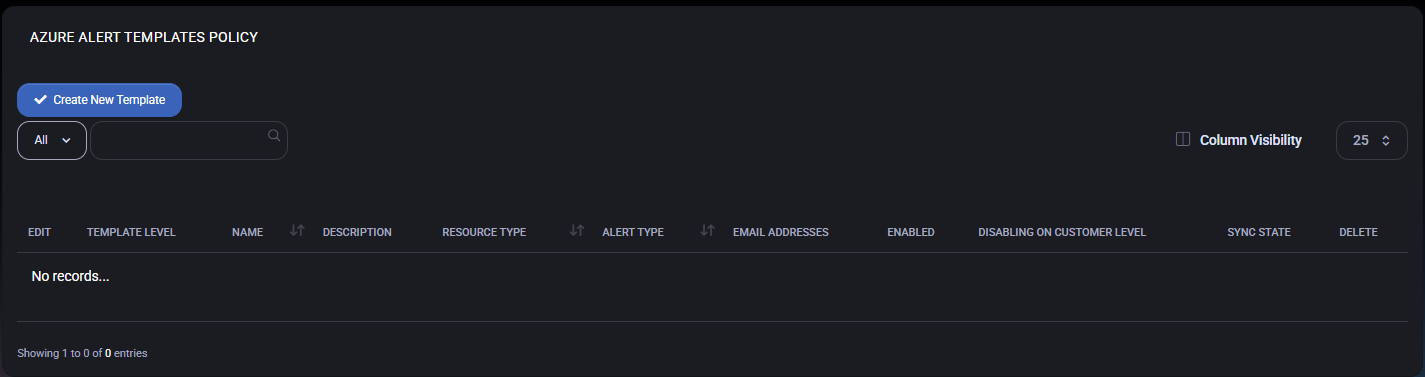
Azure Alert Templates Grid
On the main Azure Alert Templates Policy page, MSPControl displays a list of all configured alert templates. The grid includes the following columns:
- Template Level – Indicates the scope of the template (for example, system-wide or customer-level templates, depending on configuration).
- Name – A friendly name used to identify the alert template (for example, High CPU Usage Alert).
- Description – Optional description explaining what the alert monitors and when it should be triggered.
- Resource Type – Defines the Azure resource target for the alert (such as subscription, resource group, specific resource type, or activity log).
- Alert Type – Controls the alerting engine used by Azure (for example, Activity Log Alert or other supported rule types).
- Email Addresses – Comma-separated list of notification recipients that will receive alert emails when the rule is triggered.
- Enabled – Shows whether the template is currently active. Disabled templates are ignored during synchronization.
- Disabling on Customer Level – Indicates whether a customer is allowed to disable this alert template on their own level while it remains defined globally.
- Sync State – Displays the current synchronization status between MSPControl and Azure for this template.
- Delete – Removes the alert template definition from MSPControl.
Administrators can use the Create New Template button to add a new Azure alert template and Column Visibility to show or hide individual columns.
Creating or Editing an Alert Template
When you create or edit an alert template, a side panel opens with several configuration sections.
Alert Template Details
- Select Rule Type – Chooses the Azure alert rule type. For example, Activity Log Alert for rules based on Azure Activity Log events.
- Enable – Turns the template on or off. Disabled templates are stored but not synchronized or evaluated.
- Disabling Alert on Customer Level – Allows individual customers to disable the resulting alert rule on their tenant while keeping the global template intact. Use this when a rule is required only for certain customers.
- Tenant for Request Metadata – Selects which tenant (or All Tenants) is used to query available resources and operations when building the rule.
- Alert Target – Defines the target resource scope for the alert, such as subscriptions, resource groups, or specific Azure resource types.
- Alert Rule Name – The display name of the alert rule that will be created in Azure. A typical naming convention is percentage-cpu-gt-than-70 or similar, describing the condition.
- Search Query – For Activity Log rules, this field holds the Kusto (KQL) or filter query that selects relevant events from the Activity Log.
- Description – Optional free-form description that explains the purpose of the alert and any internal notes.
Action
- Emails for Getting Alert – A comma-separated list of email addresses that will receive notifications when the alert is triggered. These recipients are added to the underlying Azure action group created by MSPControl.
Alert Conditions (Activity Log)
For Activity Log Alerts, additional conditions can be used to narrow down which events generate notifications.
- Select Category – Filters events by Activity Log category (for example, Administrative, Service Health, or others supported by Azure).
- Operation – Specifies the exact operation or set of operations that should trigger the alert (for example, a particular administrative action or resource change).
Alert Logic
The Alert Logic block defines how the selected events are evaluated.
- Event Level – Filters events by severity level (for example, Critical, Error, Warning, Informational, or All).
- Status – Filters by event status (for example, All, Active, or Resolved), depending on the selected rule type.
- Event Initiated By – Optional filter that limits events to those initiated by a specific user, identity type, or security principal.
Best Practices
- Start with a small number of alert templates that cover the most critical events (such as security changes, subscription modifications, or budget-related triggers), then expand as needed.
- Use descriptive Alert Rule Names and Descriptions so that both administrators and customers can quickly understand what each template does.
- Configure Emails for Getting Alert to use shared mailboxes or distribution lists instead of personal addresses to ensure continuity.
- Leverage Disabling Alert on Customer Level for templates that may not be applicable to all customers, while still enforcing a standardized baseline.
- Regularly review the Sync State column to confirm that all templates are successfully synchronized with Azure.
MS Cloud Agreement Policy
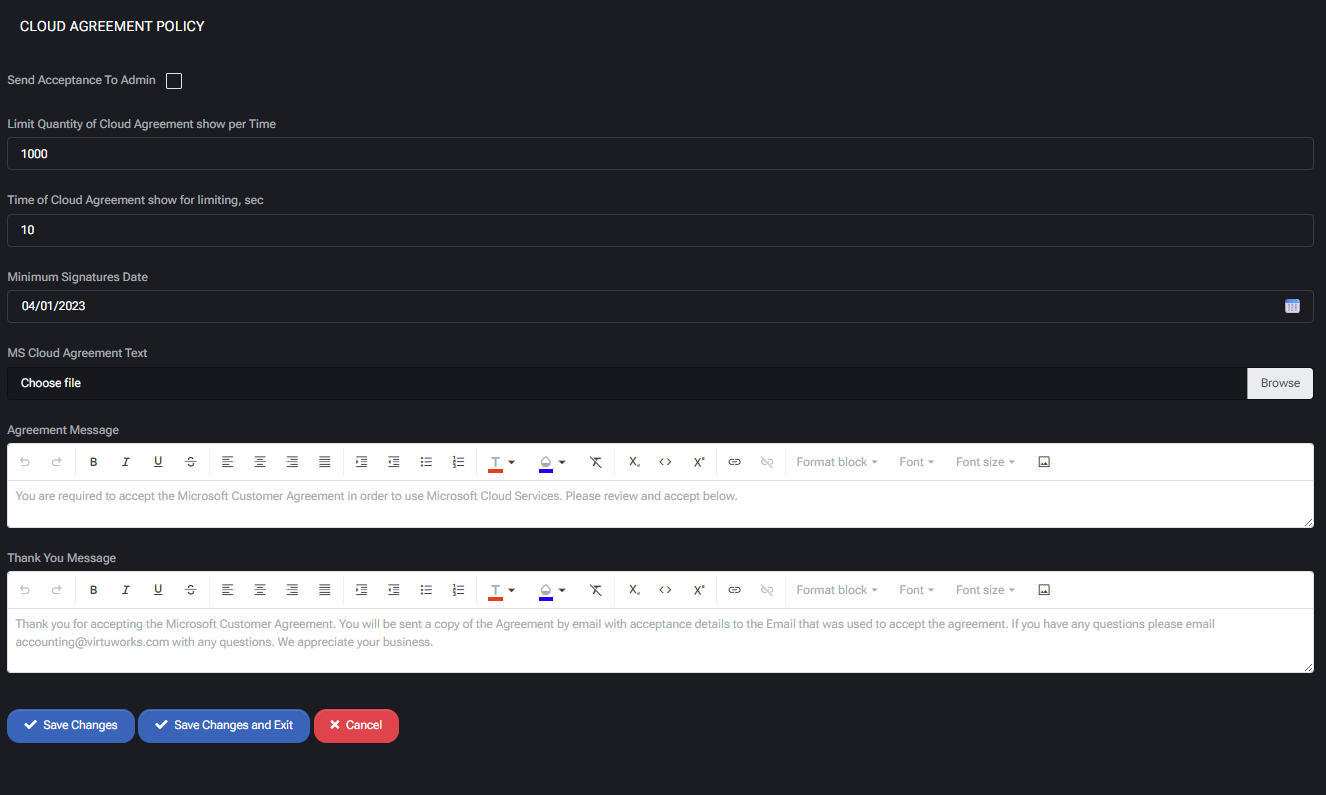
The MS Cloud Agreement Policy in MSPControl manages how Microsoft Customer Agreements are presented, signed, and tracked for compliance. This ensures that all tenants and customers using Microsoft services have formally accepted the required agreements before gaining access to cloud resources.
Main Features
- Send Acceptance to Admin
Enables forwarding of signed agreement confirmations to administrators for compliance tracking.
- Limit Quantity of Cloud Agreement Show per Time
Defines how many times the agreement can be shown to a user within a session (e.g., 1000).
- Time of Cloud Agreement Show for Limiting
Sets the delay in seconds between repeated agreement prompts (e.g., 10 seconds).
- Minimum Signatures Date
Specifies the earliest date from which agreements are considered valid (e.g., 04/01/2023).
- MS Cloud Agreement Text
Upload the official Microsoft Customer Agreement text file that will be displayed to customers.
- Agreement Message
Defines the initial message shown to users, requiring them to accept the Microsoft Customer Agreement before accessing services.
- Thank You Message
Configurable message displayed after acceptance. It can include confirmation details, contact information, and a copy of the agreement.
Best Practices
- Always keep the agreement text file up to date with Microsoft’s latest Customer Agreement version.
- Use a clear Agreement Message to explain why acceptance is required, reducing confusion and support requests.
- Configure Thank You Messages with contact details to streamline customer support.
- Set a reasonable display limit (e.g., quantity and seconds) to balance compliance enforcement with user experience.
- Ensure that the Minimum Signatures Date aligns with Microsoft’s compliance requirements for new agreements.



