Alert Templates
The Alert Templates page in MSPControl is used to create and manage reusable alert definitions for Azure-related monitoring. Instead of building the same alert settings repeatedly, administrators can prepare templates that define the alert type, target resource scope, rule details, and notification recipients in a reusable format.
This page is especially useful when the organization wants consistent alerting behavior across multiple resources or customers. It helps standardize how alerts are configured, who receives them, and whether they remain enabled or can be disabled at the customer level.
Table of Contents
Alert Templates Overview
The Alert Templates page acts as a template library for alert rules. Each record represents a predefined monitoring configuration that can later be used in a controlled and repeatable way.
From the list view, administrators can review the current templates, open a template for editing, check whether it is enabled, see whether customer-level disabling is in use, and monitor its sync state. This makes the page useful both for setup and for ongoing maintenance.
Alert Templates List Page
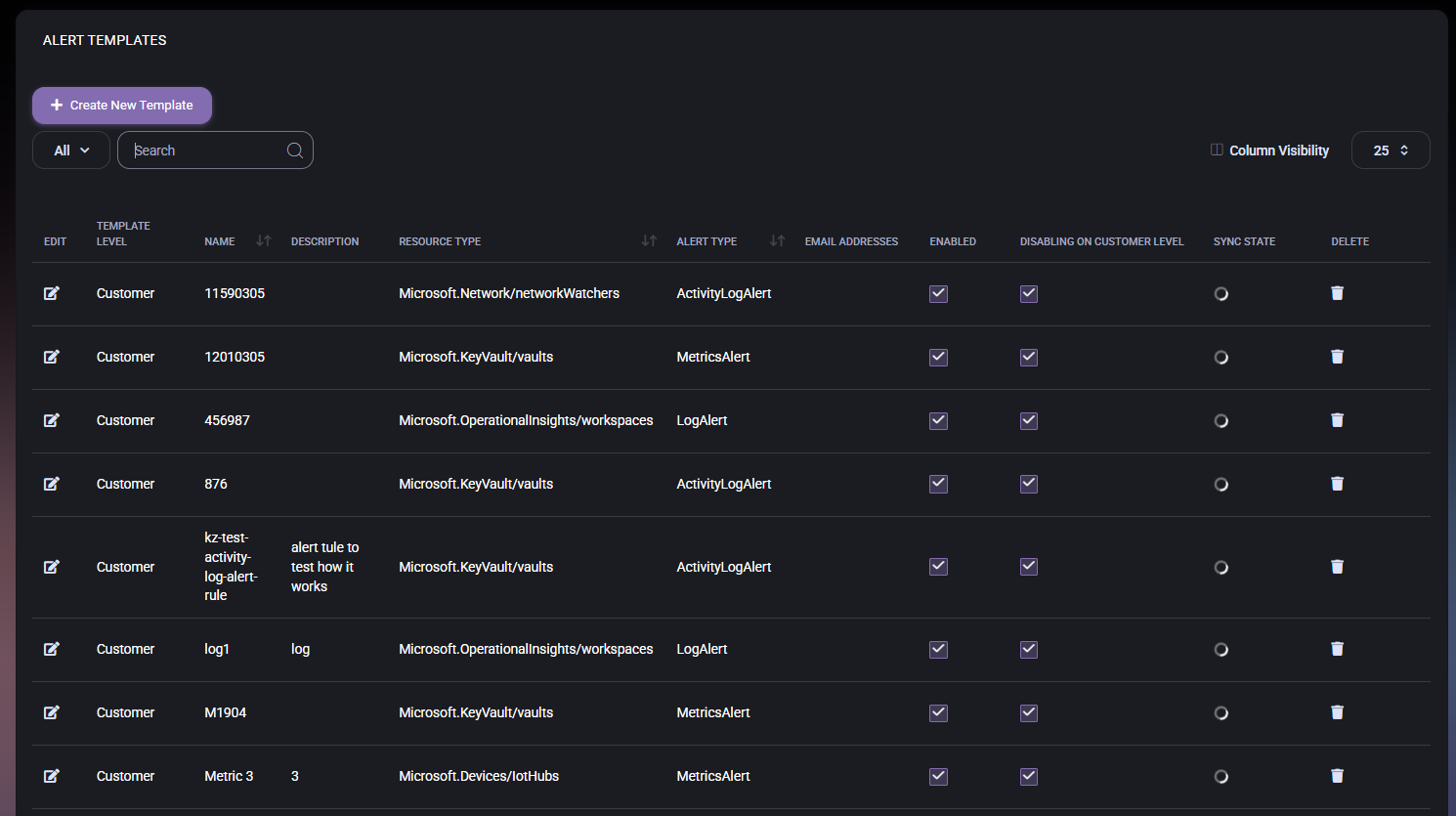
The main Alert Templates page displays existing templates in a table. It provides quick access to create a new template, search through existing entries, and manage how the table is displayed.
Alert Templates Page Controls
- Create New Template opens the template form where a new alert template can be configured.
- Category Filter allows administrators to narrow the list using the available dropdown options.
- Search helps locate a template by name, description, alert type, resource type, or other searchable values.
- Column Visibility allows administrators to choose which columns remain visible in the table.
- Page Size Selector controls how many template rows are displayed at one time.
Alert Templates Table Columns
- Edit opens the selected template for editing.
- Template Level shows the scope of the template. In the examples shown, the value is Customer.
- Name shows the template name or identifier.
- Description shows the template description.
- Resource Type shows the Azure resource category the alert applies to, such as Microsoft.Network/networkWatchers, Microsoft.KeyVault/vaults, Microsoft.OperationalInsights/workspaces, or Microsoft.Devices/IoTHubs.
- Alert Type shows the type of alert used by the template, such as ActivityLogAlert, MetricsAlert, or LogAlert.
- Email Addresses shows the configured recipient list for the template.
- Enabled shows whether the template is currently enabled.
- Disabling on Customer Level shows whether the template supports or uses disabling at the customer level.
- Sync State displays the template’s current synchronization status indicator.
- Delete removes the template.
This table is useful because it gives administrators a fast overview of template scope, alert style, target resource type, and operational status without opening every record one by one.
Create or Edit Alert Template
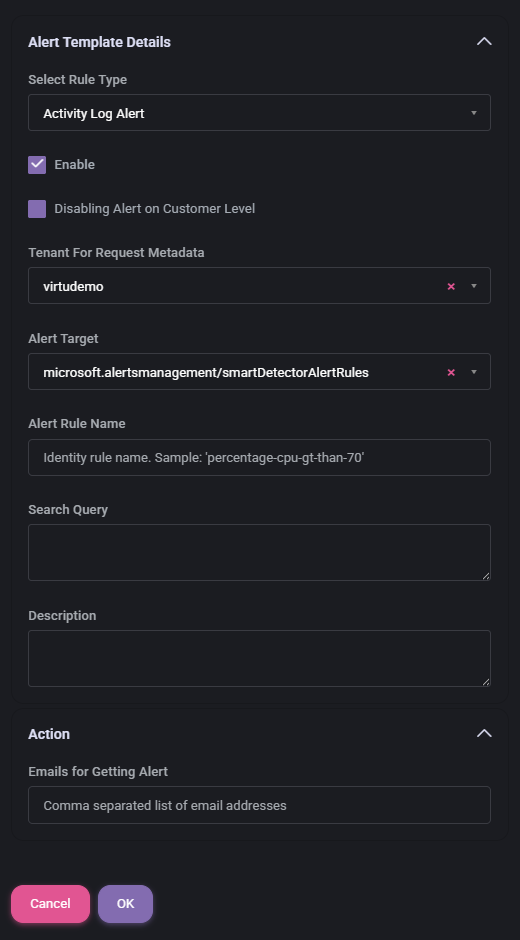
When administrators create a new template or open an existing one for editing, MSPControl shows a form with at least two main blocks: Alert Template Details and Action. This layout keeps rule definition separate from notification handling.
This is useful because an alert template usually needs two kinds of information: first, what should be monitored, and second, who should receive the alert when it triggers.
Alert Template Details Section
- Select Rule Type defines the type of alert rule used by the template. In the example shown, the selected value is Activity Log Alert.
- Enable controls whether the template is active.
- Disabling Alert on Customer Level controls whether the template can be disabled at the customer level.
- Tenant For Request Metadata defines the tenant context used for the request metadata associated with the template.
- Alert Target defines the Azure target used by the alert template. In the example shown, the value is microsoft.alertsmanagement/smartDetectorAlertRules.
- Alert Rule Name defines the rule name used by the template.
- Search Query stores the query or filter expression used by the template when applicable.
- Description stores a description explaining the purpose of the template.
This section defines the monitoring logic itself. It tells MSPControl what kind of alert is being created, what Azure target it belongs to, and how the rule should be identified and described.
Action Section
- Emails for Getting Alert stores the recipient addresses that should receive the alert. The field expects a comma-separated list of email addresses.
- OK saves the template changes.
- Cancel closes the form without saving.
This section focuses on alert delivery. It makes sure the template does not only describe the rule itself, but also defines who should be notified when the alert becomes active.
How Alert Templates Help
Alert templates help MSPControl standardize monitoring across Azure resources. Instead of manually recreating alert logic for every situation, administrators can prepare templates once and then reuse that logic consistently.
This improves accuracy, reduces repetitive work, and makes alert administration easier to maintain over time. It also helps organizations keep the same structure for rule naming, descriptions, recipient lists, and customer-level behavior.
In practice, this means templates are not only a convenience feature. They are also a way to make monitoring more controlled, repeatable, and easier to review later.
Best Practices
- Use clear and descriptive Alert Rule Name values so administrators can immediately understand the purpose of each template.
- Match the correct Rule Type and Resource Type to the real Azure monitoring scenario before saving the template.
- Use the Description field to explain what the template is intended to monitor and why it exists.
- Review recipient lists carefully in Emails for Getting Alert so alerts are sent only to the right people.
- Enable templates only when they are ready to be used operationally, especially in environments with many alert rules.
- Use Disabling Alert on Customer Level carefully when customer-level flexibility is needed, but avoid unnecessary inconsistency across customers.
- Review the Sync State periodically so template status problems are not missed.
- Delete unused or outdated templates to keep the alert template library clean and easier to manage.

