Azure Security
The Azure Security page in MSPControl is used to configure Azure-related security monitoring, reporting, enforcement, and policy behavior for the selected organization. This page brings together several security areas that would otherwise be spread across different administrative tools, making it easier to manage tenant-wide Azure security settings from one place.
The page includes sections for security compliance reporting, Azure MFA behavior, authentication controls, ConnectWise-related ticket automation, risk detection policy overrides, Entra ID diagnostic monitoring, security compliance baseline policy settings, and identity protection controls. Because these settings affect both security posture and operational workflows, this page should be reviewed carefully before changes are saved.
Table of Contents
Azure Security Overview
The Azure Security page is structured as a set of collapsible sections. Each section focuses on a specific security domain, such as MFA, authentication, baseline enforcement, or alert and report delivery. This layout is useful because Azure security administration often involves several overlapping policy areas, and MSPControl groups them into a single page for easier tenant-level management.
Some settings on this page affect user-facing security behavior directly, such as MFA enforcement and legacy authentication blocking. Other settings affect reporting and operational workflows, such as security compliance snapshots, ConnectWise ticket creation, and administrative alert handling. Because of that, this page should be treated as both a security-policy page and an operations-integration page.
Security Compliance Report Settings
The Security Compliance Report Settings section controls how MSPControl monitors locations, generates security compliance reporting, and filters which findings appear in reports.
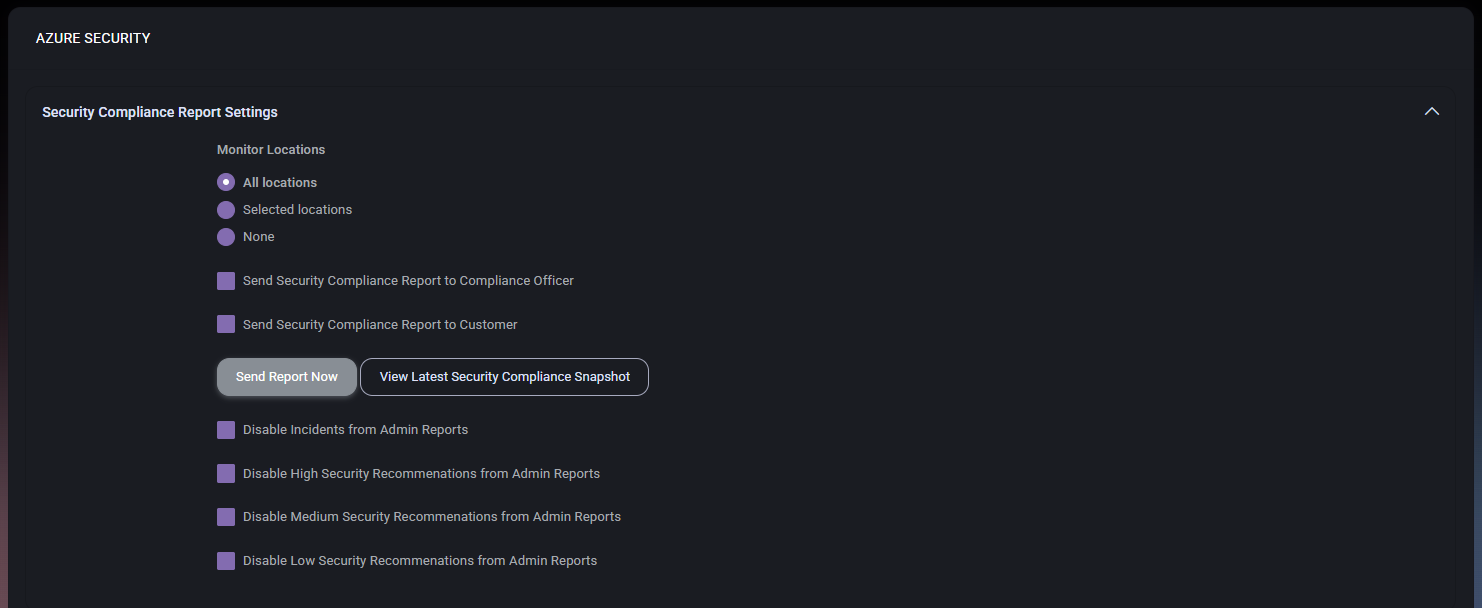
Security Compliance Report Settings Fields
- Monitor Locations defines the scope of locations that should be monitored for compliance reporting. The available options shown are All locations, Selected locations, and None.
- Send Security Compliance Report to Compliance Officer controls whether the report is delivered to the designated compliance officer.
- Send Security Compliance Report to Customer controls whether the report is delivered to the customer.
- Send Report Now immediately sends the compliance report based on the current configuration.
- View Latest Security Compliance Snapshot opens the most recent compliance snapshot for review.
- Disable Incidents from Admin Reports removes incident-related items from administrative reporting.
- Disable High Security Recommendations from Admin Reports suppresses high-severity recommendation items from admin reports.
- Disable Medium Security Recommendations from Admin Reports suppresses medium-severity recommendation items from admin reports.
- Disable Low Security Recommendations from Admin Reports suppresses low-severity recommendation items from admin reports.
This section is useful when the organization wants to control not only who receives compliance reporting, but also what level of security findings should appear in operational reports.
Azure MFA Settings
The Azure MFA Settings section controls how MFA is reported, enforced, and scoped across the organization. This is one of the most important sections on the page because it defines how strongly multi-factor authentication is applied and how different user groups are treated.
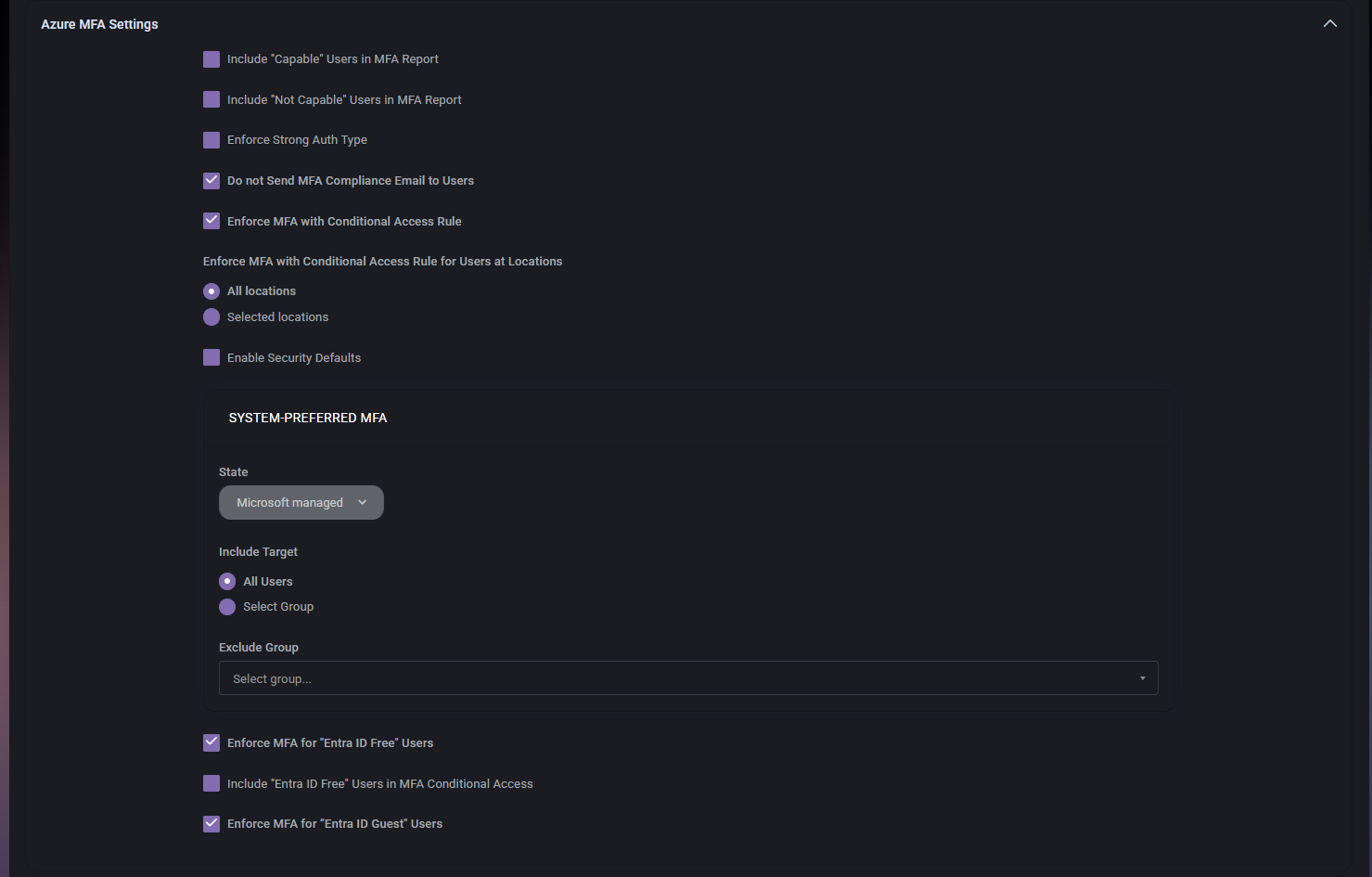
Azure MFA Settings Fields
- Include “Capable” Users in MFA Report includes users who are considered MFA-capable in the generated MFA report.
- Include “Not Capable” Users in MFA Report includes users who are considered not MFA-capable in the MFA report.
- Enforce Strong Auth Type controls whether stronger authentication methods should be enforced.
- Do not Send MFA Compliance Email to Users prevents users from receiving MFA compliance-related email notifications.
- Enforce MFA with Conditional Access Rule enables enforcement of MFA through conditional access rules.
- Enforce MFA with Conditional Access Rule for Users at Locations defines the location scope for conditional-access-based MFA enforcement. The options shown are All locations and Selected locations.
- Enable Security Defaults controls whether Azure security defaults should be enabled.
System-Preferred MFA
The System-Preferred MFA subsection defines how Microsoft-managed MFA preferences should be targeted across users.
- State defines the current state of system-preferred MFA. In the screenshot, the value is Microsoft managed.
- Include Target defines who should be included in this MFA targeting. The available options shown are All Users and Select Group.
- Exclude Group allows a group to be excluded from the targeting scope.
Additional MFA Enforcement Options
- Enforce MFA for “Entra ID Free” Users controls whether free-tier Entra ID users should also be included in MFA enforcement.
- Include “Entra ID Free” Users in MFA Conditional Access controls whether those users are included specifically in conditional access MFA scope.
- Enforce MFA for “Entra ID Guest” Users controls whether guest users must also comply with MFA enforcement.
This section is especially valuable in environments with mixed user types, guest access, or different Microsoft licensing tiers.
Authentication Settings
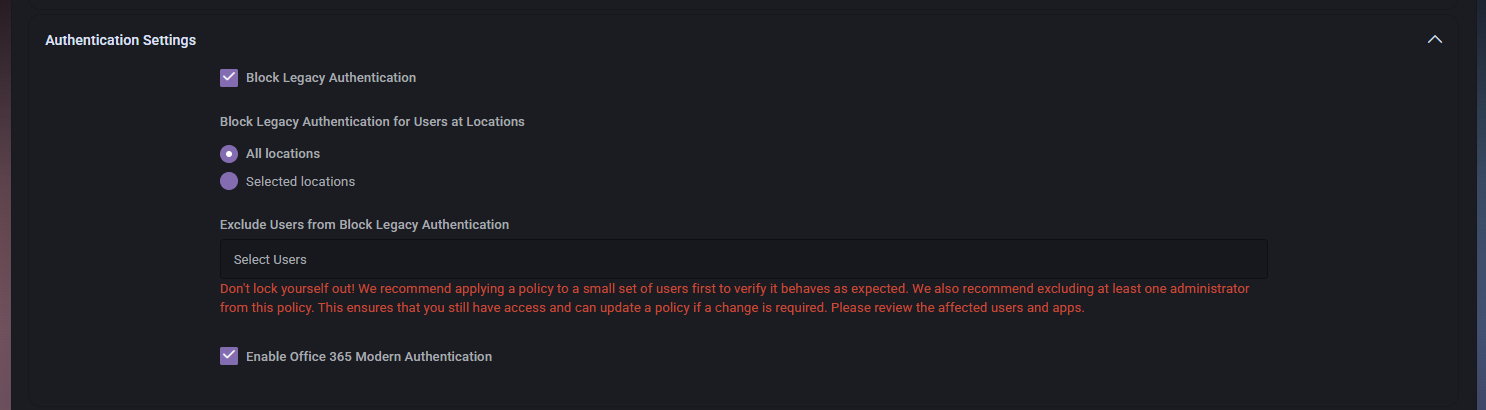
The Authentication Settings section controls how legacy and modern authentication should behave in the tenant.
- Block Legacy Authentication enables blocking of legacy authentication methods.
- Block Legacy Authentication for Users at Locations defines whether the block applies to All locations or Selected locations.
- Exclude Users from Block Legacy Authentication allows administrators to exclude selected users from the block.
- Enable Office 365 Modern Authentication enables modern authentication for Office 365.
The warning shown in the screenshot is especially important. It makes clear that administrators should avoid locking themselves out and should exclude at least one administrator or test with a small set of users first. This section directly affects how users sign in, so changes here should always be handled with caution.
ConnectWise Settings
The ConnectWise Settings section controls whether security-related findings and events should automatically create tickets in ConnectWise.
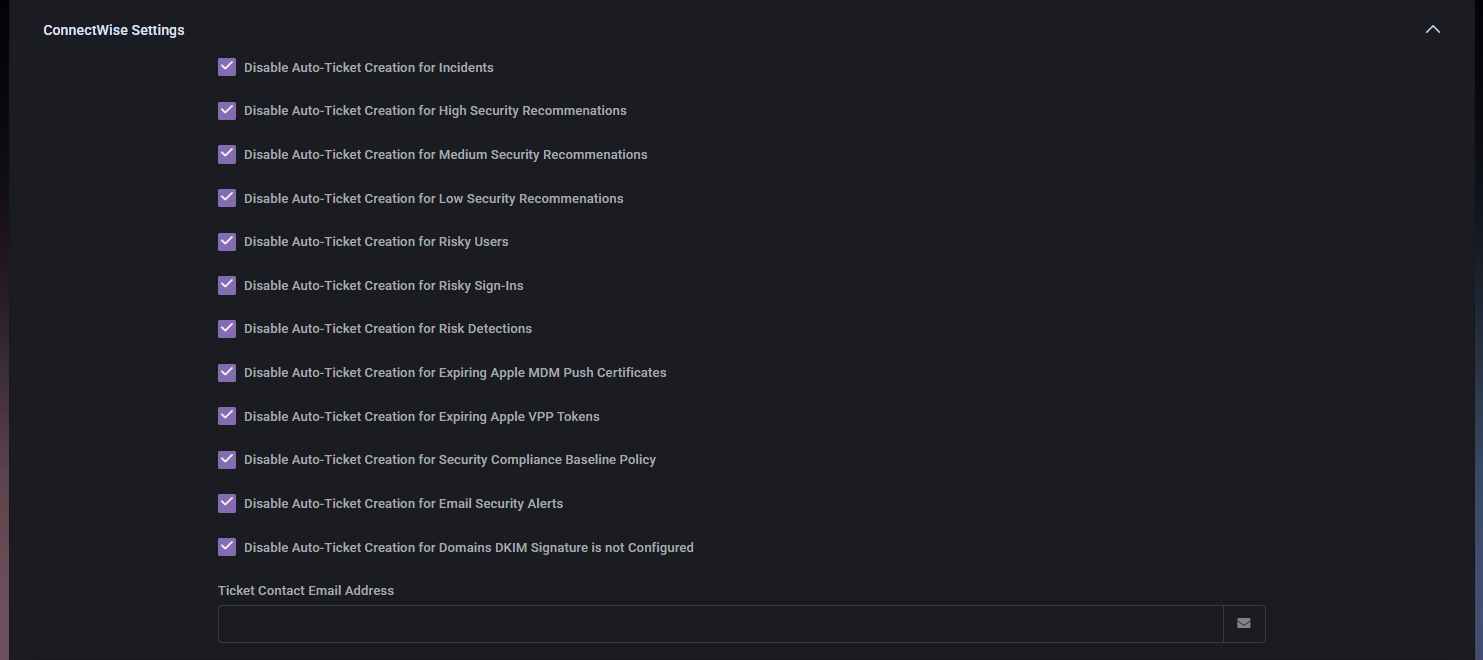
- Disable Auto-Ticket Creation for Incidents prevents automatic ticket creation for incidents.
- Disable Auto-Ticket Creation for High Security Recommendations prevents automatic ticket creation for high-severity recommendations.
- Disable Auto-Ticket Creation for Medium Security Recommendations prevents automatic ticket creation for medium-severity recommendations.
- Disable Auto-Ticket Creation for Low Security Recommendations prevents automatic ticket creation for low-severity recommendations.
- Disable Auto-Ticket Creation for Risky Users prevents automatic ticket creation for risky-user events.
- Disable Auto-Ticket Creation for Risky Sign-Ins prevents automatic ticket creation for risky sign-in events.
- Disable Auto-Ticket Creation for Risk Detections prevents automatic ticket creation for risk detections.
- Disable Auto-Ticket Creation for Expiring Apple MDM Push Certificates prevents ticket creation for expiring Apple MDM push certificate events.
- Disable Auto-Ticket Creation for Expiring Apple VPP Tokens prevents ticket creation for expiring Apple VPP token events.
- Disable Auto-Ticket Creation for Security Compliance Baseline Policy prevents ticket creation for baseline-policy findings.
- Disable Auto-Ticket Creation for Email Security Alerts prevents ticket creation for email security alerts.
- Disable Auto-Ticket Creation for Domains DKIM Signature is not Configured prevents ticket creation for DKIM-signature-related domain findings.
- Ticket Contact Email Address stores the email address used for ConnectWise ticket-contact purposes.
This section is useful when the organization wants to balance operational awareness with ticket noise and route only the most relevant findings into ConnectWise.
Risk Detection Policy Settings
The Risk Detection Policy Settings section controls whether tenant-specific overrides should be used for risk-related policy behavior.

- Override Risk Detection Policy settings enables organization-specific override behavior for the risk detection policy.
- Override Risk Sign-In Policy settings enables organization-specific override behavior for the risk sign-in policy.
This section is useful when the organization needs different risk-handling behavior than the broader default policy.
Entra ID Diagnostic Settings
The Entra ID Diagnostic Settings section controls monitoring for Entra ID diagnostic settings.

- Enable Diagnostic Settings Monitoring enables monitoring of diagnostic settings so MSPControl can validate whether expected Entra ID diagnostic coverage is in place.
This section is useful when administrators want to ensure that important Entra ID diagnostic telemetry is not missing.
Security Compliance Baseline Policy Settings
The Security Compliance Baseline Policy Settings section defines how the organization should handle baseline security controls and whether the global baseline policy should be overridden locally.
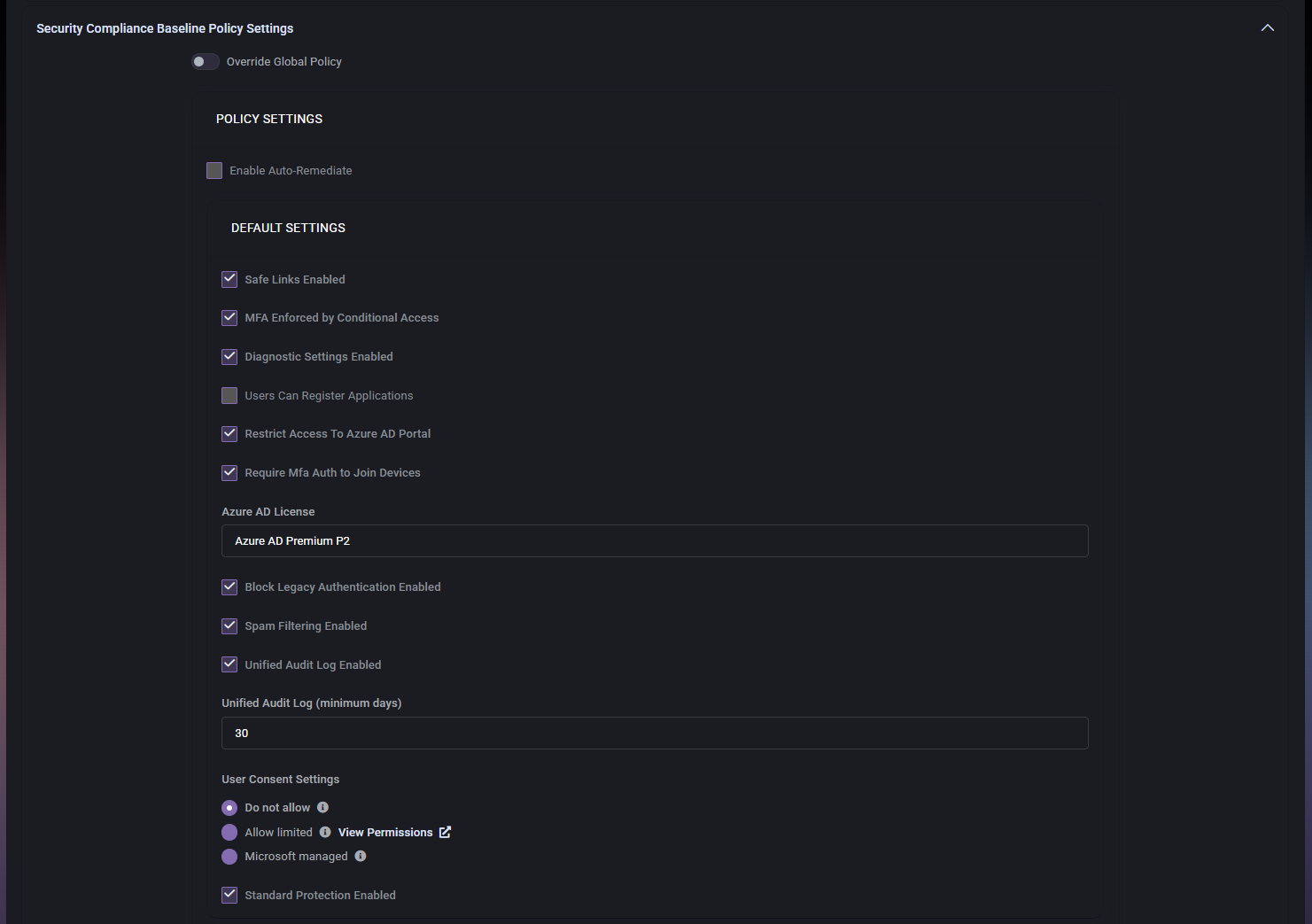
Baseline Policy Controls
- Override Global Policy enables local override of the broader global baseline policy.
- Enable Auto-Remediate controls whether automatic remediation should be applied when supported.
Default Settings
- Safe Links Enabled controls whether Safe Links should be enabled.
- MFA Enforced by Conditional Access controls whether MFA must be enforced through conditional access.
- Diagnostic Settings Enabled controls whether diagnostic settings are expected to be enabled.
- Users Can Register Applications controls whether users are allowed to register applications.
- Restrict Access To Azure AD Portal controls whether access to the Azure AD portal should be restricted.
- Require Mfa Auth to Join Devices controls whether MFA is required for device join operations.
- Azure AD License defines the Azure AD licensing baseline expected by the policy. In the screenshot, the value shown is Azure AD Premium P2.
- Block Legacy Authentication Enabled controls whether blocking legacy authentication is part of the baseline.
- Spam Filtering Enabled controls whether spam filtering is expected to be enabled.
- Unified Audit Log Enabled controls whether the unified audit log is expected to be enabled.
- Unified Audit Log (minimum days) defines the minimum required retention period for the audit log.
User Consent Settings
The User Consent Settings portion of the baseline policy controls how user consent to applications should be handled.
- Do not allow blocks user consent.
- Allow limited allows limited consent. The screenshot also shows a View Permissions link for reviewing that model.
- Microsoft managed uses Microsoft-managed behavior for consent control.
- Standard Protection Enabled controls whether standard protection is included in the baseline.
This section is important because application consent behavior can materially affect tenant security and application exposure.
Identity Protection
The Identity Protection section controls responses for risky users and risky sign-ins.

- Low Risky Sign In – Re-Require MFA Enabled controls whether low-risk sign-ins should trigger MFA again.
- Low Risky User – Require PW Change Enabled controls whether low-risk user detections should require a password change.
- Med/High Risky Sign In – Block Enabled controls whether medium- and high-risk sign-ins should be blocked.
- Med/High Risky User – Block Enabled controls whether medium- and high-risk user detections should result in blocking behavior.
This section is especially important because it defines how aggressively the organization responds to identity-based risk signals.
How Azure Security Fits into MSPControl
The Azure Security page brings together reporting, enforcement, authentication, integration, baseline, and identity-protection logic in one place. This makes it one of the central security policy pages for Azure-connected organizations in MSPControl.
It is especially useful because it allows administrators to connect security decisions with operational workflows. For example, the same page can determine how MFA is enforced, how risky users are treated, what appears in compliance reports, and whether ConnectWise tickets should be created for security findings.
Best Practices
- Review MFA, authentication, and identity-protection settings together, because these controls work best as part of one coordinated security model.
- Use reporting filters carefully. Hiding too many incidents or recommendations from admin reports can reduce visibility into real issues.
- Test Block Legacy Authentication carefully and exclude at least one trusted administrator so you do not accidentally lose administrative access.
- Use ConnectWise auto-ticket suppression only where necessary, so important security events still remain operationally visible.
- Override global or risk policies only when the organization truly needs different behavior from the broader default security posture.
- Review user-consent settings carefully, since application consent can significantly affect tenant security.
- Use stronger controls such as blocking medium- and high-risk sign-ins only after confirming they match the organization’s tolerance for disruption and security requirements.
- Keep the baseline policy aligned with the actual Microsoft licensing and service capabilities available to the tenant.



