The Deleted Users section in MSPControl is used to review user accounts that were previously removed from an organization. This page helps administrators track deleted accounts, confirm who removed them, check when deletion happened, and open each deleted user record for additional investigation. It is a historical and administrative review area rather than a place for managing active users.
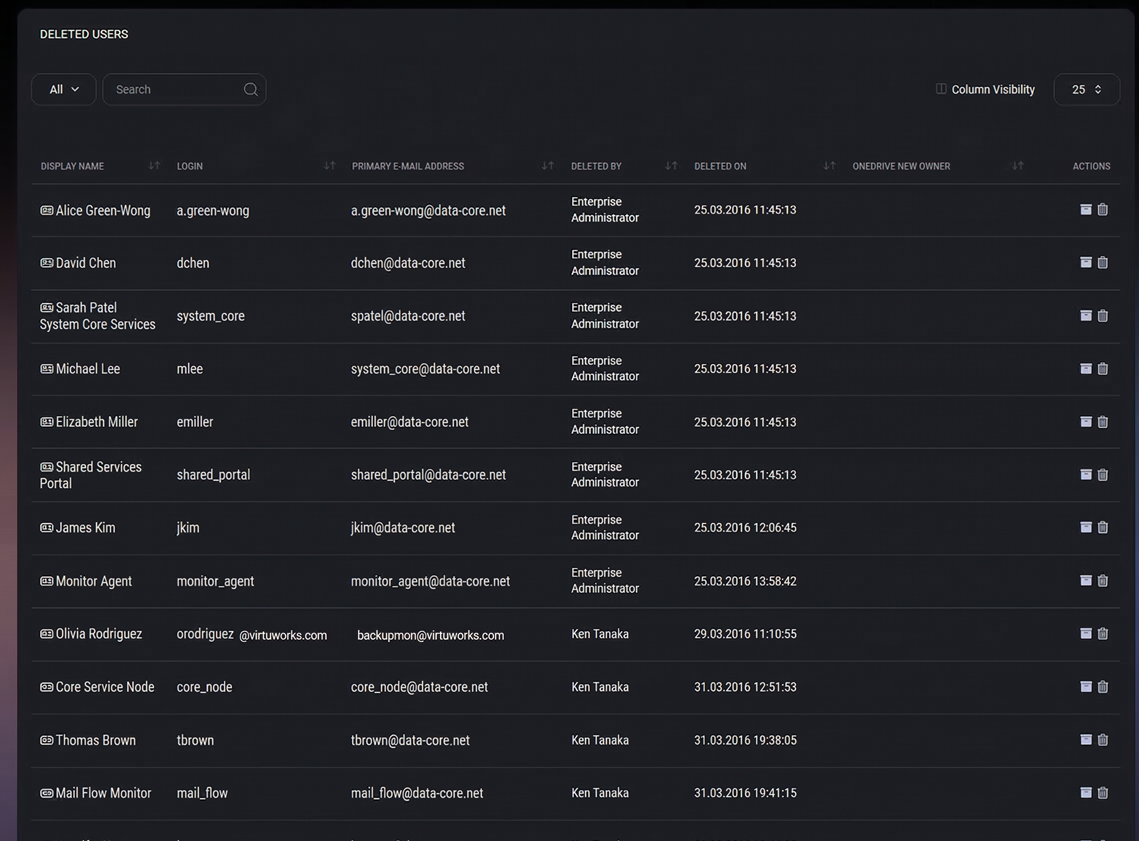
The section includes a main list page and a deleted user details view. From the main list, administrators can search and filter deleted records, adjust table visibility, and open user-related actions. After opening a deleted user, MSPControl provides separate tabs for General, Archives, and Audit Log, allowing a more detailed review of preserved information.
The Deleted Users menu is located under the organization area and opens a list of accounts that are no longer active because they were deleted. This gives administrators a way to inspect historical user records without returning them to the active user list.
This section is especially useful when someone needs to confirm whether a user was removed, identify who performed the deletion, check the date and time of the action, or inspect what historical information still exists for that account. It can also be used during audits, support investigations, internal reviews, and cleanup validation tasks.
When you select a deleted user from the list, MSPControl opens a dedicated details page with separate tabs for reviewing general account information, archive records, and audit history.
The main Deleted Users page displays all deleted user records in a table. This is the starting point for reviewing removed accounts across the organization. The table is designed to help administrators quickly find a deleted user and inspect the most important information without opening every record individually.
Each row represents one deleted user and includes key fields related to identity, email, deletion history, and available actions.
The list page is important because it gives administrators a fast summary of user deletion history before they open the full deleted user record.
The Actions column contains two buttons for each deleted user:
This means the Deleted Users section does not only store historical references. It also allows administrators to perform a final removal of the deleted user entry itself when that record no longer needs to remain visible in MSPControl.
Because this action affects historical visibility, it should be used carefully and only when the organization is certain that the deleted user record is no longer needed for review, auditing, or support purposes.
The General tab shows the main profile and service-related information that was associated with the user at the time the account was deleted. This page is informational and helps administrators understand what kind of account was removed, what settings were assigned, and which connected services or features were enabled or disabled.
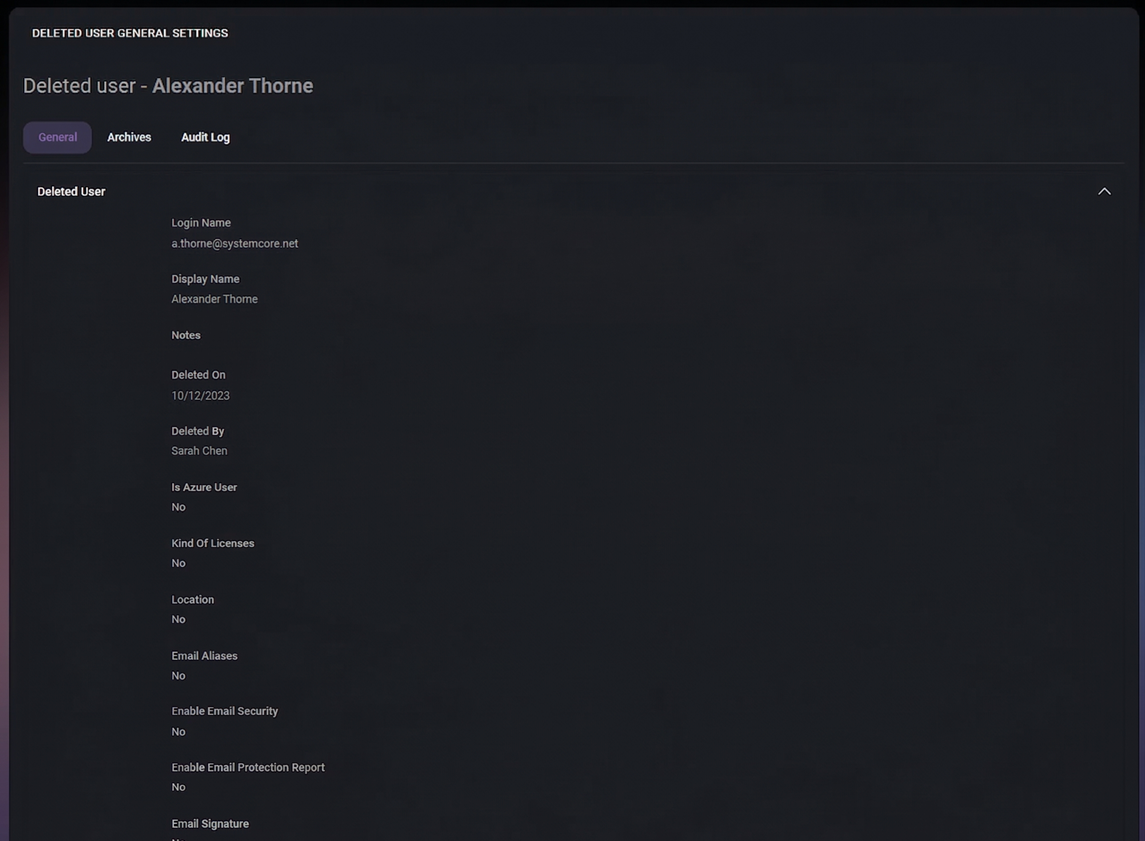
At the top of the page, MSPControl displays the deleted user name, followed by tab navigation. The main content is grouped into expandable sections, which makes the page easier to review when the user record contains many fields.
The Deleted User section contains the core identity and service settings for the removed account. This is the first place to check when you need to validate what kind of user record existed before deletion.
This section is useful when administrators need to reconstruct the deleted user’s former service profile during audits, support reviews, or internal validation tasks.
The Service Levels section shows whether the deleted user was assigned any service-tier designation. In the example shown, the page includes a VIP checkbox.
This type of field is useful when service priority, entitlement level, or support classification needs to be verified after deletion. Even if a deleted account is no longer active, knowing whether it had a premium or special support status can help explain historical handling, service scope, or exceptions applied to that user.
The Advanced section exposes technical or directory-related values that were linked to the user. In the example shown, the page includes a User Domain Name value.
This field is important for environments that use domain-based identity, local directory integration, hybrid deployments, or remote access structures. It helps administrators verify the exact domain-formatted user identity that existed before deletion, which can be especially useful during troubleshooting, directory cleanup, or cross-system comparison.
The Archives tab provides access to historical archived items associated with the deleted user. This area is intended for reviewing files or preserved records that remain available even after the user account itself has been removed.
The page includes filtering, searching, column display controls, and a record counter, which allows administrators to handle large archive sets more efficiently when archived content exists.
When no archived records exist, the table remains empty and displays a no-records message. This does not indicate an error. It simply means MSPControl has no archived items available for that deleted user in the current context.
This tab is most useful when administrators need to check whether any retained information exists for a removed user before concluding an investigation, responding to an internal request, or confirming whether historical data cleanup was complete.
The Audit Log tab is used to review recorded actions related to the deleted user. This area helps determine whether MSPControl logged events involving the account and provides another historical layer for tracking user-related activity.
The audit grid is structured for review rather than editing. It is intended to help administrators inspect actions after the fact, especially in cases involving security review, operational traceability, or internal accountability.
If no records are displayed, that means there are no audit entries available for the deleted user in the current view. This can happen when no relevant actions were logged, when the user had limited platform activity, or when the specific area being reviewed did not generate audit events.
This tab should be checked whenever an administrator needs to validate whether any recorded actions exist around the deleted account, particularly when investigating account lifecycle events or reviewing administrative changes.

Self-hosted. Free license available. No credit card required.
