File Manager
The File Manager page provides a web-based interface for browsing and managing files within your hosted web environment. It is typically used for quick operational tasks such as moving files between directories, packaging files into archives, extracting uploads, downloading backups, and removing obsolete content without using FTP or direct server access.
Overview
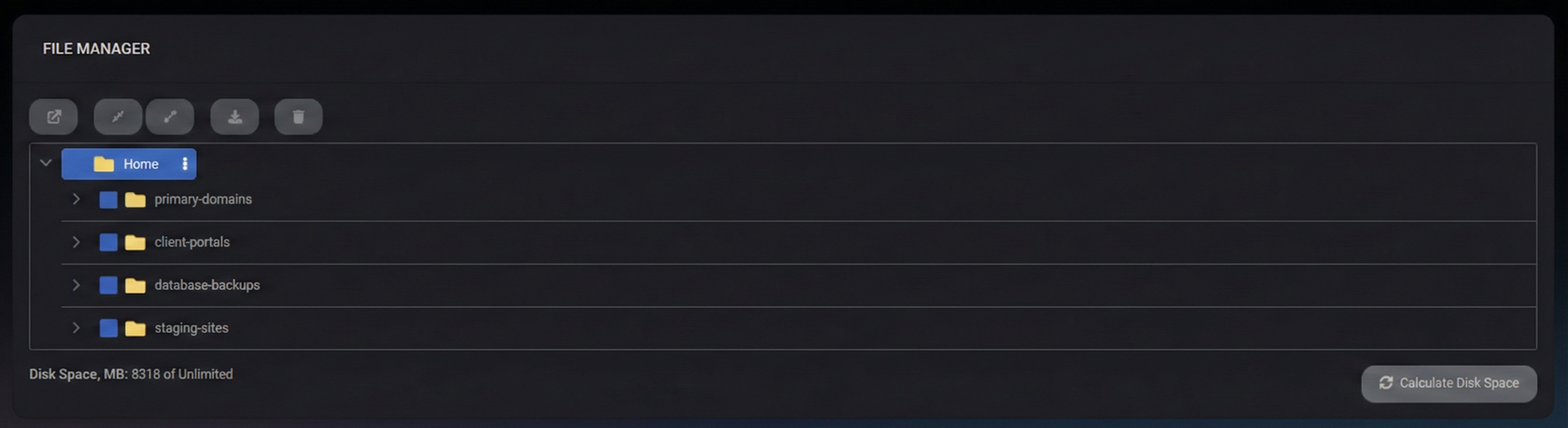
The central view is a folder tree rooted at Home. Each website typically appears as its own folder, allowing you to navigate and manage site files in a structured way.
At the bottom of the panel, MSPControl shows disk usage information (for example, Disk Space, MB: 8318 of Unlimited), and provides a manual action to recalculate usage.
The top toolbar provides the most common file operations. Select one or more items in the file tree, then use the appropriate action:
- Move – Moves selected files/folders to another location. Use this to reorganize site structure or relocate uploads and backups.
- Zip – Creates a ZIP archive from the selected files/folders. Useful for packaging a site snapshot, logs, or bundles for transfer.
- Unzip – Extracts a ZIP archive into the selected location. Commonly used after uploading a site package or plugin/theme bundle.
- Download – Downloads the selected file(s) or archive to your local machine. Use this for offline backups or troubleshooting.
- Delete – Permanently removes the selected files/folders. Use carefully, especially in production.
Navigation and structure
- Home – The root folder containing site directories.
- Website folders – Each domain/site is typically represented as a folder (for example, mspcontrol.org).
- Expand/collapse – Use the arrow controls to expand folders and browse deeper levels.
Use the folder structure to isolate operations to the correct website. Before deleting or moving content, confirm you are working inside the correct site folder.
Calculate Disk Space
The Calculate Disk Space button recalculates disk usage for the current scope. Use this when:
- you recently uploaded or deleted large files,
- you need an up-to-date view of storage usage,
- you are troubleshooting storage limits or unexpected growth.
Common workflows
Download a site backup
- Navigate to the website folder.
- Select the backup file or archive.
- Click Download.
- Navigate to the target folder (for example, the website root or a staging folder).
- Select the ZIP file.
- Click Unzip to extract the contents.
Package logs or content into ZIP
- Select the file(s) or folder(s) to package.
- Click Zip.
- Download the created archive if you need to transfer it.
Clean up unused files
- Select obsolete files/folders.
- Click Delete.
- Use Calculate Disk Space to confirm storage reduction (optional).
Best Practices
- Verify the target site folder before moving or deleting content to avoid impacting the wrong website.
- Zip before risky changes – Create a ZIP archive of critical folders before deleting or replacing them.
- Prefer Unzip into a staging folder for large deployments, then move into place after validation.
- Delete carefully – Treat deletion as permanent. Keep backups for production sites.
- Recalculate disk usage after large uploads/deletions to maintain accurate reporting.



