Domains
The Domains section allows customers to manage their top-level domains (TLDs) and sub-domains, configure DNS, enable email security, and create instant aliases. All actions in this menu apply only to the customer’s own Hosted Organization and do not affect other organizations in the system.

Table of Contents
Domains Overview
The Domains page lists all domains and sub-domains assigned to the customer’s Hosted Organization.
Customers can review:
- Domain Name
- Instant Alias availability
- Email Security status
- DNS Enabled status
- Expiration Date for domains registered externally
Customers can also filter domains using:
- All — show all domains
- Search box — filter by name
- Column Visibility — hide or show table columns
Domain Actions
The Actions dropdown allows bulk operations on selected domains.
Available actions:
- Create Instant Alias — create a new instant alias for the selected domain(s).
- Delete Instant Alias — remove existing instant aliases.
- Enable DNS — activate DNS management (hosted on provider nameservers).
- Disable DNS — deactivate DNS management.
- Enable Email Security — activate email filtering and security features.
- Disable Email Security — turn off email security.
To execute any action:
- Select one or more domains.
- Choose the desired action.
- Click Apply.
Add a New Domain
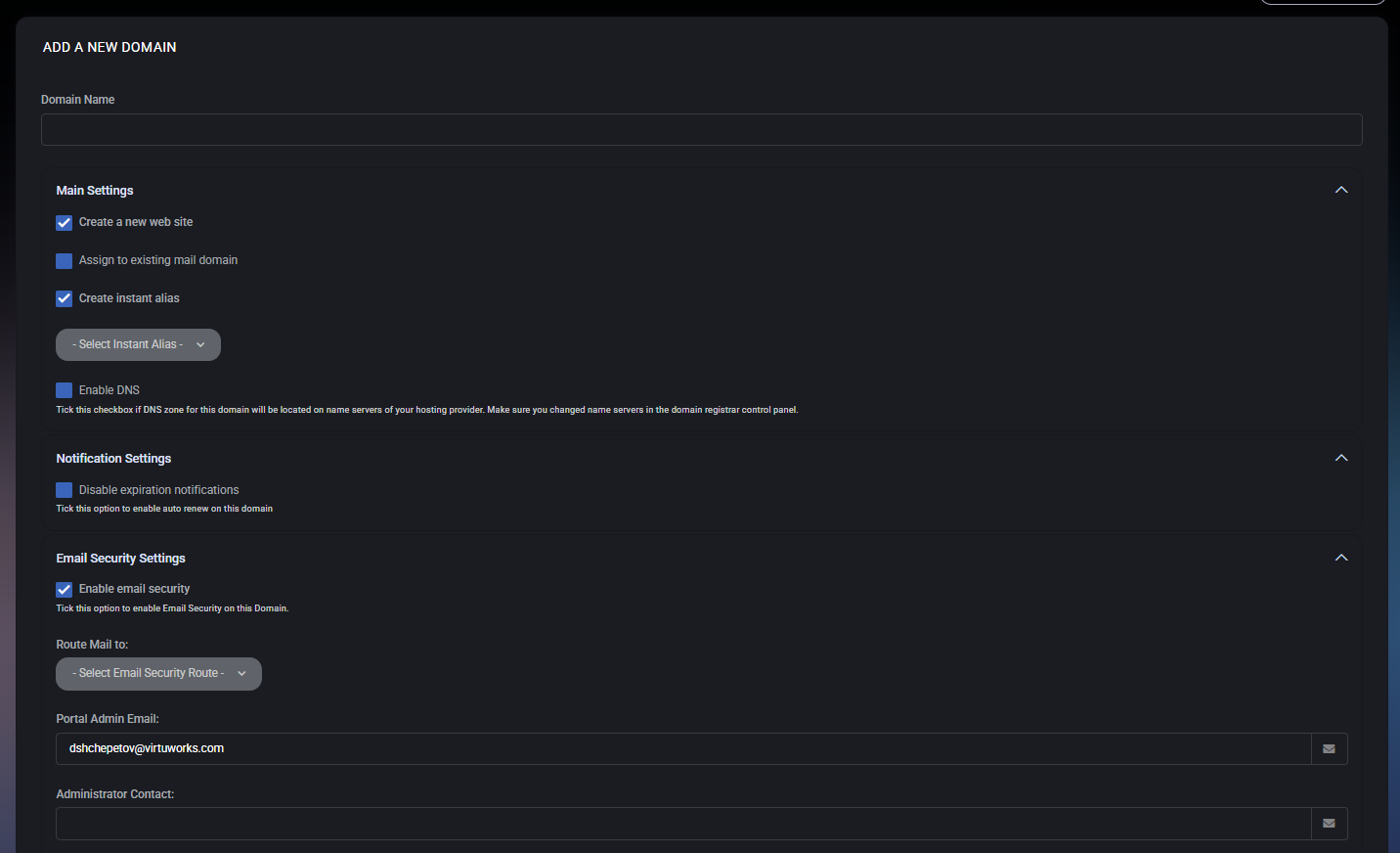

Click Add Domain to begin.
A dialog appears with two choices:
- Domain — register a new top-level domain (TLD) inside MSPControl.
- Sub-domain — create a child domain under an existing TLD owned by the customer.

When selecting Sub-domain, an additional selector appears on the right side of the Domain Name field in order to choose the parent domain.
Main Settings
These settings define how the new domain behaves when added.
- Create a new web site
Automatically creates a new web site container for this domain.
- Assign to existing mail domain
Allows linking the domain to an existing mail service rather than creating a new one.
- Create Instant Alias
Creates a ready-to-use instant alias domain (e.g., domain.provideralias.com).
A dropdown is available to select from allowed aliases.
- Enable DNS
Enables DNS hosting on the provider’s nameservers.
Important: the customer must update the domain registrar’s nameservers manually.
Notification Settings
This block contains renewal-related options:
- Disable expiration notifications
When enabled, MSPControl will not show renewal reminders for this domain.
Email Security Settings
If Email Security is enabled for the domain, the following settings apply:
- Enable Email Security
Activates the email security module responsible for spam filtering and threat protection.
- Route Mail to
Select the Email Security Route that incoming mail should follow.
- Portal Admin Email
Address that receives alerts and notifications from the Email Security module.
- Administrator Contact
Optional field for additional administrative contacts.
ConnectWise Settings
These options determine whether MSPControl should automatically open ConnectWise tickets when email safety issues arise.
- Disable Auto-Ticket Creation When DKIM DNS Doesn’t Exist
- Disable Auto-Ticket Creation When SPF DNS Doesn’t Exist
- Disable Auto-Ticket Creation When DMARC DNS Doesn’t Exist
- Disable Auto-Ticket Creation When DKIM Signature is not Configured
These controls allow customers to avoid unwanted ticket generation when DNS configuration is intentionally incomplete or managed externally.
Let’s Encrypt SSL
MSPControl supports fully automated SSL certificate creation via Let’s Encrypt.
Available option:
- Enable SSL on Website with Let’s Encrypt
Automatically requests and installs a free SSL certificate for the new domain.
Best Practices
- Always enable DNS only if you intend to host DNS on MSPControl’s nameservers.
- If using external DNS, leave the DNS option disabled to avoid conflicts.
- Enable Email Security for domains that receive production email.
- Use Instant Alias for quick testing without needing to set up DNS records.
- For sub-domains, select the correct parent domain to ensure correct DNS inheritance.
- Enable Let’s Encrypt SSL to automate certificate issuance and renewal.



